Free Shipping on Domestic Orders $75+

Asus Transformer Flip Book TP200S WiFi Card Replacement

What you need

    1. Asus Transformer Flip Book TP200S WiFi Card Replacement, Battery: step 1, image 1 of 2 Asus Transformer Flip Book TP200S WiFi Card Replacement, Battery: step 1, image 2 of 2
      • Remove the back 6mm and 8mm screws with a J000 screwdriver.

      Ask FixBot

      Add Comment

    2. Asus Transformer Flip Book TP200S WiFi Card Replacement: step 2, image 1 of 1
      • Remove the back cover of the flip book by gently using a metal spudger.

      Ask FixBot

      Add Comment

    3. Asus Transformer Flip Book TP200S WiFi Card Replacement: step 3, image 1 of 1
      • Unscrew the battery from the motherboard using a J000 screwdriver on the 3mm screws.

      Ask FixBot

      Add Comment

    4. Asus Transformer Flip Book TP200S WiFi Card Replacement: step 4, image 1 of 2 Asus Transformer Flip Book TP200S WiFi Card Replacement: step 4, image 2 of 2
      Tool used on this step:
      Tweezers
      $4.99
      Buy
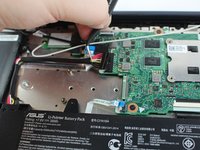
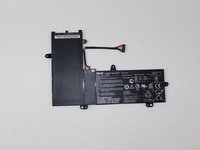
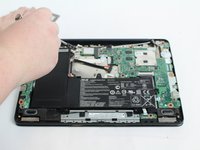
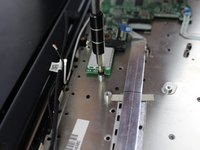
      • The battery comes attached to the motherboard and needs to be disconnected before you can remove it.

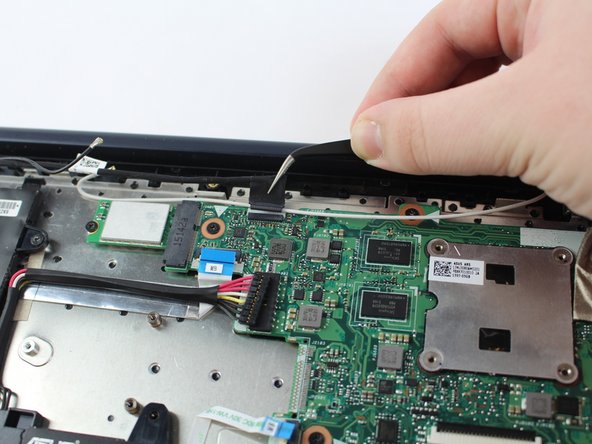
      • Disconnect the battery from the motherboard by gently pulling out the connection with tweezers.

      • Gently remove the Wifi cables hooked to the rim of the battery

      • Remove the battery

      Ask FixBot

      Add Comment

    1. Asus Transformer Flip Book TP200S WiFi Card Replacement, WiFi Card: step 5, image 1 of 1
      • The WiFi card will be covered by tape and attached to the motherboard.

      • Remove the tape from the WiFi card.

      Ask FixBot

      Add Comment

    2. Asus Transformer Flip Book TP200S WiFi Card Replacement: step 6, image 1 of 3 Asus Transformer Flip Book TP200S WiFi Card Replacement: step 6, image 2 of 3 Asus Transformer Flip Book TP200S WiFi Card Replacement: step 6, image 3 of 3
      Tool used on this step:
      Tweezers
      $4.99
      Buy
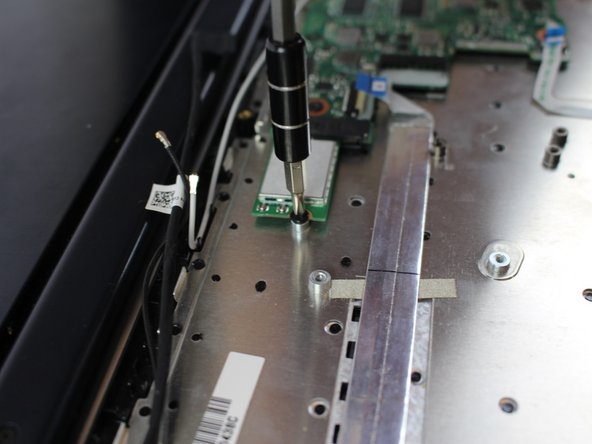
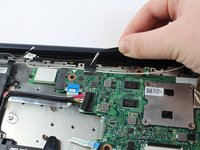
      • Unscrew the WiFi card with a JIS #000 screwdriver.

      • Remove the motherboard connection from the WiFi card with tweezers.

      • Pull out the WiFi card.

      Ask FixBot

      Add Comment

Conclusion

To reassemble your device, follow these instructions in reverse order.

Cancel: I did not complete this guide.

One other person completed this guide.

Alejandro Lopez

Member since: 02/15/18

662 Reputation

5 Guides authored

Team

USF Tampa, Team S17-G2, Boczar Spring 2018 Member of USF Tampa, Team S17-G2, Boczar Spring 2018

USFT-BOCZAR-S18S17G2

3 Members

60 Guides authored

0 Guide Comments

Add Comment

View Statistics:

Past 24 Hours: 1

Past 7 Days: 6

Past 30 Days: 23

All Time: 1,181