Free Shipping on Domestic Orders $75+

Asus ROG G752V Fan Replacement

What you need

  1. Asus ROG G752V Fan Replacement, Battery: step 1, image 1 of 2 Asus ROG G752V Fan Replacement, Battery: step 1, image 2 of 2
    Tool used on this step:
    Tweezers
    $4.99
    Buy
    • Make sure you disconnect the charger before starting this guide.

    • Pick out all 11 rubber plugs off of the back cover with a pair of tweezers.

    Ask FixBot

    Add Comment

  2. Asus ROG G752V Fan Replacement: step 2, image 1 of 2 Asus ROG G752V Fan Replacement: step 2, image 2 of 2
    • Using the Phillips #0 screwdriver, unscrew all twelve 5.2 mm screws on the back of the laptop.

    • There is one 5.2 mm screw under the rubber plug in the middle.

    Ask FixBot

    Add Comment

  3. Asus ROG G752V Fan Replacement: step 3, image 1 of 1
    • Pull up the rubber seal and the service cover will come off.

    Ask FixBot

    Add Comment

  4. Asus ROG G752V Fan Replacement: step 4, image 1 of 1
    • Using the Phillips #00 screwdriver, remove the six 5.2 mm screws under the service cover.

    Ask FixBot

    Add Comment

  5. Asus ROG G752V Fan Replacement: step 5, image 1 of 1
    • Using your hands, pull the optical drive out.

    Ask FixBot

    Add Comment

  6. Asus ROG G752V Fan Replacement: step 6, image 1 of 2 Asus ROG G752V Fan Replacement: step 6, image 2 of 2
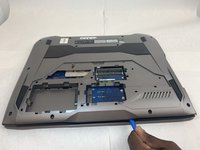
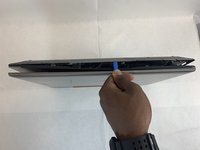
    • Use the iFixit Opening Tool to pry apart the back panel from the main body of the laptop.

    • Start from the front side of the laptop and then continue to the side for easier access.

    Ask FixBot

    Add Comment

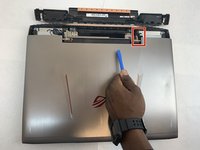
  7. Asus ROG G752V Fan Replacement: step 7, image 1 of 2 Asus ROG G752V Fan Replacement: step 7, image 2 of 2
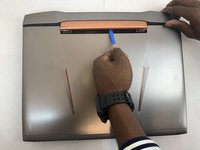
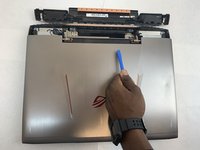
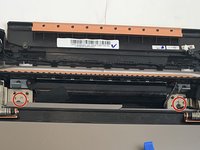
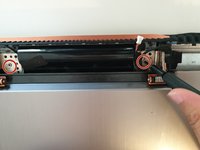
    • Remove the hinge on the back of the laptop cover using the iFixit Opening Tool. The piece should pop off.

    • Be gentle with the cover because there is a speaker wire attached to it.

    Ask FixBot

    Add Comment

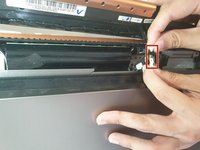
  8. Asus ROG G752V Fan Replacement: step 8, image 1 of 2 Asus ROG G752V Fan Replacement: step 8, image 2 of 2
    • Disconnect the speaker wire.

    Ask FixBot

    Add Comment

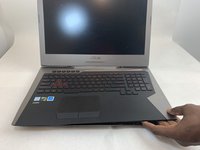
  9. Asus ROG G752V Fan Replacement: step 9, image 1 of 2 Asus ROG G752V Fan Replacement: step 9, image 2 of 2
    • Slowly pull out the keyboard while lifting it about an inch.

    • There are cables attached to the keyboard and motherboard. DO NOT lift it more than 2 inches above the laptop.

    Ask FixBot

    Add Comment

  10. Asus ROG G752V Fan Replacement: step 10, image 1 of 3 Asus ROG G752V Fan Replacement: step 10, image 2 of 3 Asus ROG G752V Fan Replacement: step 10, image 3 of 3
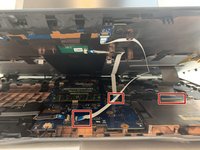
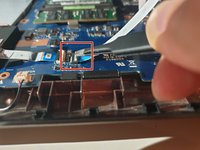
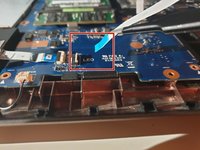
    • Using an ESD safe tool, detach all 3 ribbon cables securing the keyboard to the laptop.

    • To unlock a ZIF connector, use the tip of a spudger or your fingernail to flip up the small, hinged locking flap.

    Ask FixBot

    Add Comment

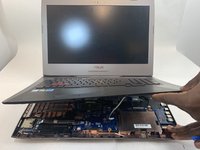
  11. Asus ROG G752V Fan Replacement: step 11, image 1 of 2 Asus ROG G752V Fan Replacement: step 11, image 2 of 2
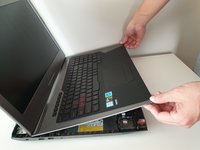
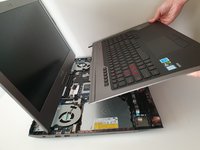
    • Once the cables are detached, lift the keyboard about 2 inches up and remove it from the rest of the body.

    • Make sure that the screen is open like the photo. This will ensure that none your laptop components will not be bent.

    Ask FixBot

    Add Comment

  12. Asus ROG G752V Fan Replacement: step 12, image 1 of 3 Asus ROG G752V Fan Replacement: step 12, image 2 of 3 Asus ROG G752V Fan Replacement: step 12, image 3 of 3
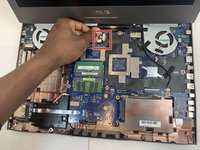
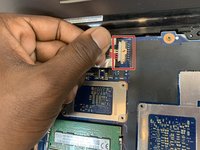
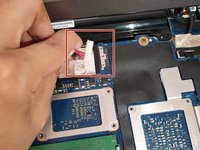
    • Disconnect the battery cable from its motherboard socket by gently pulling it towards the left of the socket.

    • Pull parallel to the motherboard, not straight up.

    Ask FixBot

    Add Comment

  13. Asus ROG G752V Fan Replacement: step 13, image 1 of 3 Asus ROG G752V Fan Replacement: step 13, image 2 of 3 Asus ROG G752V Fan Replacement: step 13, image 3 of 3
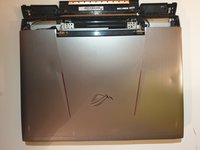
    • Remove two 5.8 mm screws holding the screen and the laptop located at the hinge.

    • This will unlatch the screen from the laptop entirely.

    • Remove the screen.

    Ask FixBot

    Add Comment

  14. Asus ROG G752V Fan Replacement: step 14, image 1 of 1
    • Remove the four 5.8 mm screws securing the battery to the laptop.

    Ask FixBot

    Add Comment

  15. Asus ROG G752V Fan Replacement: step 15, image 1 of 1
    • Use your hands to remove the battery.

    • If you're having trouble, push down on the black plastic on the screen side of the battery. This should release the battery.

    Ask FixBot

    Add Comment

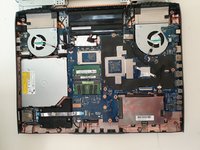
  16. Asus ROG G752V Fan Replacement, Fan: step 16, image 1 of 2 Asus ROG G752V Fan Replacement, Fan: step 16, image 2 of 2
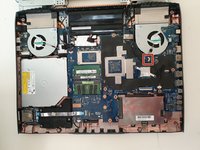
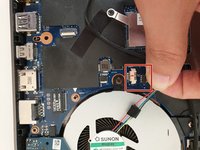
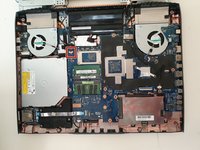
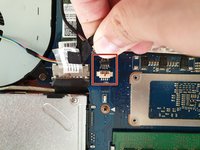
    • Unplug the fan-motherboard connection cable.

    Ask FixBot

    Add Comment

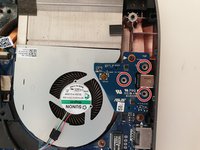
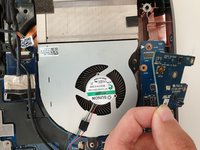
  17. Asus ROG G752V Fan Replacement: step 17, image 1 of 3 Asus ROG G752V Fan Replacement: step 17, image 2 of 3 Asus ROG G752V Fan Replacement: step 17, image 3 of 3
    • Unscrew and remove the three 5.8mm screws on the small circuit board to the right of the right side fan with a Phillips #00 screwdriver.

    • Lift up the small circuit board covering the fan and put it aside.

    Ask FixBot

    Add Comment

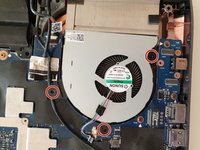
  18. Asus ROG G752V Fan Replacement: step 18, image 1 of 2 Asus ROG G752V Fan Replacement: step 18, image 2 of 2
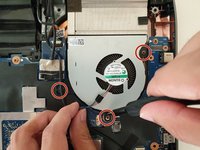
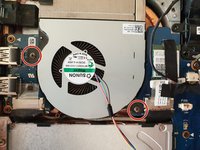
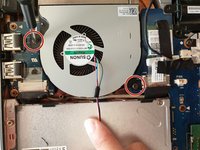
    • Using a Phillips #00 screwdriver, remove the three 5.2 mm screws that connect the fan to the motherboard.

    Ask FixBot

    Add Comment

  19. Asus ROG G752V Fan Replacement: step 19, image 1 of 1
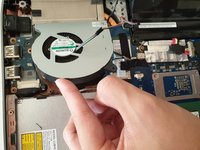
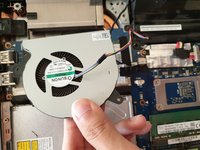
    • With your hands, slowly and carefully lift up the right side fan.

    Ask FixBot

    Add Comment

  20. Asus ROG G752V Fan Replacement: step 20, image 1 of 2 Asus ROG G752V Fan Replacement: step 20, image 2 of 2
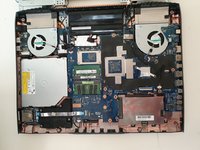
    • Carefully unlatch the left side fan cable from the motherboard.

    Ask FixBot

    Add Comment

  21. Asus ROG G752V Fan Replacement: step 21, image 1 of 3 Asus ROG G752V Fan Replacement: step 21, image 2 of 3 Asus ROG G752V Fan Replacement: step 21, image 3 of 3
    • Using a Phillips #00 screwdriver, remove the two 5.8mm screws that connect the left fan to the motherboard.

    Ask FixBot

    Add Comment

  22. Asus ROG G752V Fan Replacement: step 22, image 1 of 2 Asus ROG G752V Fan Replacement: step 22, image 2 of 2
    • With your hands, carefully lift the left fan and unlatch the fan from the motherboard.

    Ask FixBot

    Add Comment

Conclusion

To reassemble your device, follow these instructions in reverse order.

Cancel: I did not complete this guide.

5 other people completed this guide.

1 Guide Comment

Awesome! Epic guide thank you!

Citizen Gone - Reply Share
Add Comment

View Statistics:

Past 24 Hours: 0

Past 7 Days: 8

Past 30 Days: 49

All Time: 3,583