
Asus ROG G750JH-DB71 RAM Replacement

James Mills and 3 other contributors
Last updated on Dec 21, 2022
Views: 607
View statistics:
- Past 24 Hours:
- 1
- Past 7 Days:
- 11
- Past 30 Days:
- 65
- All Time:
- 607
Comments: 0
No one has left comments on this guide. Will you be first?
Go to guide commentsCompleted: 1 2
1 person has marked this guide "completed." Will you be next?
2 people have marked this guide "completed." Including you — great job!
Favorites: 0 1
No one has favorited (and subscribed to) this guide. Will you be the first?
1 person has favorited (and subscribed to) this guide — and that's you!
Introduction
Go to step 1 ↓This guide covers how to replace the RAM for the Asus ROG G750JH-DB71.
The RAM provides memory for the Asus ROG G750JH-DB71 while running the operating system. This allows the Asus ROG G750JH-DB71 to do many tasks from taxing videogames and programs to browsing the internet. Damage to Asus ROG G750JH-DB71's RAM could cause random crashing or a slow operating system.
To test if it's your RAM is causing these problems you can test this using free diagnostic programs on the internet.
The Asus ROG G750JH-DB71 comes with a 12 GB DDR3-SDRAM and 24 GB of RAM in total. You can add up to 32 GB of RAM (32000 MB)
What you need
Tools


-
-
-
Push the switch near the front of the laptop to release the battery from the computer.
-
Pull the battery out and away from the center of the computer.
-
-
-
-
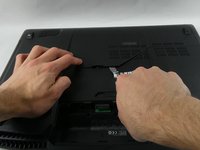
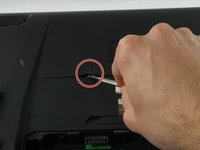
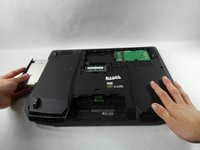
Use a spudger or your finger to lift up the plastic cover on the bottom of the laptop.
-
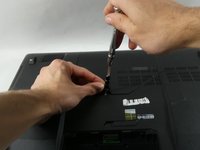
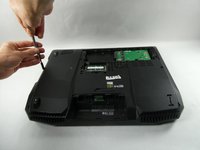
Under the plastic cover is a captive screw; unscrew it using a Phillips #00 screwdriver.
-
-
-
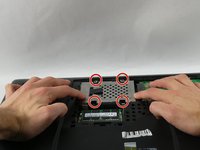
Remove the hard drive by unscrewing the 4.4 mm Phillips #00 screws.
-
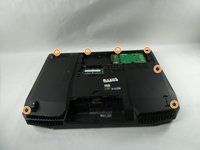
Remove all of the plastic caps around the edges using a spudger. Remove the screws underneath the caps.
-
Remove the remaining screws underneath the cover.
-
-
-
You will find a metal tab holding the disc drive in place. Push on the tab with a spudger to remove the disc drive. It is located below a previously removed screw.
-
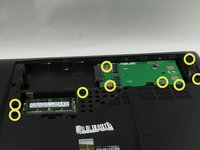
Remove the three 4 mm Phillips #00 screws that were previously covered by the disc drive.
-
-
-
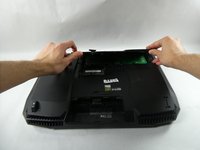
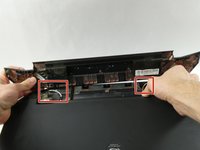
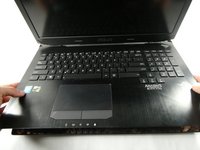
The back cover can be taken off by hand.
-
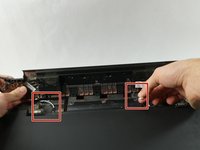
Disconnect the speaker cables.
-
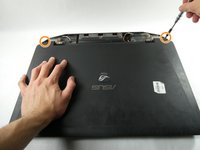
Remove two 8 mm Phillips #00 screws on each corner.
-
-
-
-
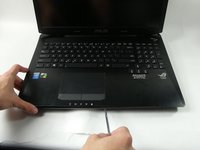
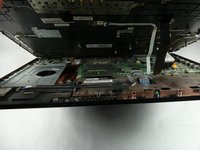
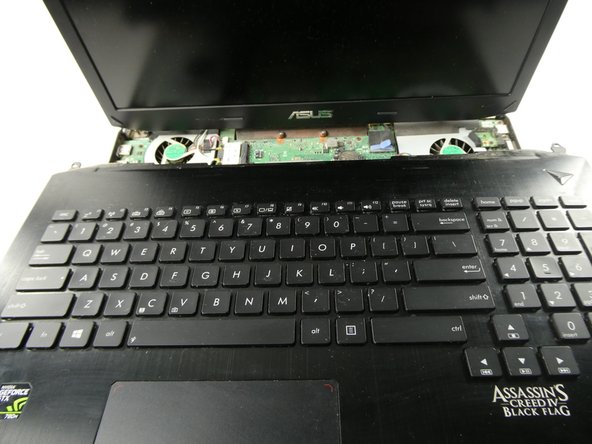
Now you can pull the keyboard off but make sure to do so carefully without damaging or scuffing any components.
-
Pull up and out at an angle to avoid damaging the internals of the laptop.
-
-
-
-
-
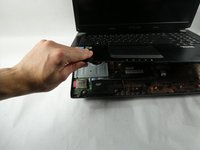
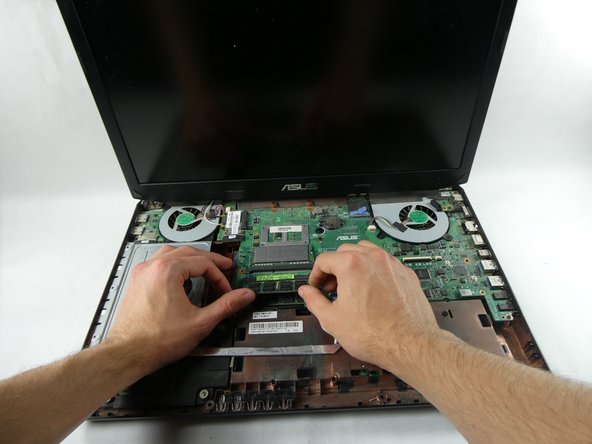
The RAM module is located directly in the center of the computer on top of the motherboard.
-
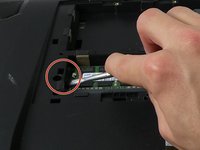
Push in the two levers on each side of the RAM module. This frees the module from the slot and allows removal.
-
Once loose, pull the RAM module away from the slot at a 45 degree angle as to not damage it.
-
-


 Ask FixBot




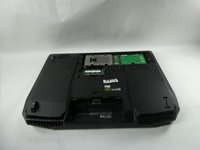










To reassemble your device, follow these instructions in reverse order.
Cancel: I did not complete this guide.
One other person completed this guide.

Team

UMass Dartmouth, Team 5-5, Sinclaire Fall 2022 Member of UMass Dartmouth, Team 5-5, Sinclaire Fall 2022
UMASSD-SINCLAIRE-F22S5G5
4 Members
72 Guides authored
