Free Shipping on Domestic Orders $75+

Asus ROG G53SW-XT1 Back Panel Replacement

What you need

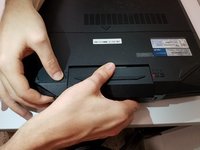
  1. Asus ROG G53SW-XT1 Back Panel Replacement, Battery: step 1, image 1 of 1
    • Unplug the power cable and flip the computer over.

    Ask FixBot

    Add Comment

  2. Asus ROG G53SW-XT1 Back Panel Replacement: step 2, image 1 of 1
    • Unlock the battery by pushing the switch to the right.

    Ask FixBot

    Add Comment

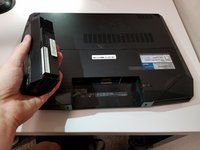
  3. Asus ROG G53SW-XT1 Back Panel Replacement: step 3, image 1 of 2 Asus ROG G53SW-XT1 Back Panel Replacement: step 3, image 2 of 2
    • Push and hold the left switch, then pull the battery out.

    Ask FixBot

    Add Comment

  4. Asus ROG G53SW-XT1 Back Panel Replacement, Keyboard: step 4, image 1 of 3 Asus ROG G53SW-XT1 Back Panel Replacement, Keyboard: step 4, image 2 of 3 Asus ROG G53SW-XT1 Back Panel Replacement, Keyboard: step 4, image 3 of 3
    • Insert a spudger, or plastic opening tool, into these five slots and pry upwards to pop up the keyboard.

    Ask FixBot

    Add Comment

  5. Asus ROG G53SW-XT1 Back Panel Replacement: step 5, image 1 of 3 Asus ROG G53SW-XT1 Back Panel Replacement: step 5, image 2 of 3 Asus ROG G53SW-XT1 Back Panel Replacement: step 5, image 3 of 3
    • Disconnect the keyboard ribbon cables from the motherboard.

    Ask FixBot

    Add Comment

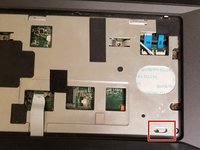
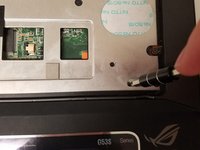
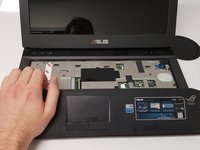
  6. Asus ROG G53SW-XT1 Back Panel Replacement, Back Panel: step 6, image 1 of 3 Asus ROG G53SW-XT1 Back Panel Replacement, Back Panel: step 6, image 2 of 3 Asus ROG G53SW-XT1 Back Panel Replacement, Back Panel: step 6, image 3 of 3
    • Insert your screwdriver into the locking mechanism and slide it to the left. This will unlock the hand rest and allow you to pull it free.

    Ask FixBot

    Add Comment

  7. Asus ROG G53SW-XT1 Back Panel Replacement: step 7, image 1 of 1
    • Remove the fourteen Phillips #0 screws.

    Ask FixBot

    Add Comment

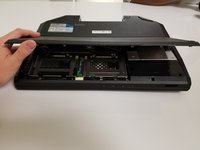
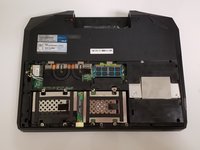
  8. Asus ROG G53SW-XT1 Back Panel Replacement: step 8, image 1 of 2 Asus ROG G53SW-XT1 Back Panel Replacement: step 8, image 2 of 2
    • Flip the laptop over and pull off the bottom cover.

    Ask FixBot

    Add Comment

Conclusion

To reassemble your device, follow these instructions in reverse order.

Cancel: I did not complete this guide.

2 other people completed this guide.

0 Guide Comments

Add Comment

View Statistics:

Past 24 Hours: 1

Past 7 Days: 6

Past 30 Days: 33

All Time: 985