
Asus R510CA-OB01 Optical Drive Replacement

Last updated on Jan 3, 2024
Views: 567
View statistics:
- Past 24 Hours:
- 1
- Past 7 Days:
- 5
- Past 30 Days:
- 30
- All Time:
- 567
Comments: 0
No one has left comments on this guide. Will you be first?
Go to guide commentsCompleted: 1 2
1 person has marked this guide "completed." Will you be next?
2 people have marked this guide "completed." Including you — great job!
Favorites: 0 1
No one has favorited (and subscribed to) this guide. Will you be the first?
1 person has favorited (and subscribed to) this guide — and that's you!
Introduction
Go to step 1 ↓Many times your optical drive can fail due to mechanical issues due physical contact or damage, heat, humidity, dust, power surges, or even time. If you have a failing optical drive, your laptop will have issues reading or writing data on an optical disk such as CDs and DVDs. This guide walks you through replacing the optical drive on an Asus R510CA-OB01.
Before beginning the guide, make sure that the device is completely powered off and disconnected from the charger.
What you need


-
-
-
Shut down the computer and disconnect all external devices connected to it.
-
Turn the computers that it is upside down. Position the computer with the front towards you.
 Ask FixBot
-
-
-
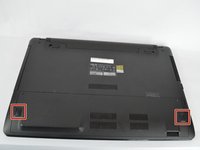
After detaching the battery, remove the two 5mm screws holding down the casing using a Phillips #00 screwdriver.
-
-
-
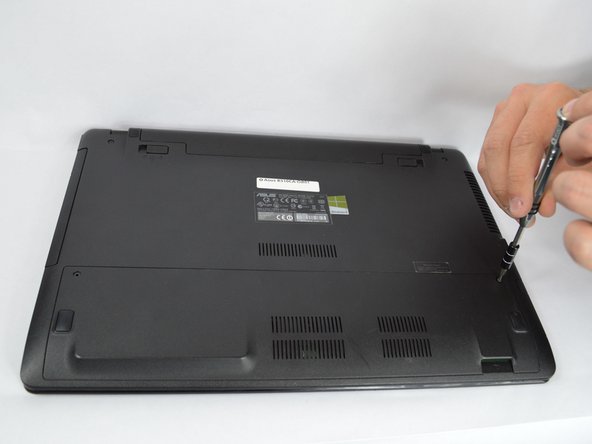
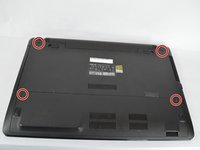
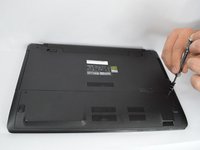
Loosen the four 12mm screws on the bottom and top panel of your device using a Phillips #0 screwdriver.
-
-
-
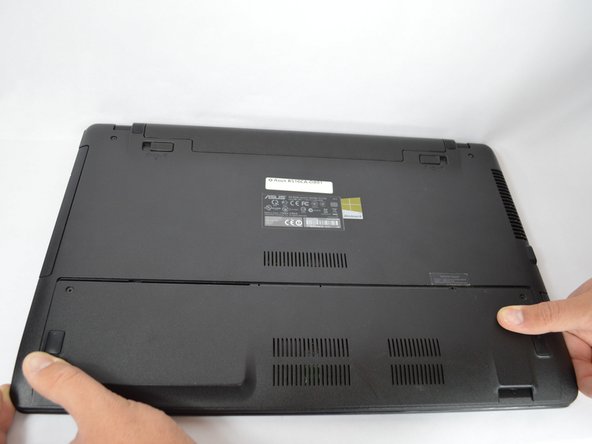
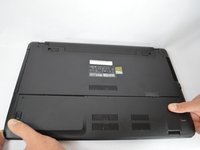
Use the grips to slide the panel off.
-
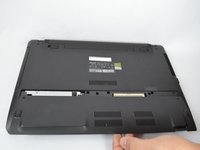
Remove the panel by lifting it off the device.
-
-
-
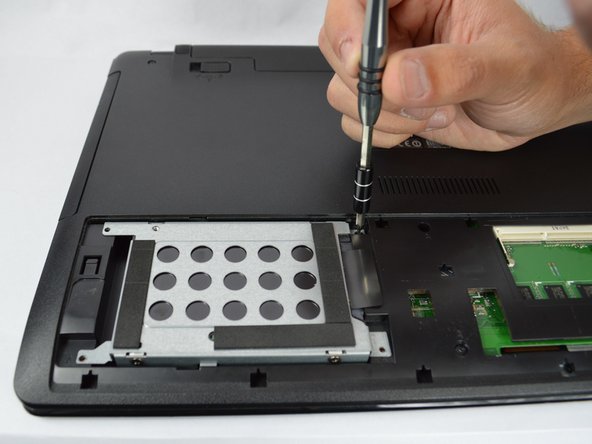
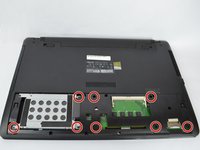
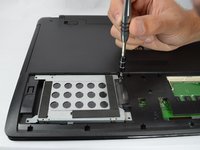
Remove the three 5mm screws holding down the hard drive and the five 5mm screws holding down the casing using a Phillips #00 bit.
-
-
-
Turn the laptop the right way up and face it towards you.
-
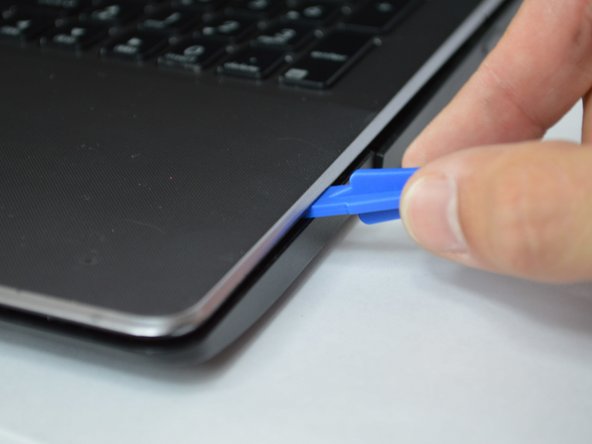
Insert the flat edge of the flat plastic opening tool into the crease of the keyboard cover.
-
While the opening tool is in the crease, carefully pry open the casing by sliding the plastic opening tool along the edge.
-
-
-
Make sure that the entire cover has been released front the plastic pins.
-
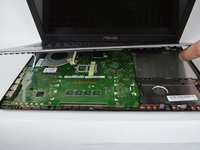
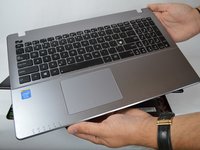
Slowly lift the cover open from the front of the laptop but do not completely remove.
-
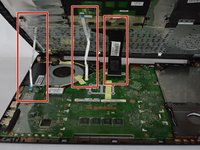
Note the three locations of the three white and blue data cables connecting the keyboard to the computer's main board.
-
-
-
-
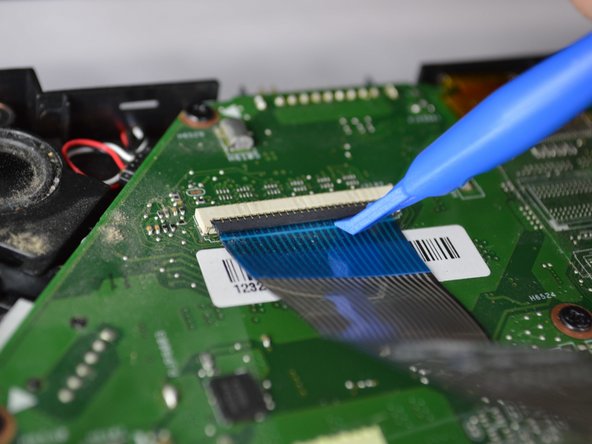
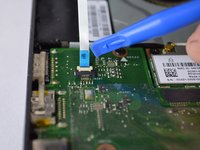
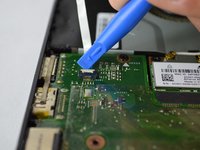
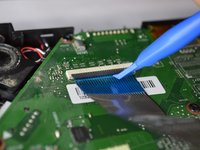
Remove each data cable from the motherboard by using your finger or the plastic opening tool to lift the white latch.
-
The cable will slide out of its place.
-
-
-
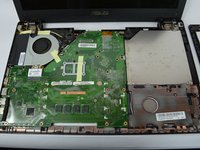
With the data cables removed and the keyboard module fully disconnected, the keyboard module should come free from the laptop.
-
-
-
-
-
Remove the 4.5mm silver screw in the top right corner using a Phillips #0 bit.
-
Remove the three 2mm silver screws using a Phillips #000 bit.
-
Remove the 5mm screw using a Phillips #1 bit that is holding the optical drive in place.
-
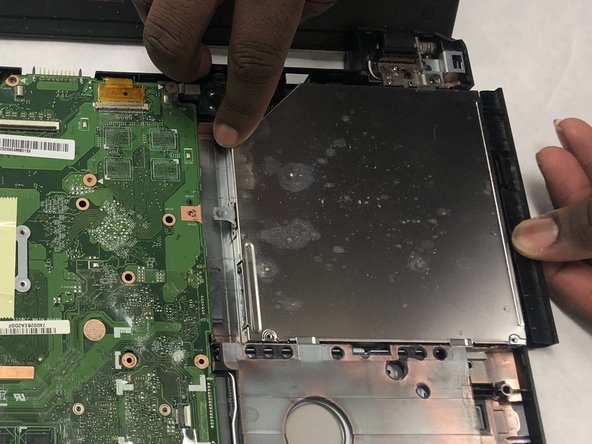
With your hands, gently slide the optical drive out of the laptop.
-
-
















To reassemble your device, follow these instructions in reverse order.
Cancel: I did not complete this guide.
One other person completed this guide.

Team

IUPUI, Team S1-G2, Henning Spring 2019 Member of IUPUI, Team S1-G2, Henning Spring 2019
IUPUI-HENNING-S19S1G2
3 Members
36 Guides authored
