Introduction
If your laptop will not load multiple pages or applications at the same time, it takes a long time to load any webpages, or the laptop overall runs very slow, the RAM may need to be replaced. In this guide, we will show you how to replace the RAM.
What you need
-
-
-
Use a T4 Torx screwdriver head to remove the ten 4mm Torx head screws on the bottom of the laptop.
 Ask FixBot
-
-
-
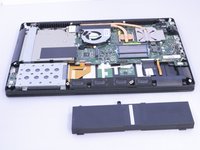
Use an opening tool to pry open the rear cover. Lift the cover off and away from the board.
-
-
-
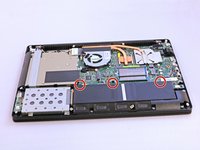
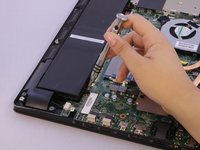
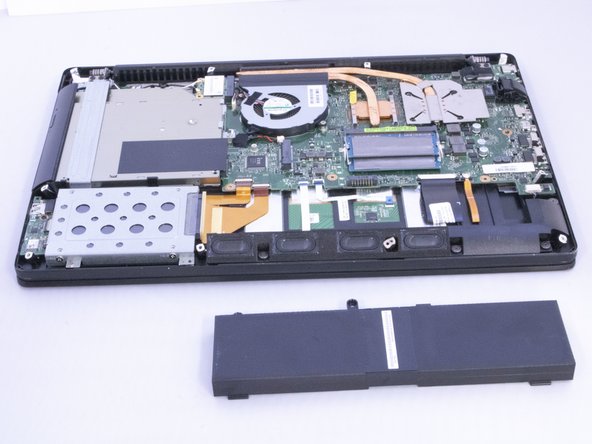
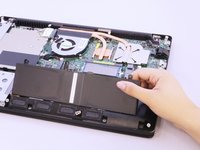
Use a Phillips #0 screwdriver head to remove the three black 7mm Phillips head screws that hold the battery in place.
-
-
-
-
-
-
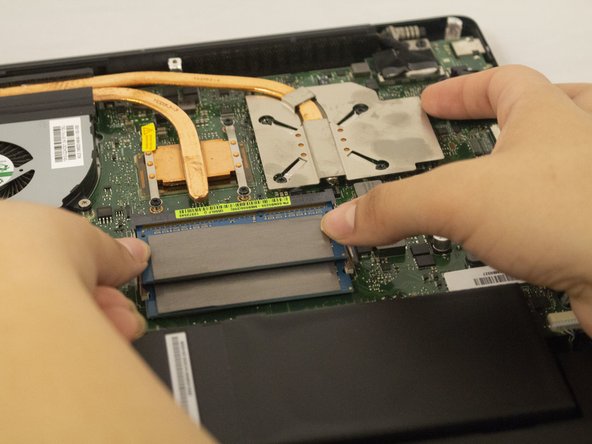
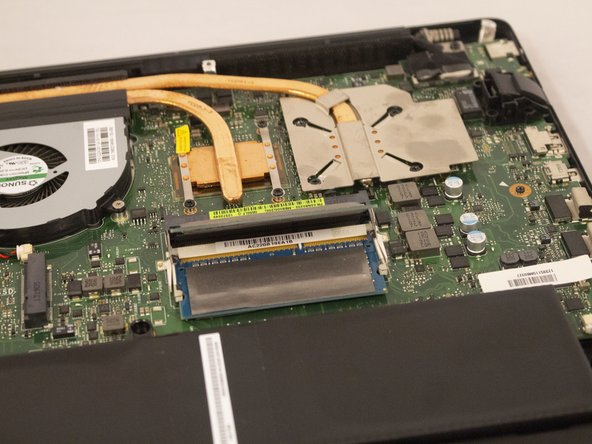
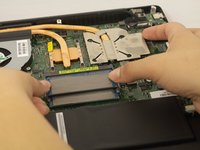
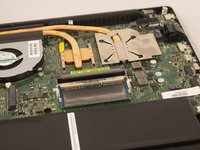
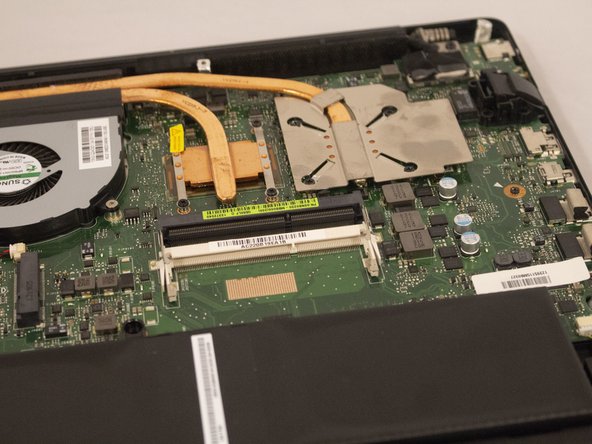
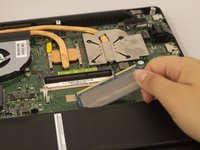
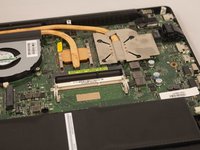
Push both metal tabs away from each other on each side of the RAM farthest from battery so that the RAM will pop up.
-
-
-
Push both metal tabs away from each other on each side of the RAM closest to the battery so that the second RAM will pop up.
-
-






To reassemble your device, follow these instructions in reverse order.
Cancel: I did not complete this guide.
4 other people completed this guide.

Team

Eastern Washington University, Team S2-G1, Munoz Fall 2018 Member of Eastern Washington University, Team S2-G1, Munoz Fall 2018
EWU-MUNOZ-F18S2G1
4 Members
60 Guides authored
