Free Shipping on Domestic Orders $75+

Asus Q525U Hard Drive Replacement

What you need

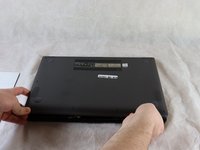
  1. Asus Q525U Hard Drive Replacement, Back Cover: step 1, image 1 of 3 Asus Q525U Hard Drive Replacement, Back Cover: step 1, image 2 of 3 Asus Q525U Hard Drive Replacement, Back Cover: step 1, image 3 of 3
    • Begin by powering off the device and flipping the device over.

    • Carefully remove the two longer 9.5 mm screws on the corners with a Phillips #1 screwdriver.

    • Remove the eight 7.5 mm Phillips #1 screws on the back of the device.

    Ask FixBot

    Add Comment

  2. Asus Q525U Hard Drive Replacement: step 2, image 1 of 3 Asus Q525U Hard Drive Replacement: step 2, image 2 of 3 Asus Q525U Hard Drive Replacement: step 2, image 3 of 3
    • Use an opening pick to separate the back cover from the device.

    • For easiest removal, begin by prying at one of the front corners and sliding the tool under the cover in a counter-clockwise motion (to the left) toward the laptop hinge.

    Ask FixBot

    Add Comment

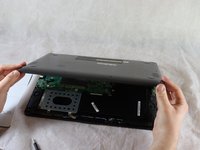
  3. Asus Q525U Hard Drive Replacement: step 3, image 1 of 3 Asus Q525U Hard Drive Replacement: step 3, image 2 of 3 Asus Q525U Hard Drive Replacement: step 3, image 3 of 3
    • Once the cover has been separated from the device, carefully lift the back cover off the device (begin by lifting from the front of the cover first).

    • The back cover should be easily removable, allowing full access to all of the internal components.

    Ask FixBot

    Add Comment

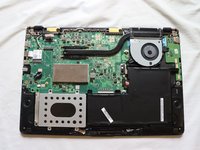
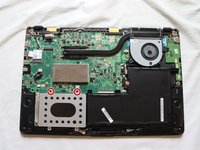
  4. Asus Q525U Hard Drive Replacement, Hard Drive: step 4, image 1 of 1
    • The hard drive is located to the left of the battery and below the motherboard.

    Ask FixBot

    Add Comment

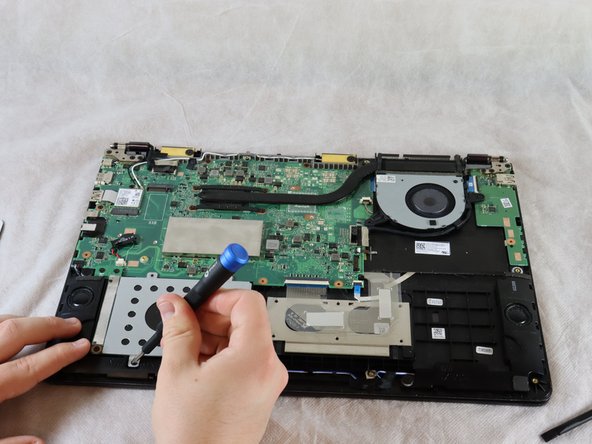
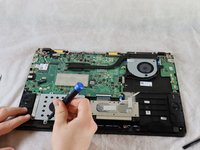
  5. Asus Q525U Hard Drive Replacement: step 5, image 1 of 2 Asus Q525U Hard Drive Replacement: step 5, image 2 of 2
    • Remove the two 4 mm Phillips #1 screws which are holding the hard drive cover in place.

    Ask FixBot

    Add Comment

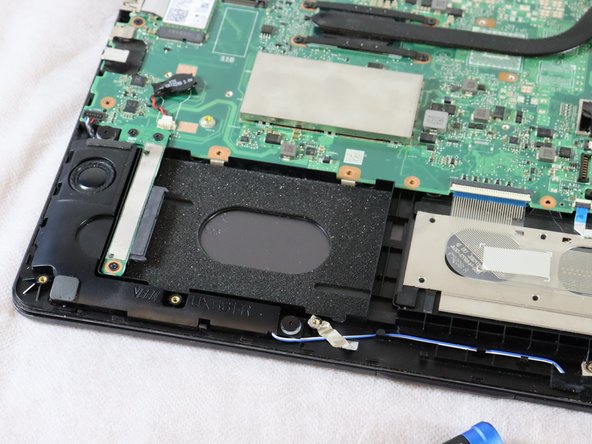
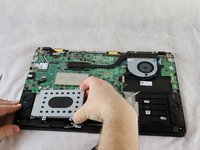
  6. Asus Q525U Hard Drive Replacement: step 6, image 1 of 2 Asus Q525U Hard Drive Replacement: step 6, image 2 of 2
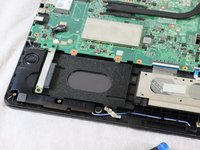
    • The hard drive cover is now easily accessible.

    • Lift the cover off, exposing the hard drive underneath [this laptop is missing its hard drive].

    • If replacing the hard drive, lift it up on the right side slightly and pull it from the connecter on the left.

    Ask FixBot

    Add Comment

Conclusion

To reassemble your device, follow these instructions in reverse order.

Cancel: I did not complete this guide.

2 other people completed this guide.

Stewart Crandall

Member since: 02/22/22

613 Reputation

5 Guides authored

Team

Clemson, Team 2-5, Hunter Spring 2022 Member of Clemson, Team 2-5, Hunter Spring 2022

CLEM-HUNTER-S22S2G5

4 Members

12 Guides authored

0 Guide Comments

Add Comment

View Statistics:

Past 24 Hours: 0

Past 7 Days: 10

Past 30 Days: 57

All Time: 3,730