Free Shipping on Domestic Orders $75+

Asus Q524U Fan Assembly Replacement

What you need

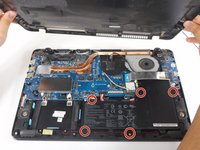
  1. Asus Q524U Fan Assembly Replacement, Back Panel: step 1, image 1 of 2 Asus Q524U Fan Assembly Replacement, Back Panel: step 1, image 2 of 2
    • Remove ten 3 mm screws using a Phillips #0 screwdriver.

    Ask FixBot
    Add Comment

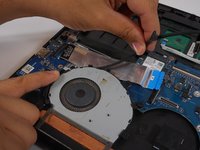
  2. Asus Q524U Fan Assembly Replacement: step 2, image 1 of 1
    • Lift up the back panel and set it to the side.

    Ask FixBot
    Add Comment

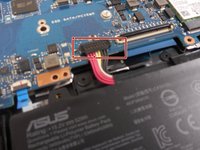
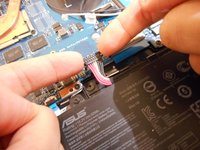
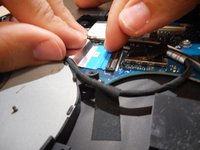
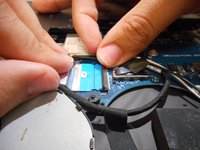
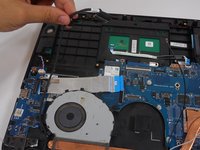
  3. Asus Q524U Fan Assembly Replacement, Battery: step 3, image 1 of 2 Asus Q524U Fan Assembly Replacement, Battery: step 3, image 2 of 2
    • Using your fingers, grip onto both sides of the wire harness and push it upwards.

    Ask FixBot
    Add Comment

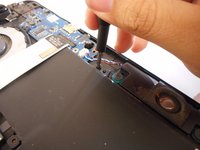
  4. Asus Q524U Fan Assembly Replacement: step 4, image 1 of 2 Asus Q524U Fan Assembly Replacement: step 4, image 2 of 2
    • Remove the five 3 mm screws holding the battery in place using a Phillips #0 screwdriver.

    Ask FixBot

    Add Comment

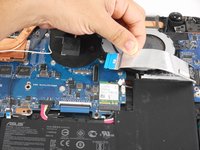
  5. Asus Q524U Fan Assembly Replacement: step 5, image 1 of 3 Asus Q524U Fan Assembly Replacement: step 5, image 2 of 3 Asus Q524U Fan Assembly Replacement: step 5, image 3 of 3
    • Tilt the small black tab up which will allow the blue tape to be slid out.

    Ask FixBot

    Add Comment

  6. Asus Q524U Fan Assembly Replacement: step 6, image 1 of 1
    • Simply lift the battery up and out of its holding area.

    Ask FixBot

    Add Comment

  7. Asus Q524U Fan Assembly Replacement, Fan Assembly: step 7, image 1 of 1
    • Remove the four 3 mm screws holding the fan in place using a Phillips #0 screwdriver.

    Ask FixBot

    Add Comment

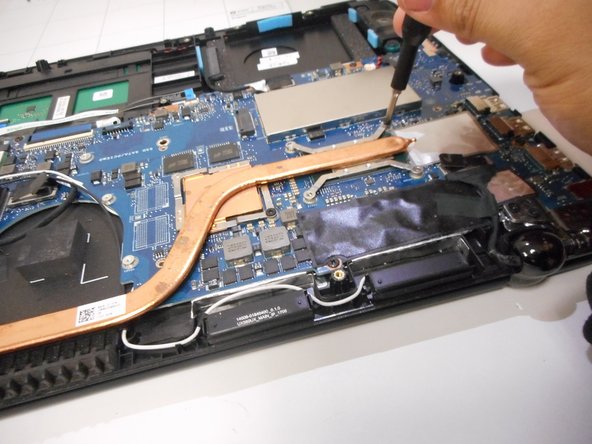
  8. Asus Q524U Fan Assembly Replacement: step 8, image 1 of 2 Asus Q524U Fan Assembly Replacement: step 8, image 2 of 2
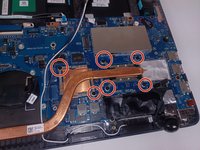
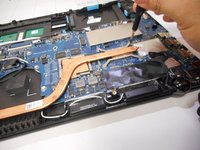
    • Remove five 3 mm screws holding the heat sink in place using a Phillips #0 screwdriver.

    Ask FixBot

    Add Comment

  9. Asus Q524U Fan Assembly Replacement: step 9, image 1 of 3 Asus Q524U Fan Assembly Replacement: step 9, image 2 of 3 Asus Q524U Fan Assembly Replacement: step 9, image 3 of 3
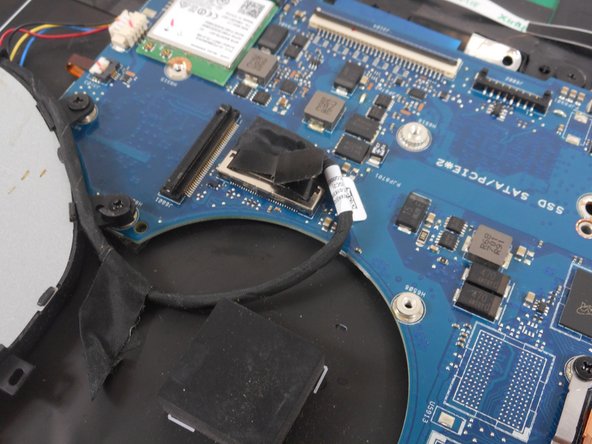
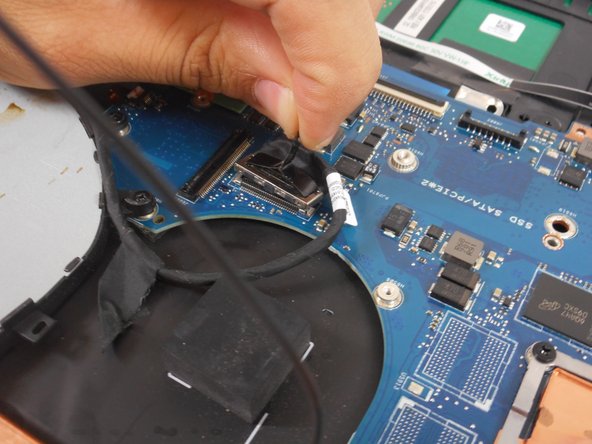
    • Pull up fan connector tab by using the plastic handle.

    Ask FixBot

    Add Comment

  10. Asus Q524U Fan Assembly Replacement: step 10, image 1 of 2 Asus Q524U Fan Assembly Replacement: step 10, image 2 of 2
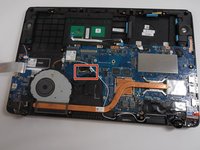
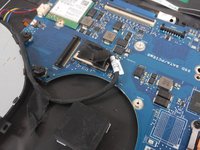
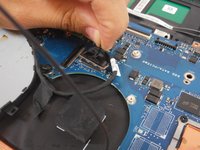
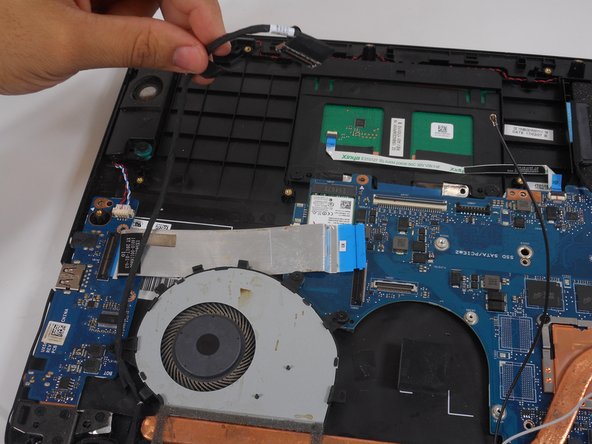
    • Unwind the cable wrapped around the fan casing.

    Ask FixBot

    Add Comment

  11. Asus Q524U Fan Assembly Replacement: step 11, image 1 of 1
    • Disconnect the small cable from the fan.

    Ask FixBot

    Add Comment

  12. Asus Q524U Fan Assembly Replacement: step 12, image 1 of 1
    • After all screws and cables are unsecured, lift the fan assembly out of the laptop.

    Ask FixBot

    Add Comment

Conclusion

To reassemble your device, follow these instructions in reverse order.

Cancel: I did not complete this guide.

0 Guide Comments

Add Comment

View Statistics:

Past 24 Hours: 0

Past 7 Days: 3

Past 30 Days: 27

All Time: 375