Introduction
If you’ve noticed that your laptop is not turning on, or maybe there is a problem with charging your Asus Q200E-CT144H laptop, use this guide to replace your battery/connector. The purpose of the battery/connector is to provide electricity in order to power on the laptop. If the battery goes to waste, then there is no way to operate the laptop, therefore making it useless as a whole. The Lithium-ion battery is an important component of the typical laptop.
What you need
-
-
-
To start, turn off the laptop and disconnect the power cable.
-
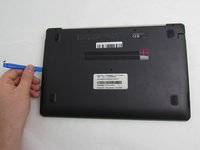
Flip the laptop over so the back panel is visible.
 Ask FixBot
-
-
-
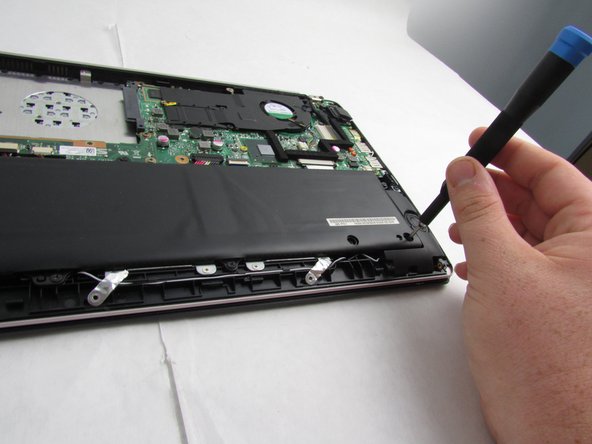
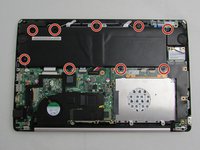
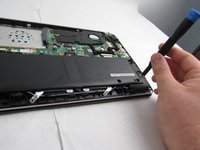
Remove the 9 screws holding the cover in place by taking a Phillips #00 Screwdriver and turning it counterclockwise.
-
-
-
-
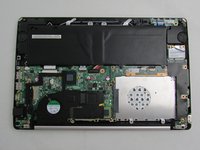
Use an iFixit opening tool to lift the back cover and remove it from the laptop.
-
-
-
-
Tool used on this step:Tweezers$4.99
-
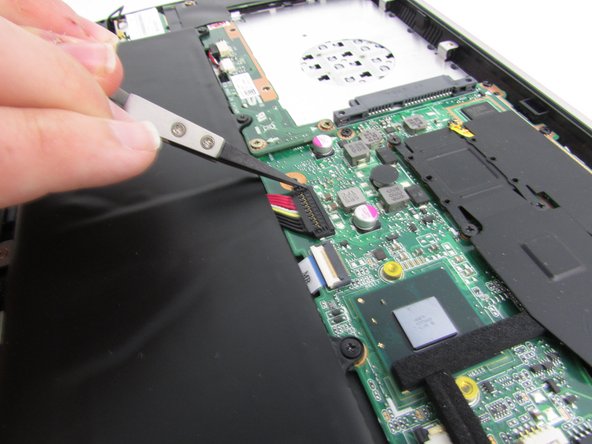
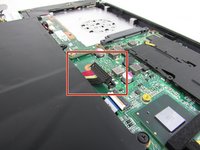
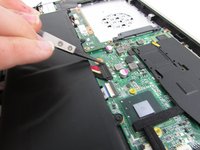
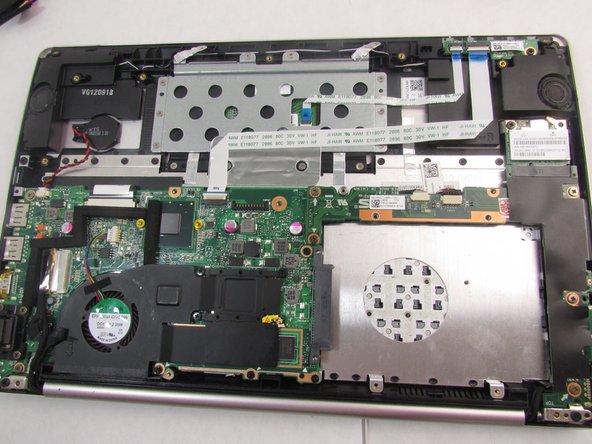
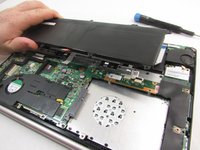
Remove the battery connector by using tweezers to lift up on it.
-
-






To reassemble your device, follow these instructions in reverse order.

Team

Embry-Riddle Aeronautical University, Team S8-G2, Salas Fall 2019 Member of Embry-Riddle Aeronautical University, Team S8-G2, Salas Fall 2019
ERAU-SALAS-F19S8G2
3 Members
72 Guides authored
