Introduction
The microphone is where you input sound, as opposed to the speaker which is what outputs sound. This is where you record voice memos, give commands to a built in operating system, or voice to text functions.
What you need
-
-
-
Using the Jimmy tool, gently wedge it into the seam of the device.
-
Gently pry the Jimmy tool all around the seam until the back panel is detached.
 Ask FixBot
-
-
-
Inserted in a black port on the motherboard, locate the white cable connector on the left side of the tablet.
-
In a side to side motion, using the smallest opening tool, slide the white cable box completely out of the port towards the bottom of the device.
-
-
-
Tool used on this step:Tweezers$4.99
-
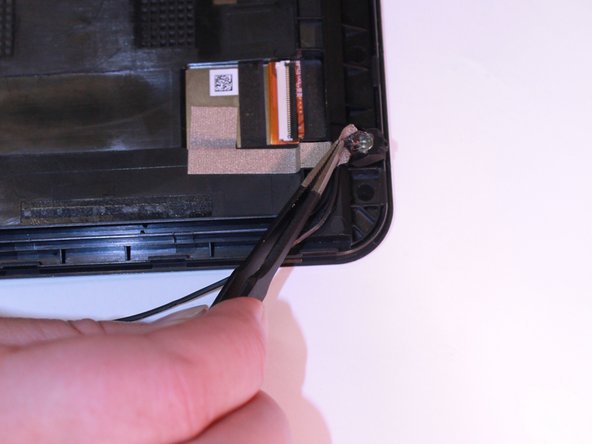
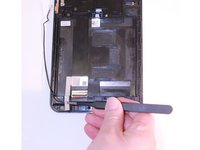
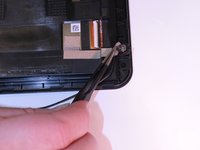
Using wide nosed tweezers, lift up the tape and remove from black box.
-
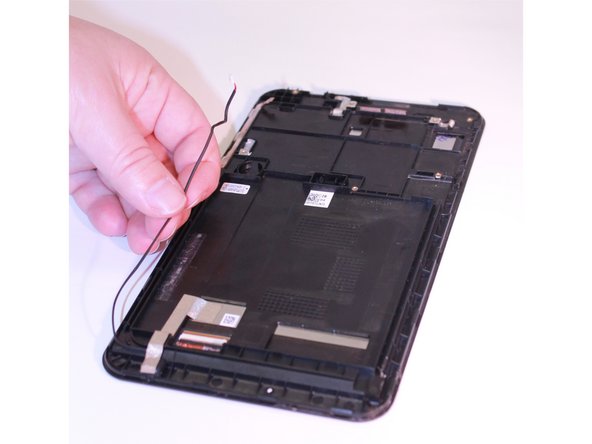
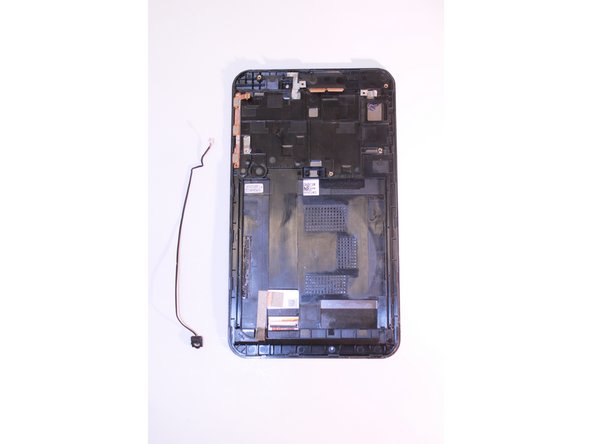
Remove the component completely from the device.
-
-




To reassemble your device, follow these instructions in reverse order.
Cancel: I did not complete this guide.
One other person completed this guide.

Team

Eastern Washington University, Team 2-3, Plummer Fall 2015 Member of Eastern Washington University, Team 2-3, Plummer Fall 2015
EWU-PLUMMER-F15S2G3
5 Members
60 Guides authored
