Free Shipping on Domestic Orders $75+

Asus M32BF-US002T RAM Replacement

What you need

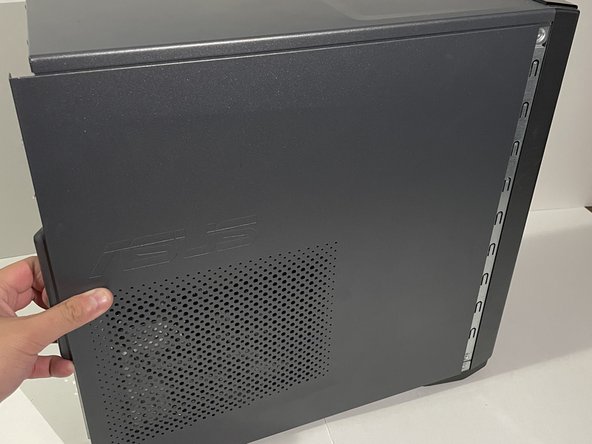
    1. Asus M32BF-US002T RAM Replacement, RAM: step 1, image 1 of 2 Asus M32BF-US002T RAM Replacement, RAM: step 1, image 2 of 2
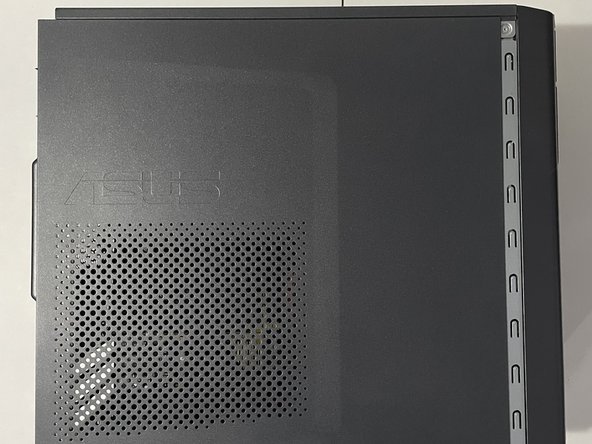
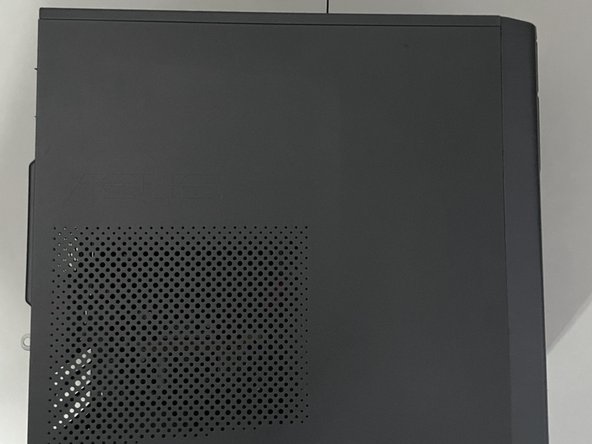
      • The side panel is located on the left side of the computer.

      • The 2nd image shows the correct side we will be working on.

      Ask FixBot
      Add Comment

    2. Asus M32BF-US002T RAM Replacement: step 2, image 1 of 3 Asus M32BF-US002T RAM Replacement: step 2, image 2 of 3 Asus M32BF-US002T RAM Replacement: step 2, image 3 of 3
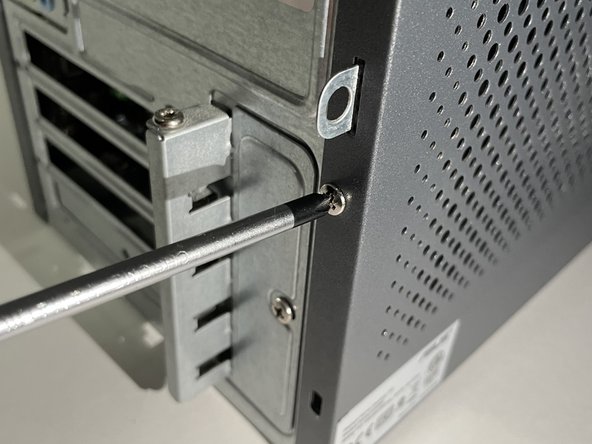
      • Face the back of the desktop towards you on a flat work service.

      • Use the Phillips #00 to remove the two 3.5 mm screws on the edge of the side panel.

      Ask FixBot

      Add Comment

    3. Asus M32BF-US002T RAM Replacement: step 3, image 1 of 2 Asus M32BF-US002T RAM Replacement: step 3, image 2 of 2
      • Pull the small tab on the left side panel.

      • Continue to pull gently until you hear a click sound, then remove the side panel.

      Ask FixBot

      Add Comment

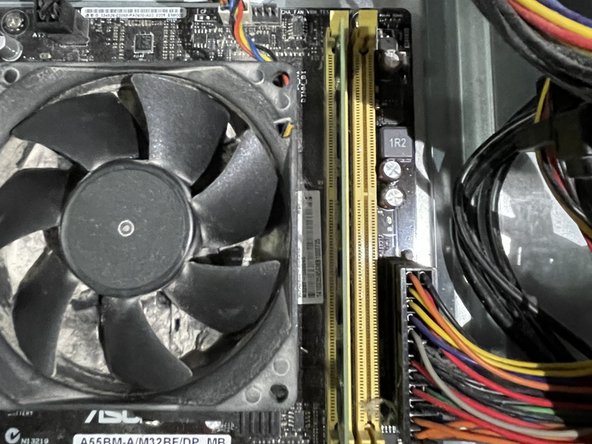
    4. Asus M32BF-US002T RAM Replacement: step 4, image 1 of 3 Asus M32BF-US002T RAM Replacement: step 4, image 2 of 3 Asus M32BF-US002T RAM Replacement: step 4, image 3 of 3
      • Locate the RAM modules.

      • They are thin, long, green, and rectangle shaped.

      Ask FixBot

      Add Comment

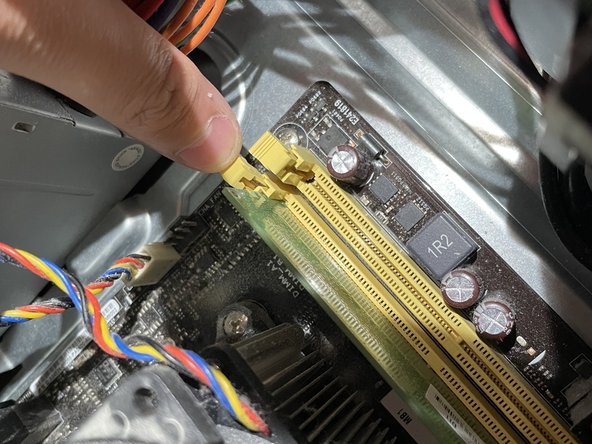
    5. Asus M32BF-US002T RAM Replacement: step 5, image 1 of 3 Asus M32BF-US002T RAM Replacement: step 5, image 2 of 3 Asus M32BF-US002T RAM Replacement: step 5, image 3 of 3
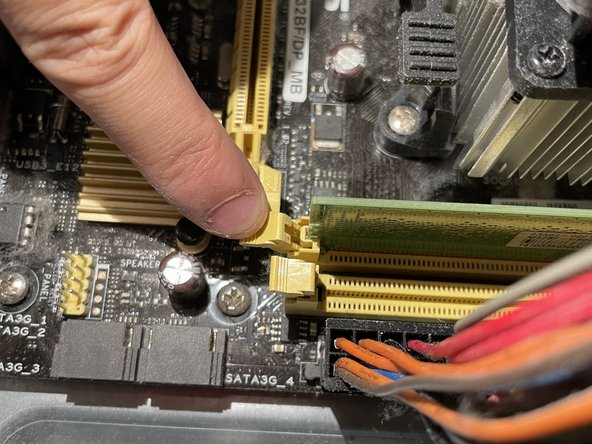
      • Unlock the locks that are holding the RAM module down, by pushing them downwards.

      • Although not shown in the first picture, there is also a lock at the bottom and can be seen on picture 3.

      Ask FixBot

      Add Comment

    6. Asus M32BF-US002T RAM Replacement: step 6, image 1 of 2 Asus M32BF-US002T RAM Replacement: step 6, image 2 of 2
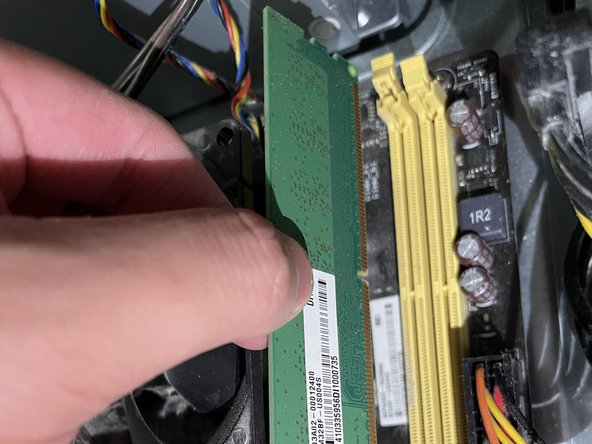
      • Pull the RAM straight out.

      • Wiggling the RAM out of its slot may cause damage to the RAM module, or the RAM slot itself. Pull straight out!

      Ask FixBot
      Add Comment

    7. Asus M32BF-US002T RAM Replacement: step 7, image 1 of 1
      • Before installing the new RAM, ensure the slots have been unlocked as seen in this picture.

      • You can tell it is unlocked when the lock looks like it has been pushed away from the slot.

      • If you are adding an additional RAM module, ensure the 2nd RAM slot is unlocked as well.

      Ask FixBot
      Add Comment

    8. Asus M32BF-US002T RAM Replacement: step 8, image 1 of 2 Asus M32BF-US002T RAM Replacement: step 8, image 2 of 2
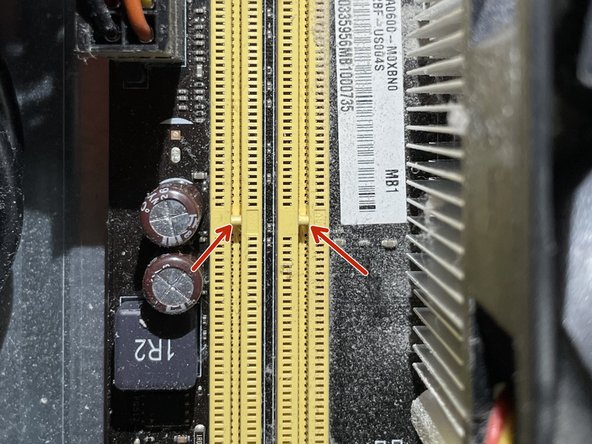
      • Before installing, ensure the gap on the RAM module aligns with the notch on the RAM slot.

      Ask FixBot

      Add Comment

    9. Asus M32BF-US002T RAM Replacement: step 9, image 1 of 1
      • Align the gap on the RAM module with the notch on the RAM slot.

      • Push straight down until you hear a click or until the locks have locked on their own.

      • An uncomfortable amount of force may be needed in order to successfully install the RAM.

      Ask FixBot
      Add Comment

    10. Asus M32BF-US002T RAM Replacement: step 10, image 1 of 3 Asus M32BF-US002T RAM Replacement: step 10, image 2 of 3 Asus M32BF-US002T RAM Replacement: step 10, image 3 of 3
      • Grab the side panel, and place it on the side of the computer.

      • Slide the side panel to the right to lock the side panel.

      Ask FixBot
      Add Comment

    11. Asus M32BF-US002T RAM Replacement: step 11, image 1 of 2 Asus M32BF-US002T RAM Replacement: step 11, image 2 of 2
      • Using your Phillips #00 screwdriver, take the screws from Step 2 and screw them back onto the side panel.

      • You have successfully installed RAM into your desktop computer! You are now finished.

      Ask FixBot

      Add Comment

Conclusion

To reassemble your device, follow these instructions in reverse order.

Cancel: I did not complete this guide.

3 other people completed this guide.

Shaun Pangilinan

Member since: 09/15/21

274 Reputation

1 Guide authored

Team

0 Guide Comments

Add Comment

View Statistics:

Past 24 Hours: 6

Past 7 Days: 21

Past 30 Days: 66

All Time: 2,326