
Asus L410MA-MH09-CA Keyboard Replacement

Jimmy and 3 other contributors
Last updated on Dec 17, 2024
Views: 660
View statistics:
- Past 24 Hours:
- 2
- Past 7 Days:
- 10
- Past 30 Days:
- 70
- All Time:
- 660
Comments: 0
No one has left comments on this guide. Will you be first?
Go to guide commentsCompleted: 0 1
No one has marked this guide "completed." Will you be the first?
1 person has marked this guide "completed." It's you — great job!
Favorites: 1 2
1 person has favorited (and subscribed to) this guide. Will you be next?
2 people have favorited (and subscribed to) this guide — including you!
Action Shots
Be an action hero! This guide needs images that better demonstrate how to perform specific actions.
Missing Steps
Oops! This guide is currently missing one or more important steps.
Introduction
Go to step 1 ↓If you're experiencing issues with your ASUS L410MA-MH09-CA keyboard not responding or being physically damaged, you may need to replace your keyboard, use this guide to learn how to replace your keyboard.
When replacing your keyboard be sure to check if the keyboard replacement you're buying has the same connectors. Here is a link for a suitable keyboard replacement. https://a.co/d/1l29C2m
What you need
Tools


-
-
-
Remove all ten 6 mm Phillips #1 screws that secure the lower case.
-
Insert an opening pick in the gap between the lower case and chassis.
-
Slide the opening pick around the entire perimeter of the laptop until the lower case fully releases.
-
Remove the lower case.
 Ask FixBot
-
-
-
Grip the white battery connector and pull it directly out of its battery port.
-
-
-
-
-
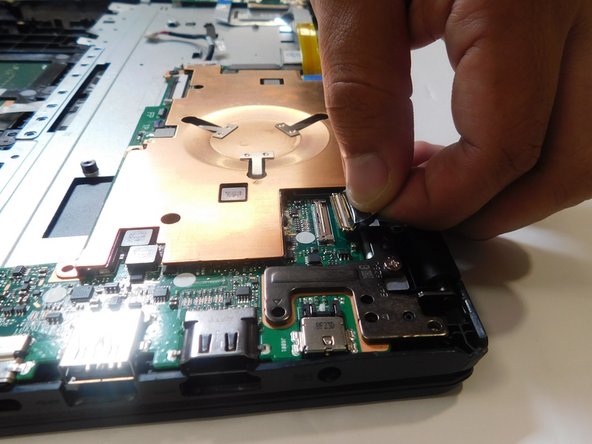
Use a Phillips #1 screwdriver to remove the screws that secure the hinges.
-
Lift the hinges up and out.
-
-
-
-
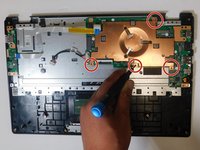
Remove the four 4 mm Phillips #1 screws that secure the heatsink.
-
Remove the heatsink.
-
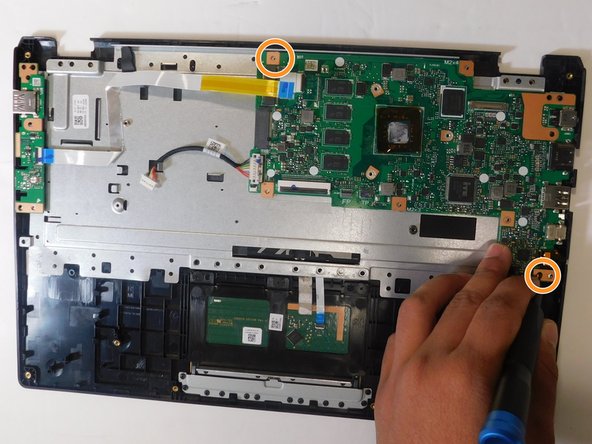
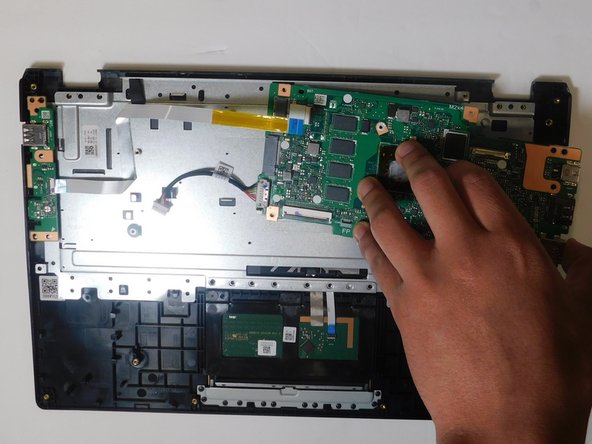
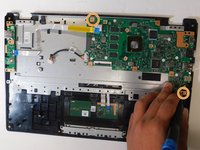
Remove the remaining two 4 mm Phillips #1 screws that secure the motherboard.
-
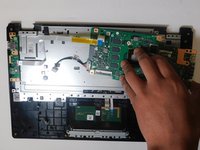
Remove the motherboard.
-
-
-
Use a spudger to pry around the entire perimeter of the metal bracket until it fully releases.
-
Remove the metal bracket.
-
-





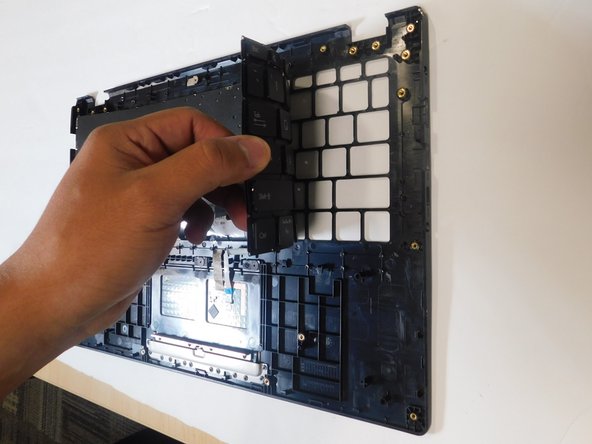
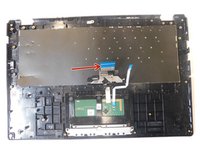
To reassemble your device, follow the above steps in reverse order.
Take your e-waste to an R2 or e-Stewards certified recycler.m

Team

Gateway, Team 8-2, Gonzalez Fall 2024 Member of Gateway, Team 8-2, Gonzalez Fall 2024
GCC-GONZALEZ-F24S8G2
5 Members
36 Guides authored
