Introduction
Touchpads are a crucial part of any laptop, including your Asus L406M. If you're unable to move your cursor around or your cursor is moving erratically, your touchpad might need to be replaced.
A laptop's touchpad is the square device just belong your keyboard that acts as your computer's mouse. A faulty/damaged touchpad will lead to many issues such as:
- Freezing or Not Moving
- Being unable to scroll with two fingers or pinch-to-zoom
- Your cursor not tracking your finger correctly
Before replacing your touchpad, troubleshoot your touchpad by doing the following:
- Press the "Fn" key and test the touchpad again. In some laptops, the "Fn" key will re-enable the touchpad.
- Go to computer's settings, click on "Device", then click on "Touchpad". Confirm that your touchpad is turned on. If it's not on, switch it on and test the touchpad again.
- If the touchpad is still unresponsive, check and see if your device needs to be updated. In most cases, updating your drivers will resolve the issue.
- Check if your touchpad is dirty. If it is, gently clean your Touchpad using a soft, lint-free cloth dampened with isopropyl alcohol. Be careful! Too much liquid can cause more damage.
If the problems persist, this guide will help you replace your touchpad.
Before you get started:
- Use an external mouse as a quick fix until you're ready to get started.
- Power off your laptop and unplug it from its device.
What you need
-
-
-
Use an opening tool to remove each of the two rubber feet near the laptop hinges.
 Ask FixBot
-
-
-
Use a Phillips #0 screwdriver to remove the remaining eleven 6.4 mm-long black screws securing the lower case.
-
-
-
-
Insert an opening pick or opening tool into the seam between the lower case and chassis.
-
Pry around the entire perimeter until the lower case is fully released.
-
Remove the lower case.
-
-
-
-
-
Remove the two 3.2 mm-long Phillips #0 screws that secure the battery.
-
Disconnect the battery connector cable and the speaker cable from their motherboard sockets.
-
-
-
-
-
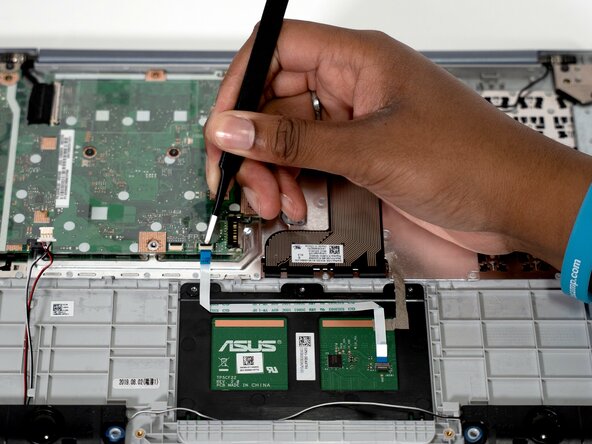
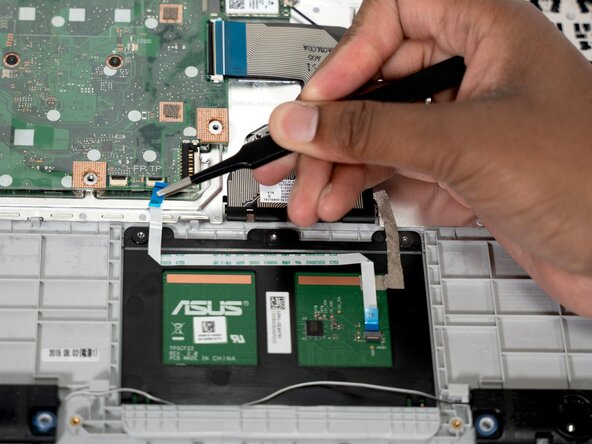
Use tweezers to flip up the black locking flap securing the touchpad ribbon cable to its motherboard socket.
-
Disconnect the ribbon cable
-
-
-
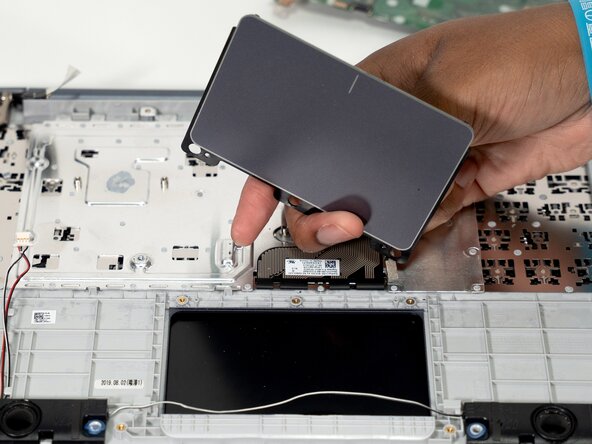
Use a Phillips #00 screwdriver to remove three 2.4 mm-long screws securing the touchpad.
-
-






To reassemble your device, follow the above steps in reverse order.
Take your e-waste to an R2 or e-Stewards certified recycler.
Repair didn’t go as planned? Try some basic troubleshooting or ask our Answers community for help.

Team

University of Texas at Arlington, Team 1-1, Aguilar Spring 2026 Member of University of Texas at Arlington, Team 1-1, Aguilar Spring 2026
UTA-AGUILAR-S26S1G1
4 Members
44 Guides authored
