
Asus EeeBook X205TA TrackPad Replacement

Lorena Santiago and 5 other contributors
Last updated on Jan 4, 2018
Views: 2.4K
View statistics:
- Past 24 Hours:
- 2
- Past 7 Days:
- 19
- Past 30 Days:
- 92
- All Time:
- 2,359
Comments: 0
No one has left comments on this guide. Will you be first?
Go to guide commentsCompleted: 2 3
2 people have marked this guide "completed." Will you be next?
3 people have marked this guide "completed." Including you — great job!
Favorites: 0 1
No one has favorited (and subscribed to) this guide. Will you be the first?
1 person has favorited (and subscribed to) this guide — and that's you!
Introduction
Go to step 1 ↓This guide will help you replace your Asus EeeBook X205TA trackpad in case it is damaged, not working, or worn out. If disposing trackpad, please follow the laws and regulations for proper disposal.
What you need
Tools


-
-
-
Remove ten Phillips #00 screws located on the bottom of the laptop:
-
Seven short screws.
-
Three long screws.
 Ask FixBot
-
-
-
Insert the plastic opening tool in the crevice between the back of the laptop and the rest of the case (where the hinge is).
-
Carefully pry open the case from several points.
-
-
-
-
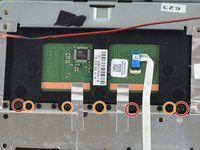
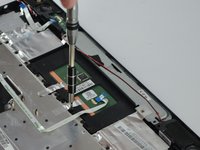
Using the 2mm Phillips Screwdriver, carefully unscrew the four screws holding the track pad.
-
Using the Phillips #00 Screwdriver, unscrew the three screws holding the track pad.
-
-




To reassemble your device, follow these instructions in reverse order.
Cancel: I did not complete this guide.
2 other people completed this guide.

Team

USF Tampa, Team 2-2, Sullivan Fall 2016 Member of USF Tampa, Team 2-2, Sullivan Fall 2016
USFT-SULLIVAN-F16S2G2
3 Members
60 Guides authored
