Free Shipping on Domestic Orders $75+

Asus Eee PC T101MT Wireless Network Interface Card Replacement

What you need

  1. Asus Eee PC T101MT Wireless Network Interface Card Replacement, Battery: step 1, image 1 of 1
    • Before you begin, make sure your device is powered off and not connected to the power supply.

    • Turn the tablet over and position it so it matches the picture.

    Ask FixBot

    Add Comment

  2. Asus Eee PC T101MT Wireless Network Interface Card Replacement: step 2, image 1 of 1
    • Locate the sliding tab on the right and slide it to the left in order to unlock the battery.

    Ask FixBot

    Add Comment

  3. Asus Eee PC T101MT Wireless Network Interface Card Replacement: step 3, image 1 of 1
    • Use a plastic opening tool to lift the battery up as you slide the tab on the left to the right.

    Ask FixBot

    Add Comment

  4. Asus Eee PC T101MT Wireless Network Interface Card Replacement: step 4, image 1 of 1
    • Lift the battery out of the device.

    Ask FixBot

    Add Comment

  5. Asus Eee PC T101MT Wireless Network Interface Card Replacement, Keyboard: step 5, image 1 of 3 Asus Eee PC T101MT Wireless Network Interface Card Replacement, Keyboard: step 5, image 2 of 3 Asus Eee PC T101MT Wireless Network Interface Card Replacement, Keyboard: step 5, image 3 of 3
    • Turn the tablet over and open it up. Insert a nylon spudger into the slots above F1, F6, F10 to pry up the keyboard.

    Ask FixBot

    Add Comment

  6. Asus Eee PC T101MT Wireless Network Interface Card Replacement: step 6, image 1 of 1
    • Once you have the keyboard out, use the nylon spudger to remove the connection. You can now replace the keyboard.

    Ask FixBot

    Add Comment

  7. Asus Eee PC T101MT Wireless Network Interface Card Replacement, Wireless Network Interface Card: step 7, image 1 of 1
    • Locate the wireless NIC (network interface card).

    Ask FixBot

    Add Comment

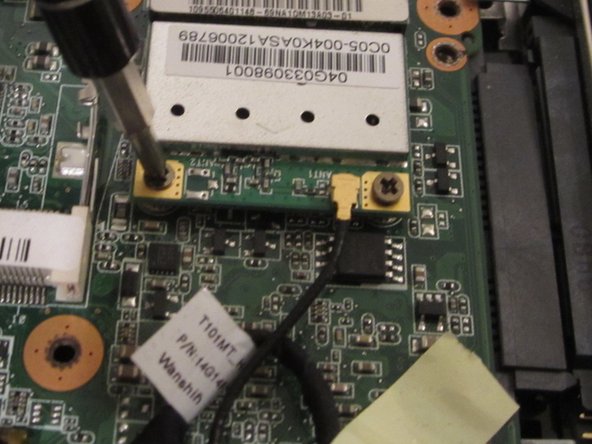
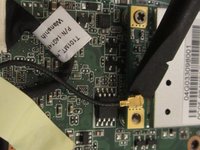
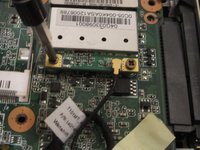
  8. Asus Eee PC T101MT Wireless Network Interface Card Replacement: step 8, image 1 of 2 Asus Eee PC T101MT Wireless Network Interface Card Replacement: step 8, image 2 of 2
    • Use a nylon spudger to lift the wireless antenna from the NIC and remove the screws.

    Ask FixBot

    Add Comment

  9. Asus Eee PC T101MT Wireless Network Interface Card Replacement: step 9, image 1 of 1
    • Remove and replace the wireless card.

    Ask FixBot

    Add Comment

Conclusion

To reassemble your device, follow these instructions in reverse order.

Cancel: I did not complete this guide.

Jarnell Miranda

Member since: 10/17/15

657 Reputation

5 Guides authored

Team

Gateway, Team 1-1, Kuhn Fall 2015 Member of Gateway, Team 1-1, Kuhn Fall 2015

GCC-KUHN-F15S1G1

1 Member

10 Guides authored

0 Guide Comments

Add Comment

View Statistics:

Past 24 Hours: 0

Past 7 Days: 5

Past 30 Days: 25

All Time: 893