Free Shipping on Domestic Orders $75+

Asus Eee PC 1005PEB Wifi Card Replacement

What you need

  1. Asus Eee PC 1005PEB Wifi Card Replacement, Battery: step 1, image 1 of 1
    • Start by placing the laptop upside-down on a flat surface.

    • Find the two clips on the back portion of the laptop.

    Ask FixBot

    Add Comment

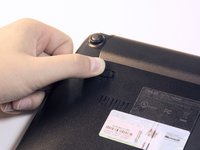
  2. Asus Eee PC 1005PEB Wifi Card Replacement: step 2, image 1 of 1
    • Using your finger, push the clip labeled with a "1" on the laptop from the lock position to unlock position.

    • This clip will hold itself, so after you move it to the unlock position you can remove your finger.

    Ask FixBot

    Add Comment

  3. Asus Eee PC 1005PEB Wifi Card Replacement: step 3, image 1 of 2 Asus Eee PC 1005PEB Wifi Card Replacement: step 3, image 2 of 2
    • Using your finger, push and hold the pin indicated by a "2" on the laptop from the lock to unlock position.

    • While holding this pin in the unlock position, use your other hand to pull the battery horizontally away from the laptop.

    • When the pins on the battery that reach towards the laptop are away from the laptop, you can release the "2" clip.

    Ask FixBot

    Add Comment

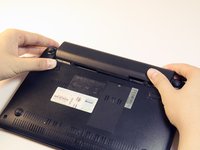
  4. Asus Eee PC 1005PEB Wifi Card Replacement: step 4, image 1 of 1
    • Using both hands, pull the battery horizontally away from the laptop.

    Ask FixBot

    Add Comment

  5. Asus Eee PC 1005PEB Wifi Card Replacement, Keyboard: step 5, image 1 of 1
    • Face the laptop so the 4 silver "clips" along the middle of the battery cartridge are in front of you.

    Ask FixBot

    Add Comment

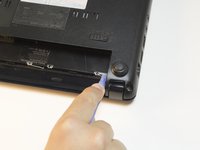
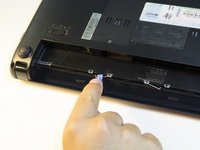
  6. Asus Eee PC 1005PEB Wifi Card Replacement: step 6, image 1 of 3 Asus Eee PC 1005PEB Wifi Card Replacement: step 6, image 2 of 3 Asus Eee PC 1005PEB Wifi Card Replacement: step 6, image 3 of 3
    • Using the wide opening tool, unhook each clip from its original position by pulling the clip towards you.

    • Repeat for all four of the clips.

    Ask FixBot

    Add Comment

  7. Asus Eee PC 1005PEB Wifi Card Replacement: step 7, image 1 of 1
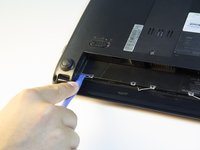
    • Turn the laptop right side up and lift the lid.

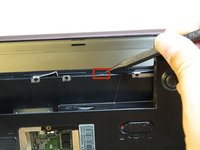
    • Insert the flat end of the spudger into the small gap between the top of the keyboard and the plastic of the laptop.

    • Using the spudger as leverage, lift the keyboard up from the rest of the laptop.

    • Run the spudger across the seam until the entire top edge is exposed. The two sides of the keyboard should also pop up in this process.

    Ask FixBot

    Add Comment

  8. Asus Eee PC 1005PEB Wifi Card Replacement: step 8, image 1 of 1
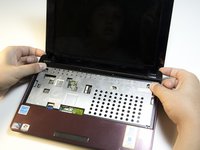
    • The keyboard should now lift from the base of the laptop.

    • Do not lift the keyboard up to quickly or too hard, since a ribbon cable is still attached to the keyboard and doing so could break it.

    Ask FixBot

    Add Comment

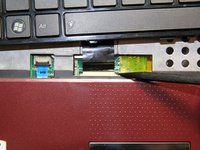
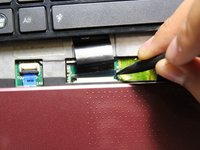
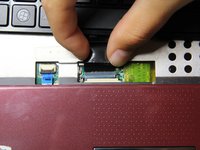
  9. Asus Eee PC 1005PEB Wifi Card Replacement: step 9, image 1 of 3 Asus Eee PC 1005PEB Wifi Card Replacement: step 9, image 2 of 3 Asus Eee PC 1005PEB Wifi Card Replacement: step 9, image 3 of 3
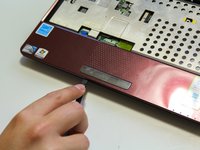
    • Using the pointed end of the spudger tool, disconnect the ribbon cable that extends from the bottom of the keyboard to the computer by pushing on the connections of the cable.

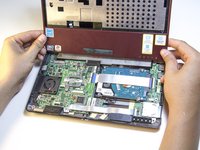
    • Once the ribbon cable is disconnected, the keyboard can be fully removed by lifting it away from the laptop.

    Ask FixBot

    Add Comment

  10. Asus Eee PC 1005PEB Wifi Card Replacement, Wifi Card: step 10, image 1 of 2 Asus Eee PC 1005PEB Wifi Card Replacement, Wifi Card: step 10, image 2 of 2
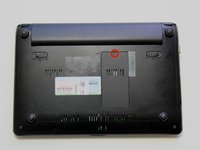
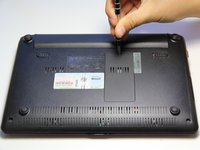
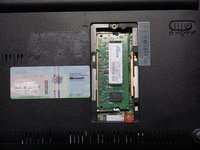
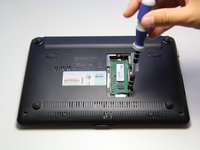
    • Turn laptop upside down.

    • Find and unscrew the 5.5 mm Phillips #1 screw on the ram cover.

    • The screw and ram cover are connected and will not separate.

    Ask FixBot

    Add Comment

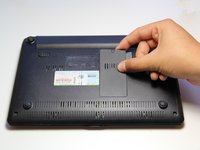
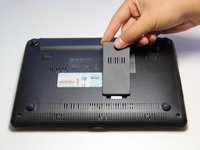
  11. Asus Eee PC 1005PEB Wifi Card Replacement: step 11, image 1 of 2 Asus Eee PC 1005PEB Wifi Card Replacement: step 11, image 2 of 2
    • Carefully remove the cover by lifting it with your fingers.

    • Make sure that you do not pull the cover too hard because there are plastic pins that hold the cover on.

    Ask FixBot

    Add Comment

  12. Asus Eee PC 1005PEB Wifi Card Replacement: step 12, image 1 of 2 Asus Eee PC 1005PEB Wifi Card Replacement: step 12, image 2 of 2
    • Locate and remove the silver 6.65 mm Phillips #1 screw in the bottom right corner of the opening.

    Ask FixBot

    Add Comment

  13. Asus Eee PC 1005PEB Wifi Card Replacement: step 13, image 1 of 1
    • Remove the four 6 mm screws with the Phillips #1 screwdriver.

    Ask FixBot

    Add Comment

  14. Asus Eee PC 1005PEB Wifi Card Replacement: step 14, image 1 of 3 Asus Eee PC 1005PEB Wifi Card Replacement: step 14, image 2 of 3 Asus Eee PC 1005PEB Wifi Card Replacement: step 14, image 3 of 3
    • Release the 3 black clips by pushing them in with the pointed end of the spludger.

    Ask FixBot

    Add Comment

  15. Asus Eee PC 1005PEB Wifi Card Replacement: step 15, image 1 of 1
    • This step will void the warranty

    • Remove the all five 5.5 mm Phillips #1 screws.

    Ask FixBot

    Add Comment

  16. Asus Eee PC 1005PEB Wifi Card Replacement: step 16, image 1 of 1
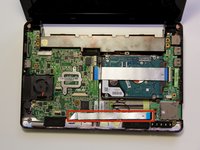
    • Remove the ribbon cable that is connected to the circuit board with the pointed end of the spudger.

    Ask FixBot

    Add Comment

  17. Asus Eee PC 1005PEB Wifi Card Replacement: step 17, image 1 of 3 Asus Eee PC 1005PEB Wifi Card Replacement: step 17, image 2 of 3 Asus Eee PC 1005PEB Wifi Card Replacement: step 17, image 3 of 3
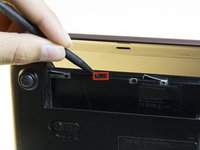
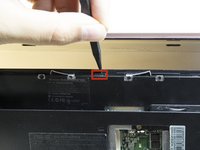
    • Pry up the plastic frame at the top corners.

    • Use the wide end of spudger and slide it between the bottom case and the plastic red to release it.

    • The red plastic frame and the silver piece of metal are connected and will come off together.

    Ask FixBot

    Add Comment

  18. Asus Eee PC 1005PEB Wifi Card Replacement: step 18, image 1 of 2 Asus Eee PC 1005PEB Wifi Card Replacement: step 18, image 2 of 2
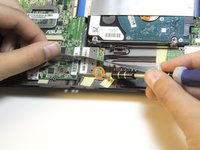
    • Fold back the ribbon cable away from you.

    • Remove the 3.6 mm Phillip #1 screw.

    Ask FixBot

    Add Comment

  19. Asus Eee PC 1005PEB Wifi Card Replacement: step 19, image 1 of 1
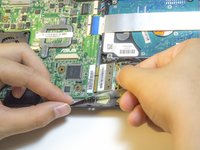
    • Fold the ribbon cable the opposite way and lift up the wifi card.

    Ask FixBot

    Add Comment

  20. Asus Eee PC 1005PEB Wifi Card Replacement: step 20, image 1 of 2 Asus Eee PC 1005PEB Wifi Card Replacement: step 20, image 2 of 2
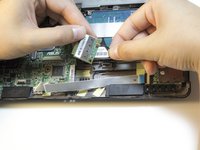
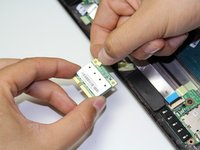
    • Remove the Wi-Fi card by pulling the card away from where it was plugged in.

    • Don't pull the wifi card out too fast because the antenna is still attached and doing so could damage the antenna or connector.

    Ask FixBot

    Add Comment

  21. Asus Eee PC 1005PEB Wifi Card Replacement: step 21, image 1 of 2 Asus Eee PC 1005PEB Wifi Card Replacement: step 21, image 2 of 2
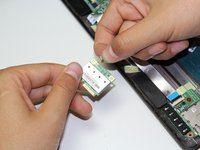
    • Pull the antenna away from the wifi card to remove it.

    Ask FixBot

    Add Comment

Conclusion

To reassemble your device, follow these instructions in reverse order.

Cancel: I did not complete this guide.

4 other people completed this guide.

Aaron Arenas

Member since: 04/20/14

751 Reputation

5 Guides authored

Team

Cal Poly, Team 13-32, Maness Spring 2014 Member of Cal Poly, Team 13-32, Maness Spring 2014

CPSU-MANESS-S14S13G32

5 Members

5 Guides authored

0 Guide Comments

Add Comment

View Statistics:

Past 24 Hours: 1

Past 7 Days: 4

Past 30 Days: 36

All Time: 2,140