
Asus Eee PC 1005PEB Battery Replacement

Aaron Arenas and 5 other contributors
Last updated on Jun 5, 2014
Views: 2.3K
View statistics:
- Past 24 Hours:
- 3
- Past 7 Days:
- 31
- Past 30 Days:
- 107
- All Time:
- 2,295
Comments: 0
No one has left comments on this guide. Will you be first?
Go to guide commentsCompleted: 2 3
2 people have marked this guide "completed." Will you be next?
3 people have marked this guide "completed." Including you — great job!
Favorites: 0 1
No one has favorited (and subscribed to) this guide. Will you be the first?
1 person has favorited (and subscribed to) this guide — and that's you!
Introduction
Go to step 1 ↓The battery is located on the bottom of the laptop. Before starting the guide, make sure the laptop's charger is not plugged in. No tools are needed for this guide.
-
-
-
Start by placing the laptop upside-down on a flat surface.
-
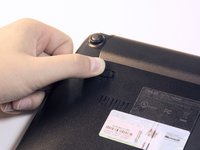
Find the two clips on the back portion of the laptop.
 Ask FixBot
-
-
-
Using your finger, push the clip labeled with a "1" on the laptop from the lock position to unlock position.
-
-
-
-
Using your finger, push and hold the pin indicated by a "2" on the laptop from the lock to unlock position.
-
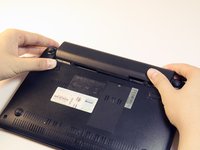
While holding this pin in the unlock position, use your other hand to pull the battery horizontally away from the laptop.
-
-



To reassemble your device, follow these instructions in reverse order.
Cancel: I did not complete this guide.
2 other people completed this guide.

Team

Cal Poly, Team 13-32, Maness Spring 2014 Member of Cal Poly, Team 13-32, Maness Spring 2014
CPSU-MANESS-S14S13G32
5 Members
60 Guides authored
