
Asus Eee PC 1005HA Screen Replacement

Mitchell Cesare and 8 other contributors
Last updated on May 7, 2024
Views: 23K
View statistics:
- Past 24 Hours:
- 5
- Past 7 Days:
- 23
- Past 30 Days:
- 117
- All Time:
- 22,669
Comments: 0
No one has left comments on this guide. Will you be first?
Go to guide commentsCompleted: 13 14
13 people have marked this guide "completed." Will you be next?
14 people have marked this guide "completed." Including you — great job!
Favorites: 18 19
18 people have favorited (and subscribed to) this guide. Will you be next?
19 people have favorited (and subscribed to) this guide — including you!
Featured Guide
This guide has been found to be exceptionally cool by the iFixit staff.
Introduction
Go to step 1 ↓Use this guide to replace the screen of the Replace the screen on your Asus Eee PC 1005HA laptop.
What you need


-
-
-
Slide the tabs outward to unlock the battery.
-
Holding the right tab open, slide the battery out of the laptop.
-
-
-
Tool used on this step:Tweezers$4.99
-
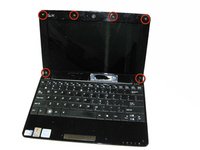
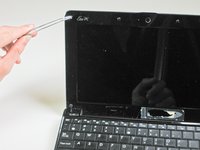
Using tweezers, remove the six screw covers on the screen bezel.
-
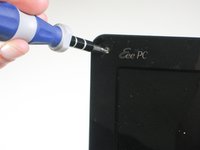
Remove the six 4.6 mm screws from the bezel.
-
-
-
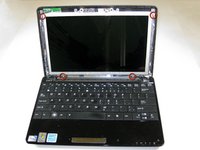
Use a plastic opening tool to disengage the plastic clips that secure the screen bezel to the display.
-
Carefully remove the bezel from the display.
-
-
-
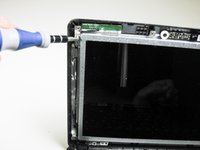
Remove the four 3.6 mm screws securing the screen.
-
Slowly lift the screen up from the rest of the laptop.
-
-
-
-
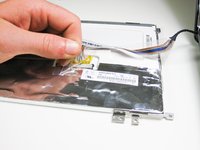
Remove the plastic tape securing the display cables to the back of the screen.
-
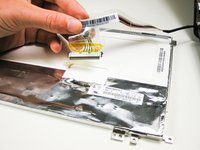
Slide the display cable connector out its socket on the back of the screen.
-
-
-
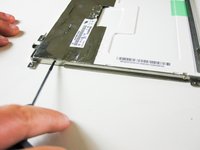
Remove the four 3.1 mm housing screws on the sides of the display housing frame
-
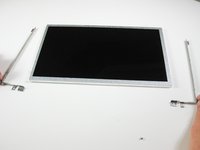
Remove the housing frame.
-
-

 Ask FixBot








To reassemble your device, follow these instructions in reverse order.
Cancel: I did not complete this guide.
13 other people completed this guide.

Team

Cal Poly, Team 11-22, Maness Winter 2012 Member of Cal Poly, Team 11-22, Maness Winter 2012
CPSU-MANESS-W12S11G22
3 Members
72 Guides authored
