Free Shipping on Domestic Orders $75+

Asus Eee PC 1000HA RAM Replacement

What you need

  1. Asus Eee PC 1000HA RAM Replacement, RAM: step 1, image 1 of 1
    • Remove the battery before working on your device. See this LINK for a step-by-step guide.

    • Gently turn the laptop up side down so that the battery is facing away from you. The battery is outlined by the red rectangle in the picture to the left.

    Ask FixBot

    Add Comment

  2. Asus Eee PC 1000HA RAM Replacement: step 2, image 1 of 1
    • Use a #00 Phillips Head screw driver to remove the two 1/4" screws that hold the back panel in place.

    Ask FixBot

    Add Comment

  3. Asus Eee PC 1000HA RAM Replacement: step 3, image 1 of 1
    • Place the blue plastic 1/4" opening tool into the small indention and gently pry the back panel off.

    Ask FixBot

    Add Comment

  4. Asus Eee PC 1000HA RAM Replacement: step 4, image 1 of 1
    • Remove the back panel.

    • The RAM is shown by the orange marker.

    Ask FixBot

    Add Comment

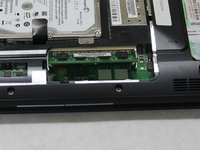
  5. Asus Eee PC 1000HA RAM Replacement: step 5, image 1 of 3 Asus Eee PC 1000HA RAM Replacement: step 5, image 2 of 3 Asus Eee PC 1000HA RAM Replacement: step 5, image 3 of 3
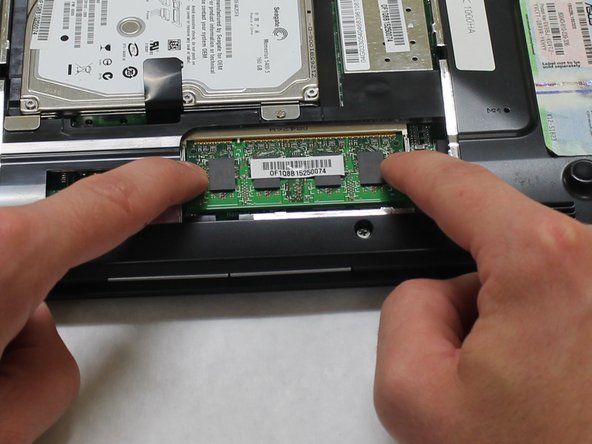
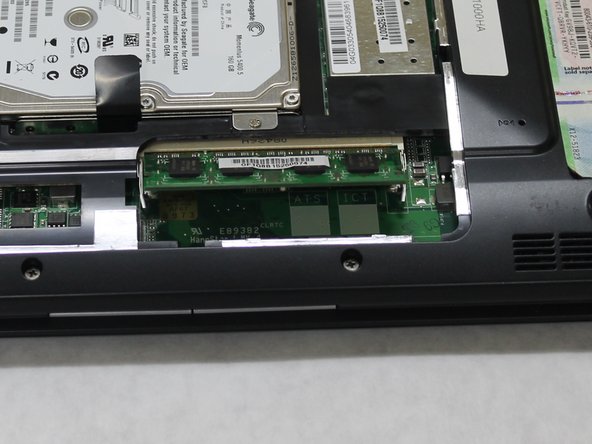
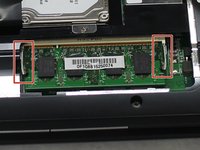
    • Push the two silver tabs outwards and the RAM will pop up to be removed.

    Ask FixBot

    Add Comment

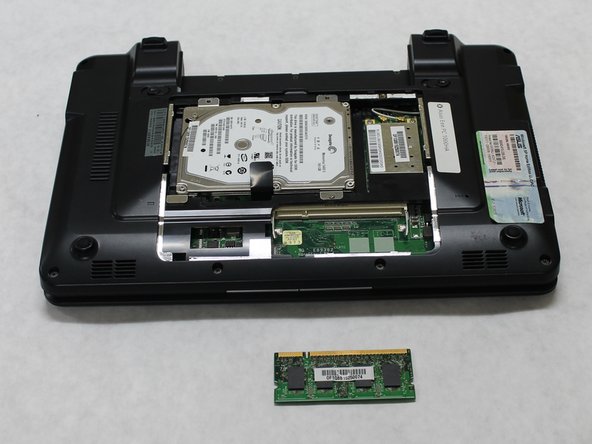
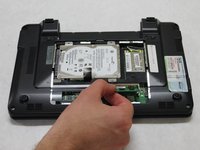
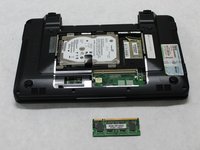
  6. Asus Eee PC 1000HA RAM Replacement: step 6, image 1 of 2 Asus Eee PC 1000HA RAM Replacement: step 6, image 2 of 2
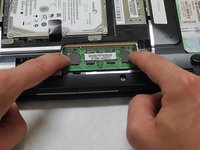
    • Gently pull the RAM outwards to remove.

    Ask FixBot

    Add Comment

Conclusion

To reassemble your device, follow these instructions in reverse order.

Cancel: I did not complete this guide.

2 other people completed this guide.

Ashlee Stickle

Member since: 10/13/15

675 Reputation

5 Guides authored

Team

0 Guide Comments

Add Comment

View Statistics:

Past 24 Hours: 2

Past 7 Days: 3

Past 30 Days: 33

All Time: 657