Free Shipping on Domestic Orders $75+

Asus Chromebook Flip C302CA Display Replacement

What you need

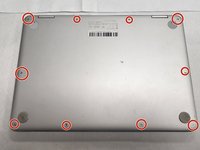
    1. Asus Chromebook Flip C302CA Display Replacement, Back Panel: step 1, image 1 of 1
      • Turn the laptop over so the bottom is facing you.

      Ask FixBot

      Add Comment

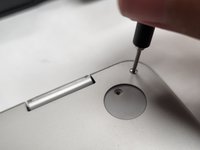
    2. Asus Chromebook Flip C302CA Display Replacement: step 2, image 1 of 3 Asus Chromebook Flip C302CA Display Replacement: step 2, image 2 of 3 Asus Chromebook Flip C302CA Display Replacement: step 2, image 3 of 3
      • Remove two rubber caps on the top.

      • Remove the two 1 mm screws using the Phillips #00 screwdriver.

      Ask FixBot

      Add Comment

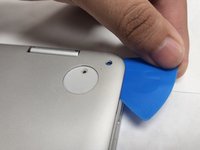
    3. Asus Chromebook Flip C302CA Display Replacement: step 3, image 1 of 3 Asus Chromebook Flip C302CA Display Replacement: step 3, image 2 of 3 Asus Chromebook Flip C302CA Display Replacement: step 3, image 3 of 3
      • Remove the ten 2 mm screws from the back panel using a T5 Torx screwdriver.

      • Carefully remove the back panel using an opening pick.

      Ask FixBot

      Add Comment

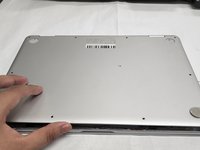
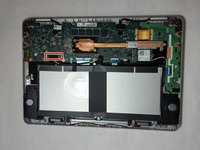
    4. Asus Chromebook Flip C302CA Display Replacement: step 4, image 1 of 2 Asus Chromebook Flip C302CA Display Replacement: step 4, image 2 of 2
      • Remove the back panel from the laptop.

      Ask FixBot

      Add Comment

    1. Asus Chromebook Flip C302CA Display Replacement, Display: step 5, image 1 of 1
      • Remove the black display ports from the motherboard.

      Ask FixBot

      Add Comment

    2. Asus Chromebook Flip C302CA Display Replacement: step 6, image 1 of 1
      • Remove the six 2.54 mm Phillips screws from the left and right screen hinge brackets.

      Ask FixBot

      Add Comment

    3. Asus Chromebook Flip C302CA Display Replacement: step 7, image 1 of 1
      • Remove the display unit.

      Ask FixBot

      Add Comment

    4. Asus Chromebook Flip C302CA Display Replacement: step 8, image 1 of 1
      • Use heat gun to loosen up adhesive on rubber covers for screw.

      Ask FixBot

      Add Comment

    5. Asus Chromebook Flip C302CA Display Replacement: step 9, image 1 of 1
      • Remove rubber covers.

      Ask FixBot

      Add Comment

    6. Asus Chromebook Flip C302CA Display Replacement: step 10, image 1 of 1
      • Remove the two 2.5 mm screws.

      Ask FixBot

      Add Comment

    7. Asus Chromebook Flip C302CA Display Replacement: step 11, image 1 of 1
      • Use prying tool to separate panel from monitor.

      Ask FixBot

      Add Comment

    8. Asus Chromebook Flip C302CA Display Replacement: step 12, image 1 of 1
      • Remove this connection by pulling to separate it from the monitor.

      Ask FixBot

      Add Comment

    9. Asus Chromebook Flip C302CA Display Replacement: step 13, image 1 of 1
      • Remove connection point and the entire camera assembly including wires.

      Ask FixBot

      Add Comment

Conclusion

To reassemble your device, follow these instructions in reverse order.

Cancel: I did not complete this guide.

0 Guide Comments

Add Comment

View Statistics:

Past 24 Hours: 1

Past 7 Days: 7

Past 30 Days: 31

All Time: 675