Introduction
If your Chromebook’s display flickers or does not work, this guide will show you how to easily replace the display of your Asus Chromebook CX1500CN.
The display is a vital part of the computer and will need to be replaced for proper usage. You will need a #1 Phillips screwdriver and, optionally, an iFixit opening tool.
What you need
-
-
-
Orient the laptop so that the bottom of the laptop faces towards you.
-
Use a Phillips #1 screwdriver to remove the eleven 8 mm-long screws that secure the lower case.
 Ask FixBot
-
-
-
Insert an opening tool into the seam between the lower case and chassis.
-
Pry around the entire perimeter until the lower case fully releases.
-
Remove the lower case.
-
-
-
-
-
Grip the white battery connector and pull it directly out of its socket.
-
-
-
-
-
-
Locate the display assembly cable below the right hinge of the case.
-
Peel off the clear tape holding the cable to the board.
-
-
-
Flip the small metal lever up and disconnect the display cable from the port.
-
-
-
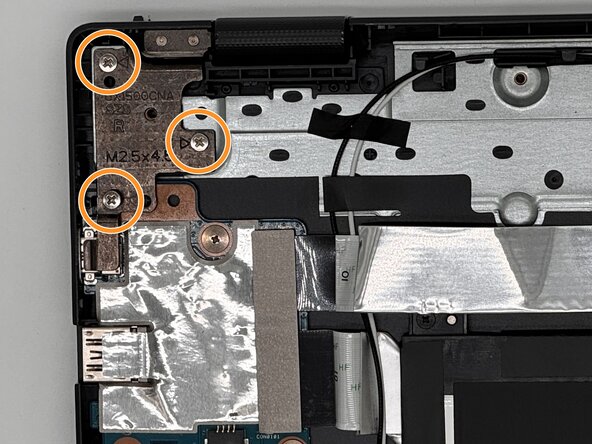
Locate the left hinge of the display assembly.
-
Remove the three 5 mm-long screws on the left hinge with a Phillips #1 screwdriver.
-
-
-
While keeping the hinges in place, partially open the upside-down laptop.
-
Keep opening the laptop until the hinges slide freely out of the bracket holding it in.
-
-




To reassemble your device, follow the above steps in reverse order.
Take your e-waste to an R2 or e-Stewards certified recycler.
Repair didn’t go as planned? Try some basic troubleshooting or ask our Answers community for help.

Team

University of North Texas, Team 6-6, Kilpatrick Fall 2025 Member of University of North Texas, Team 6-6, Kilpatrick Fall 2025
UNT-KILPATRICK-F25S6G6
4 Members
60 Guides authored
