Free Shipping on Domestic Orders $75+

Asus Chromebook CX1500CKA-AS84F Trackpad Replacement

What you need

    1. Asus Chromebook CX1500CKA-AS84F Trackpad Replacement, Back Cover: step 1, image 1 of 2 Asus Chromebook CX1500CKA-AS84F Trackpad Replacement, Back Cover: step 1, image 2 of 2
      • Remove the ten 7 mm JIS #00 screws from the bottom edge of the Chromebook.

      • Remove the one 7 mm JIS #00 screw in the middle, above the tag.

      Ask FixBot

      Add Comment

    2. Asus Chromebook CX1500CKA-AS84F Trackpad Replacement: step 2, image 1 of 3 Asus Chromebook CX1500CKA-AS84F Trackpad Replacement: step 2, image 2 of 3 Asus Chromebook CX1500CKA-AS84F Trackpad Replacement: step 2, image 3 of 3
      • Use a plastic opening tool to carefully lift the bottom cover and take it off the laptop.

      • Avoid using metal tools to pry open the case, as this can damage the housing.

      Ask FixBot

      Add Comment

    1. Asus Chromebook CX1500CKA-AS84F Trackpad Replacement, Battery: step 3, image 1 of 3 Asus Chromebook CX1500CKA-AS84F Trackpad Replacement, Battery: step 3, image 2 of 3 Asus Chromebook CX1500CKA-AS84F Trackpad Replacement, Battery: step 3, image 3 of 3
      • To disconnect the cable, use a spudger or your fingernail to lift the locking tab.

      • Use your hand to carefully unplug the battery cable from the motherboard.

      Ask FixBot

      Add Comment

    2. Asus Chromebook CX1500CKA-AS84F Trackpad Replacement: step 4, image 1 of 1
      • Remove five 2 mm JIS #00 screws from the battery.

      Ask FixBot

      Add Comment

    3. Asus Chromebook CX1500CKA-AS84F Trackpad Replacement: step 5, image 1 of 2 Asus Chromebook CX1500CKA-AS84F Trackpad Replacement: step 5, image 2 of 2
      • Remove the battery from the laptop.

      Ask FixBot

      Add Comment

    1. Asus Chromebook CX1500CKA-AS84F Trackpad Replacement, Trackpad: step 6, image 1 of 2 Asus Chromebook CX1500CKA-AS84F Trackpad Replacement, Trackpad: step 6, image 2 of 2
      • Carefully pull on the trackpad cable to disconnect it from the motherboard.

      Ask FixBot

      Add Comment

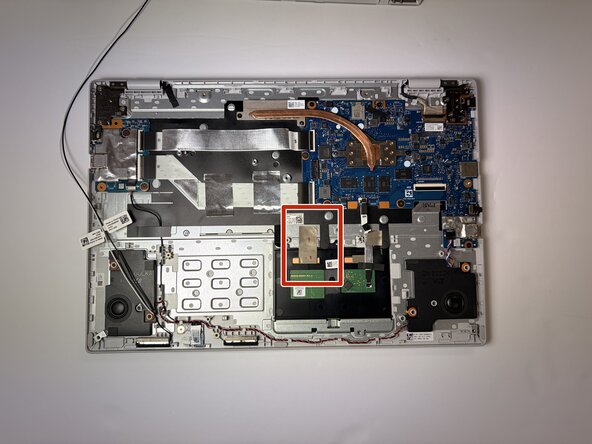
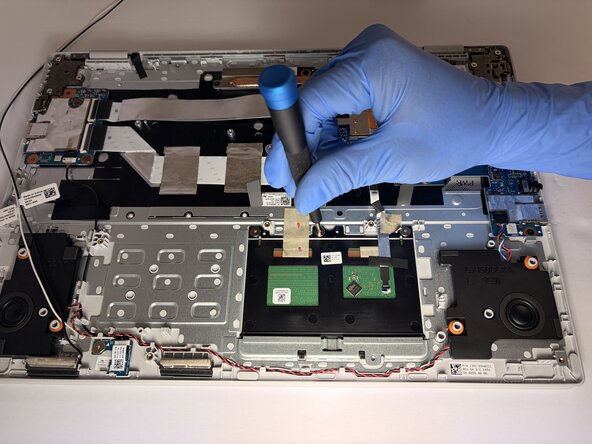
    2. Asus Chromebook CX1500CKA-AS84F Trackpad Replacement: step 7, image 1 of 2 Asus Chromebook CX1500CKA-AS84F Trackpad Replacement: step 7, image 2 of 2
      • Gently remove the tape from the frame.

      Ask FixBot

      Add Comment

    3. Asus Chromebook CX1500CKA-AS84F Trackpad Replacement: step 8, image 1 of 2 Asus Chromebook CX1500CKA-AS84F Trackpad Replacement: step 8, image 2 of 2
      • Remove the three 2 mm screws using a Phillips #1 screwdriver.

      Ask FixBot

      Add Comment

    4. Asus Chromebook CX1500CKA-AS84F Trackpad Replacement: step 9, image 1 of 2 Asus Chromebook CX1500CKA-AS84F Trackpad Replacement: step 9, image 2 of 2
      • Lift off the trackpad to remove it.

      Ask FixBot

      Add Comment

Conclusion

To reassemble your device, follow these instructions in reverse order.

Cancel: I did not complete this guide.

Ron Balladares

Member since: 09/10/25

243 Reputation

2 Guides authored

0 Guide Comments

Add Comment

View Statistics:

Past 24 Hours: 0

Past 7 Days: 3

Past 30 Days: 22

All Time: 108