Free Shipping on Domestic Orders $75+

Asus Chromebook C523N Touchpad Replacement

What you need

    1. Asus Chromebook C523N Touchpad Replacement, Back Cover: step 1, image 1 of 2 Asus Chromebook C523N Touchpad Replacement, Back Cover: step 1, image 2 of 2
      • Remove the four 0.5mm JIS #00 screws from the bottom edge of the Chromebook and one in the center.

      • Remove the six 1.7mm JIS #00 screws from the sides and top edge of the Chromebook.

      Ask FixBot

      Add Comment

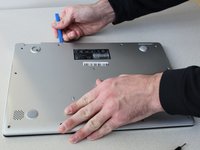
    2. Asus Chromebook C523N Touchpad Replacement: step 2, image 1 of 2 Asus Chromebook C523N Touchpad Replacement: step 2, image 2 of 2
      • Using a spudger, lift the top left base pad and remove it to reveal a final screw underneath.

      • Remove the one 0.5mm JIS #00 screw underneath the base pad.

      Ask FixBot

      Add Comment

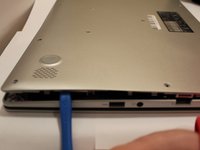
    3. Asus Chromebook C523N Touchpad Replacement: step 3, image 1 of 2 Asus Chromebook C523N Touchpad Replacement: step 3, image 2 of 2
      • Use an opening tool to gently pry the base enclosure up and remove from the laptop.

      Ask FixBot

      Add Comment

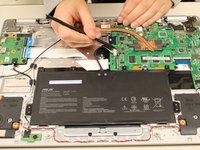
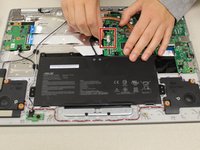
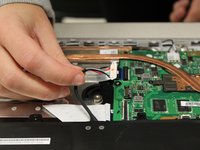
    1. Asus Chromebook C523N Touchpad Replacement, Battery: step 4, image 1 of 3 Asus Chromebook C523N Touchpad Replacement, Battery: step 4, image 2 of 3 Asus Chromebook C523N Touchpad Replacement, Battery: step 4, image 3 of 3
      • To disconnect the cable, use the tip of a spudger or your fingernail to flip up the small locking flap.

      • Gently disconnect the battery cable from the motherboard.

      Ask FixBot

      Add Comment

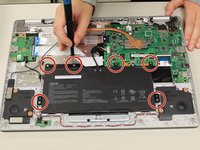
    2. Asus Chromebook C523N Touchpad Replacement: step 5, image 1 of 2 Asus Chromebook C523N Touchpad Replacement: step 5, image 2 of 2
      • Remove six 1.4 mm JIS #00 screws from the battery.

      Ask FixBot

      Add Comment

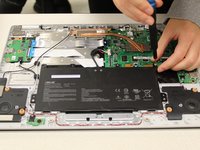
    3. Asus Chromebook C523N Touchpad Replacement: step 6, image 1 of 1
      • Remove the battery from the laptop.

      Ask FixBot

      Add Comment

    1. Asus Chromebook C523N Touchpad Replacement, Touchpad: step 7, image 1 of 1
      • Pull gently on the touchpad cable connector to disconnect.

      Ask FixBot

      Add Comment

    2. Asus Chromebook C523N Touchpad Replacement: step 8, image 1 of 1
      • Carefully, remove the tape from the touch pad only.

      Ask FixBot

      Add Comment

    3. Asus Chromebook C523N Touchpad Replacement: step 9, image 1 of 1
      • Remove the three 1.4 mm JIS #00 screws.

      Ask FixBot

      Add Comment

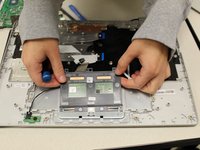
    4. Asus Chromebook C523N Touchpad Replacement: step 10, image 1 of 2 Asus Chromebook C523N Touchpad Replacement: step 10, image 2 of 2
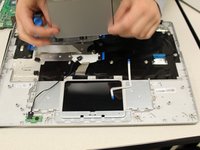
      • Lift at the far edge of the touchpad to remove it.

      Ask FixBot

      Add Comment

Conclusion

To reassemble your device, follow these instructions in reverse order.

Cancel: I did not complete this guide.

2 other people completed this guide.

3 Guide Comments

Where do i buy the replacement touch pad

Anthony hughs - Reply Share

Very precise and clear. Thank you.

Raymond Trail - Reply Share

very clear instructions and photos. It was Easy, as described! One repairer had advised I buy a new Chromebook, bought an unused touchpad for £11. It took me a bit longer than the estimated 15 minutes, but this was the first time I’ve ever had the back off a laptop and attempted a repair/replacement, so took loads of photo’s on the way and took my time. I’ll definitely consider another DIY repair in the future.

John Outhwaite - Reply Share

Add Comment

View Statistics:

Past 24 Hours: 1

Past 7 Days: 6

Past 30 Days: 32

All Time: 1,347