Free Shipping on Domestic Orders $75+

Asus Chromebook C300SA- DS02 Keyboard Replacement

What you need

    1. Asus Chromebook C300SA- DS02 Keyboard Replacement, Keyboard: step 1, image 1 of 2 Asus Chromebook C300SA- DS02 Keyboard Replacement, Keyboard: step 1, image 2 of 2
      • Power the laptop off and make sure the charger is unplugged before starting.

      • Remove the eight 8.0mm Phillips #0 screws on the bottom of the laptop.

      • Remove the three 6.0mm Phillips #0 screws.

      Ask FixBot

      Add Comment

    2. Asus Chromebook C300SA- DS02 Keyboard Replacement: step 2, image 1 of 3 Asus Chromebook C300SA- DS02 Keyboard Replacement: step 2, image 2 of 3 Asus Chromebook C300SA- DS02 Keyboard Replacement: step 2, image 3 of 3
      • Open the laptop.

      • Using an iFixit opening tool, pry along the edges of the keyboard.

      • Lift the keyboard and slide it gently towards you.

      • Do not completely remove the keyboard. It is still connected to the back panel by a pair of ribbon cables.

      Ask FixBot

      Add Comment

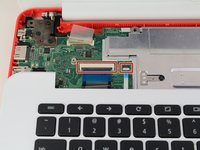
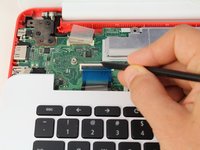
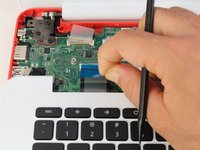
    3. Asus Chromebook C300SA- DS02 Keyboard Replacement: step 3, image 1 of 3 Asus Chromebook C300SA- DS02 Keyboard Replacement: step 3, image 2 of 3 Asus Chromebook C300SA- DS02 Keyboard Replacement: step 3, image 3 of 3
      • Disconnect the two ZIF connectors by prying up the locking bar with a spudger and removing the ribbon cable.

      Ask FixBot

      Add Comment

    4. Asus Chromebook C300SA- DS02 Keyboard Replacement: step 4, image 1 of 1
      • Remove the keyboard from the laptop.

      Ask FixBot

      Add Comment

Conclusion

To reassemble your device, follow these instructions in reverse order.

Cancel: I did not complete this guide.

Lewis Shabshelowitz

Member since: 10/17/17

274 Reputation

2 Guides authored

Team

0 Guide Comments

Add Comment

View Statistics:

Past 24 Hours: 0

Past 7 Days: 5

Past 30 Days: 31

All Time: 835