
Asus Chromebook C300MA-DB01 Keyboard Replacement

wyatt boyatt and 2 other contributors
Last updated on Dec 23, 2017
Views: 737
View statistics:
- Past 24 Hours:
- 3
- Past 7 Days:
- 21
- Past 30 Days:
- 88
- All Time:
- 737
Comments: 0
No one has left comments on this guide. Will you be first?
Go to guide commentsCompleted: 0 1
No one has marked this guide "completed." Will you be the first?
1 person has marked this guide "completed." It's you — great job!
Favorites: 0 1
No one has favorited (and subscribed to) this guide. Will you be the first?
1 person has favorited (and subscribed to) this guide — and that's you!
Introduction
Go to step 1 ↓If your keyboard is not working this guide will be very useful. There is not much that can go wrong with this but as always be wary when unplugging wires as to avoid tearing.
What you need
Parts
Tools


-
-
-
Remove the three 6.0 mm Philips screws from the center of the case with the #2 screwdriver bit.
-
Remove the eight 9.0 mm Philips screws along the perimeter of the case with the #2 screwdriver bit.
-
-
-
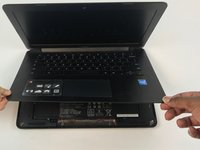
Lift the keyboard panel away from the components at its hinges, which are located at the back of the laptop.
-
-
-
-
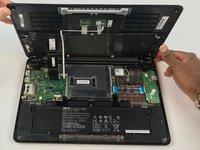
Use plastic opening tool to pry open clip holding keyboard wires to the circuitboard.
-
-
-
-
Use plastic opening tool to pry open clip holding mouse pad wires to the circuit board.
-
Use plastic opening tool to pry open clip holding keyboard flat black wire
-
Use plastic opening tool to pry open clip holding keyboard thiner white wire
-
-

 Ask FixBot




To reassemble your device, follow these instructions in reverse order.

Team

USF Tampa, Team S4-G3, Eyestone Fall 2017 Member of USF Tampa, Team S4-G3, Eyestone Fall 2017
USFT-EYESTONE-F17S4G3
3 Members
72 Guides authored
