Introduction
If your Chromebook needs opened or you are having issues with the touchpad, then this guide is going to help you remove or replace your palm rest assembly. When working on replacing your palm rest assembly, be sure to ground yourself. Static can short circuit your Chromebook, so be sure to either wear an anti-static wrist strap or work on a surface that doesn't generate static electricity, like wood, tile, or other hard floors.
What you need
-
-
-
Flip the laptop upside down with the rear end of the computer away from you.
 Ask FixBot
-
-
-
Remove the two rear rubber feet by using one of the small, blue plastic spudgers.
-
-
-
Use the J0 screwdriver to remove the eight 5mm black screws on the bottom of the laptop, which includes the two that were hidden under the rear rubber feet.
-
-
-
-
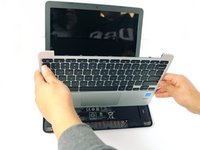
Turn the laptop on its side. Use a small, blue opening tool to pry the keyboard cover and laptop apart. Begin from the top right, next to the power button, and slowly work your way around to the opposite side until the keyboard cover is detached.
-
-
-
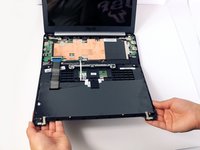
Gently flip the keyboard cover away from the laptop. Rest it safely upside down so the cables are not strained and are easily accessible.
-
-
-
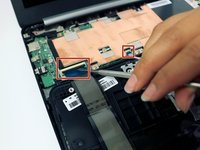
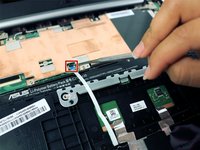
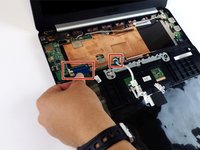
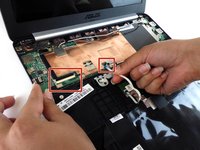
Use the metal spudger to gently pry up the small tabs that are clamping down on the keyboard cables.
-
-
-
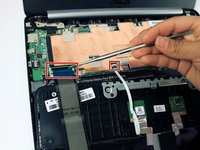
Carefully pull the keyboard cables out of the connecting ports that are attached to the motherboard.
-
-







To reassemble your device, follow these instructions in reverse order.
Cancel: I did not complete this guide.
2 other people completed this guide.

Team

USF Tampa, Team 2-51, Cagle Spring 2016 Member of USF Tampa, Team 2-51, Cagle Spring 2016
USFT-CAGLE-S16S2G51
4 Members
59 Guides authored
