
Asus Chromebook C201 LCD Screen Replacement

Taylor Allen and 6 other contributors
Last updated on May 7, 2024
Views: 4.3K
View statistics:
- Past 24 Hours:
- 3
- Past 7 Days:
- 25
- Past 30 Days:
- 97
- All Time:
- 4,268
Comments: 6
6 comments on steps.
Completed: 10 11
10 people have marked this guide "completed." Will you be next?
11 people have marked this guide "completed." Including you — great job!
Favorites: 3 4
3 people have favorited (and subscribed to) this guide. Will you be next?
4 people have favorited (and subscribed to) this guide — including you!
Introduction
Go to step 1 ↓If your Chromebook is giving you a blank screen or messed up colors, then this guide will help you replace your screen. While following these steps, be sure to ground yourself. Static can short circuit your Chromebook, so be sure to either wear an anti-static wrist strap or work on a surface that does not generate static electricity, like wood tile.
What you need
Tools


-
-
-
Flip the laptop upside down with the rear end of the computer away from you.
 Ask FixBot
-
-
-
Remove the two rear rubber feet by using one of the small, blue plastic spudgers.
-
-
-
Use the J0 screwdriver to remove the eight 5mm black screws on the bottom of the laptop, which includes the two that were hidden under the rear rubber feet.
-
-
-
Turn the laptop on its side. Use a small, blue opening tool to pry the keyboard cover and laptop apart. Begin from the top right, next to the power button, and slowly work your way around to the opposite side until the keyboard cover is detached.
-
-
-
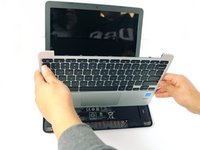
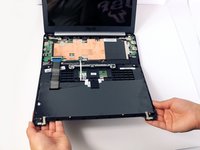
Gently flip the keyboard cover away from the laptop. Rest it safely upside down so the cables are not strained and are easily accessible.
-
-
-
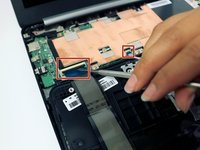
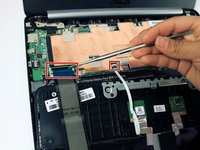
Use the metal spudger to gently pry up the small tabs that are clamping down on the keyboard cables.
-
-
-
-
Carefully pull the keyboard cables out of the connecting ports that are attached to the motherboard.
-
-
-
-
Tool used on this step:Tweezers$4.99
-
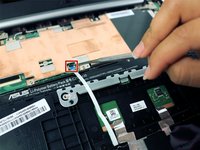
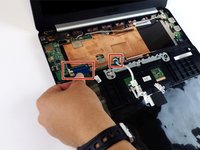
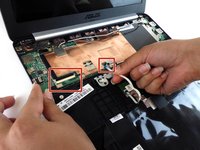
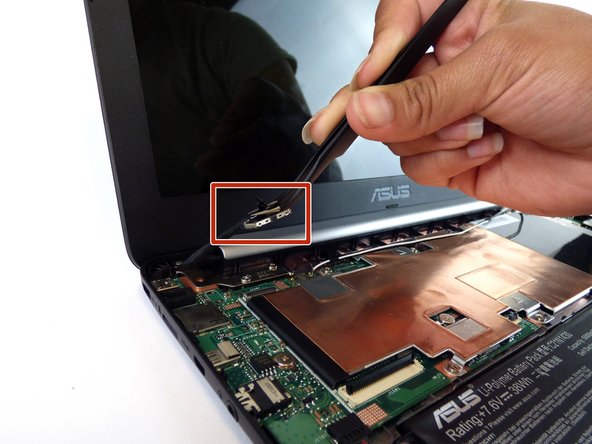
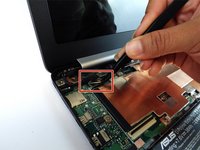
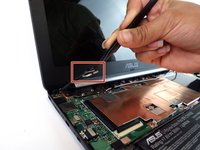
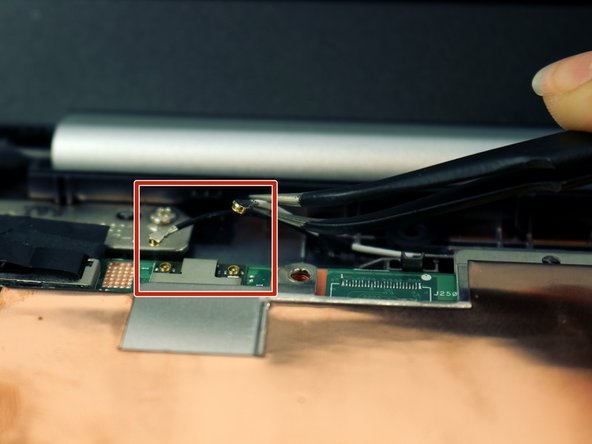
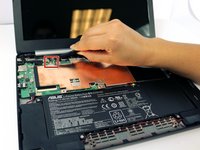
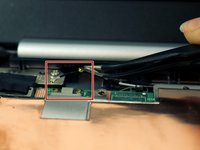
Locate the LCD cable and its connector which is located in the upper left hand corner of the computer. Carefully flip up the tiny tab and safely remove the cable using precision tweezers.
-
-
-
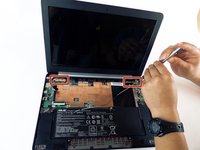
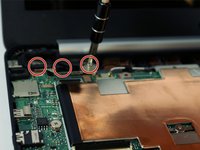
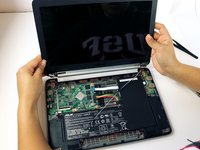
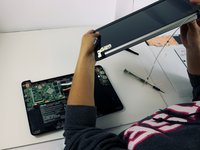
Remove the 6, 4mm silver screws from the hinges attaching the LCD to the laptop using the J0 Phillips screwdriver.
-
-
-
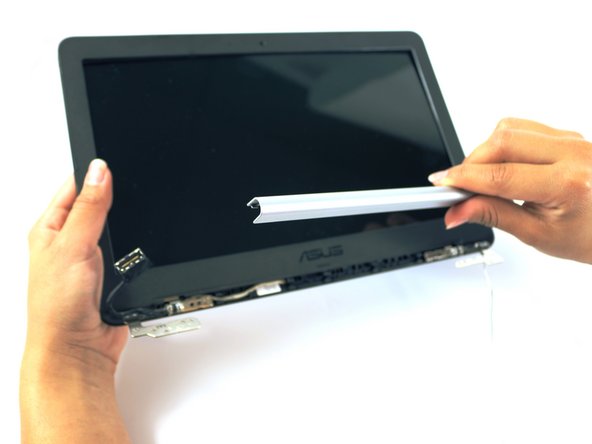
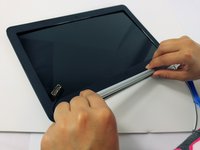
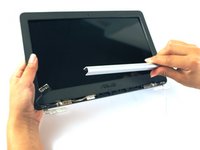
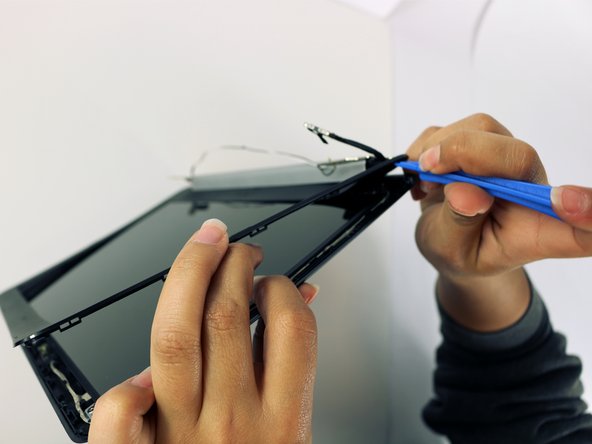
Use a blue plastic spudger to snap the LCD cover off, working the spudger around the perimeter and completely remove the cover.
-
-
-
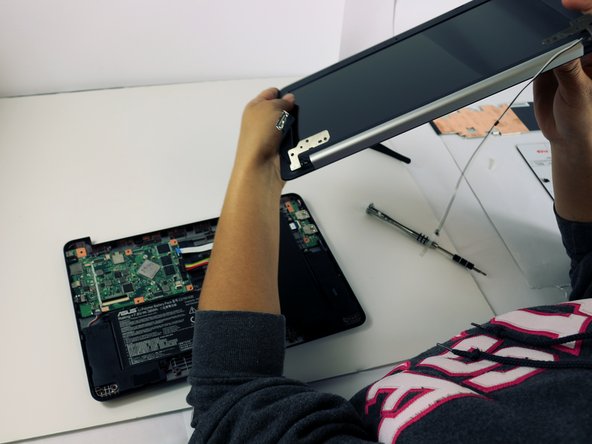
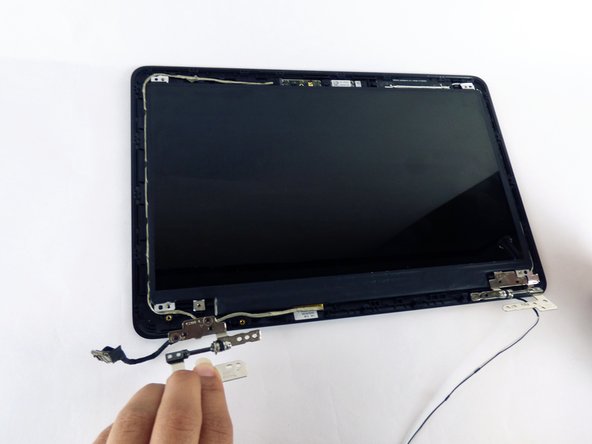
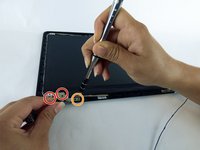
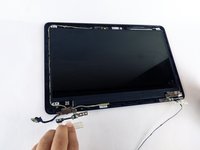
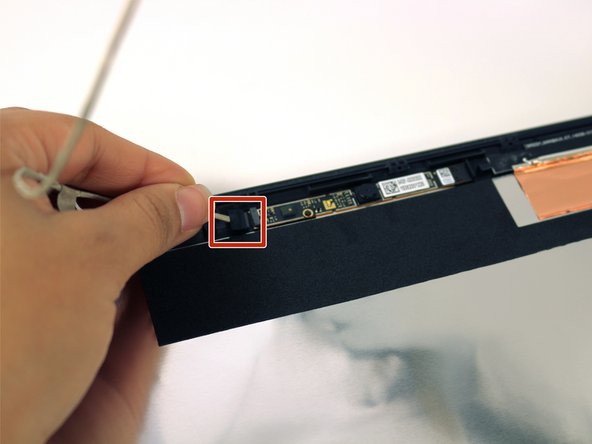
Remove the left hinge by unscrewing the two 3mm large Phillips head screws.
-
Unscrew the one 3mm small Phillips head screw.
-
-



















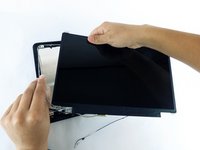
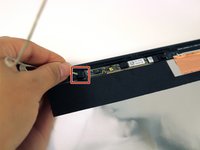
To reassemble your device, follow these instructions in reverse order.
Cancel: I did not complete this guide.
10 other people completed this guide.

Team

USF Tampa, Team 2-51, Cagle Spring 2016 Member of USF Tampa, Team 2-51, Cagle Spring 2016
USFT-CAGLE-S16S2G51
4 Members
60 Guides authored
