
Asus Chromebook C101P Touchpad Replacement

Bryan Acosta and 3 other contributors
Last updated on May 7, 2024
Views: 807
View statistics:
- Past 24 Hours:
- 2
- Past 7 Days:
- 15
- Past 30 Days:
- 63
- All Time:
- 807
Comments: 2
2 comments on steps.
Completed: 0 1
No one has marked this guide "completed." Will you be the first?
1 person has marked this guide "completed." It's you — great job!
Favorites: 0 1
No one has favorited (and subscribed to) this guide. Will you be the first?
1 person has favorited (and subscribed to) this guide — and that's you!
Introduction
Go to step 1 ↓Replacing the Asus Chromebook C101P touchpad is a simple procedure, so if you ever spill liquid onto your touchpad and it refuses to work anymore, don’t be scared. With just a few steps, you’ll be able to have a functioning touchpad again. It is important that you unplug and shut your Chromebook off before attempting this replacement in order to prevent electrocuting yourself.
What you need
Tools


-
-
-
Flip the Chromebook so that the bottom is facing up.
-
Remove the nine T5 Torx screws.
 Ask FixBot
-
-
-
Remove the four rubber grips on the bottom side of the Chromebook using an opening tool.
-
-
-
Reorient the Chromebook so the right side is facing upwards.
-
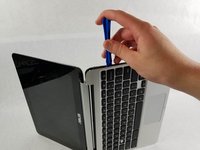
Wedge an opening tool or spudger between the keyboard (upper case) and the lower case of the bottom portion of the Chromebook.
-
-
Tool used on this step:Tweezers$4.99
-
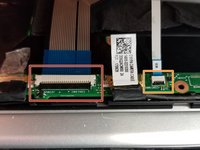
Pull back the black lever on the base of the cable. While pulling back, take your tweezers and pull back on the large ribbon cable.
-
Pull back the black lever on the base of the cable. While pulling back, take your tweezers and pull back on the small ribbon cable.
-
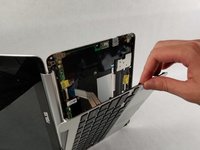
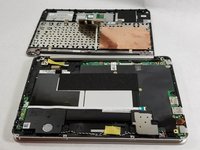
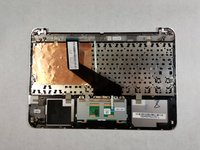
Separate the keyboard from the rest of the laptop.
-
-
-
-
-
Tool used on this step:Tweezers$4.99
-
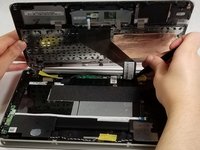
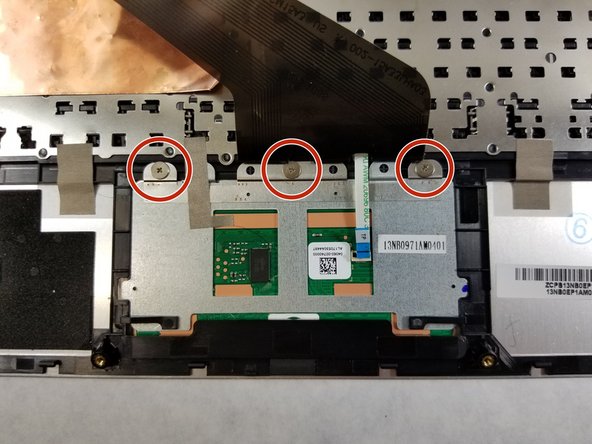
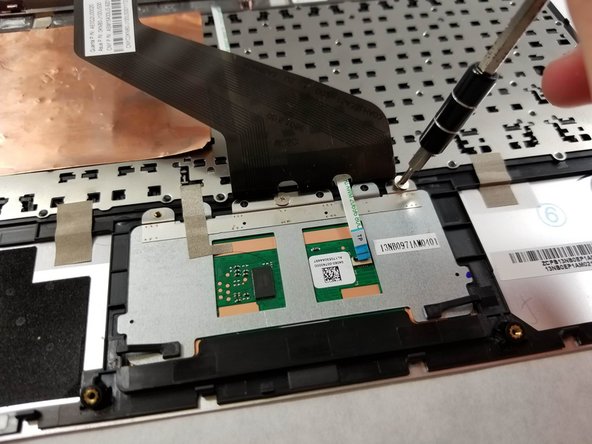
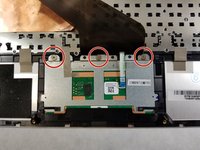
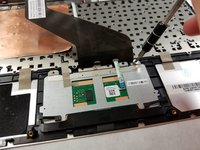
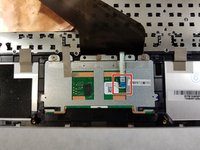
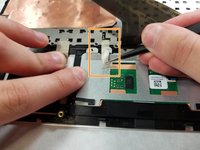
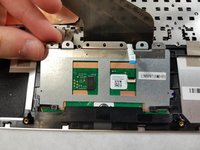
Using tweezers, pull the cable free from the touchpad.
-
Using tweezers, pry off the tape holding the touchpad down.
-







To reassemble your device, follow these instructions in reverse order.

Team

UMass Dartmouth, Team S1-G2, O'Connell Fall 2019 Member of UMass Dartmouth, Team S1-G2, O'Connell Fall 2019
UMASSD-O'CONNELL-F19S1G2
2 Members
60 Guides authored
