Introduction
The keyboard of the Asus Chromebook C101P is not too difficult to remove and is the most important step to replace other parts. If your keyboard ever fails to work, for example, after being covered in water and not responding, all you need to do is unscrew a few screws, swap the keyboard, and screw the case tight. It is important that you unplug and shut your Chromebook off before attempting this replacement in order to prevent electrocuting yourself.
What you need
-
-
-
Flip the Chromebook so that the bottom is facing up.
-
Remove the nine T5 Torx screws.
 Ask FixBot
-
-
-
Remove the four rubber grips on the bottom side of the Chromebook using an opening tool.
-
-
-
-
Reorient the Chromebook so the right side is facing upwards.
-
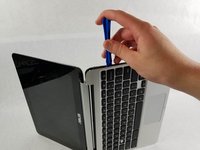
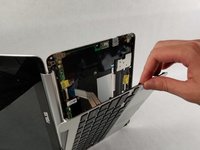
Wedge an opening tool or spudger between the keyboard (upper case) and the lower case of the bottom portion of the Chromebook.
-
-
Tool used on this step:Tweezers$4.99
-
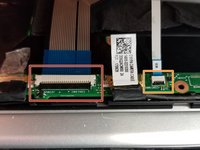
Pull back the black lever on the base of the cable. While pulling back, take your tweezers and pull back on the large ribbon cable.
-
Pull back the black lever on the base of the cable. While pulling back, take your tweezers and pull back on the small ribbon cable.
-
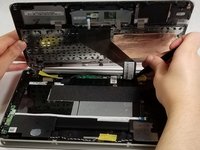
Separate the keyboard from the rest of the laptop.
-
-




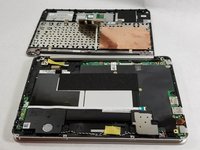
To reassemble your device, follow these instructions in reverse order.
Cancel: I did not complete this guide.
3 other people completed this guide.

Team

UMass Dartmouth, Team S1-G2, O'Connell Fall 2019 Member of UMass Dartmouth, Team S1-G2, O'Connell Fall 2019
UMASSD-O'CONNELL-F19S1G2
2 Members
60 Guides authored
2 Guide Comments
This did not work my laptop won't turn on now. Any suggestions?
We’re sorry to hear that. We recommend you contact iFixit directly for support on this issue or to contact ASUS for further help.
