
Asus A53U-ES21 Wireless Card Replacement

Chase Poirier and 3 other contributors
Last updated on Dec 18, 2018
Views: 659
View statistics:
- Past 24 Hours:
- 2
- Past 7 Days:
- 16
- Past 30 Days:
- 60
- All Time:
- 659
Comments: 0
No one has left comments on this guide. Will you be first?
Go to guide commentsCompleted: 0 1
No one has marked this guide "completed." Will you be the first?
1 person has marked this guide "completed." It's you — great job!
Favorites: 1 2
1 person has favorited (and subscribed to) this guide. Will you be next?
2 people have favorited (and subscribed to) this guide — including you!
Introduction
Go to step 1 ↓The wireless card is how your laptop communicates with Wi-Fi networks. Newer protocols are developed and introduced over the years that can improve wireless speed and security, but only if the wireless card is capable of understanding them. Upgrading your Asus A53U-ES21's wireless card can increase the speed of downloading, streaming, and general communication of the Internet.
What you need
Tools


-
-
-
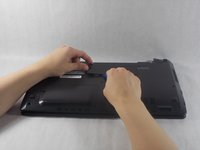
Move the two sliders towards the outer edge of the laptop.
-
Pull the battery out with your left hand while holding the right slider.
-
-
-
-
-
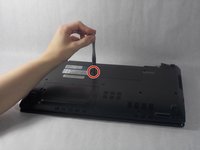
Remove the 5mm screw using a Phillips #1 screwdriver.
-
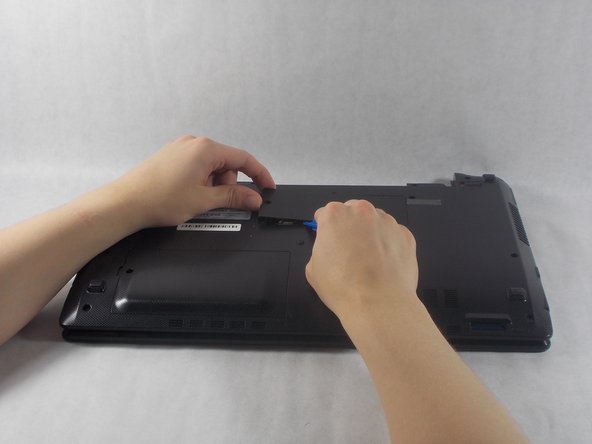
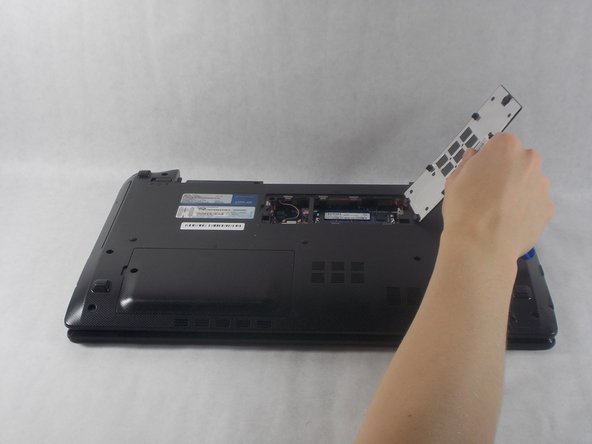
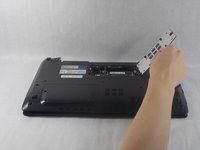
Use the iFixit opening tools to remove the panel.
-
-
-
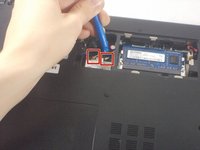
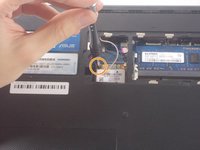
Detach the two cables connected to the wireless card (the opening tool works well for this).
-
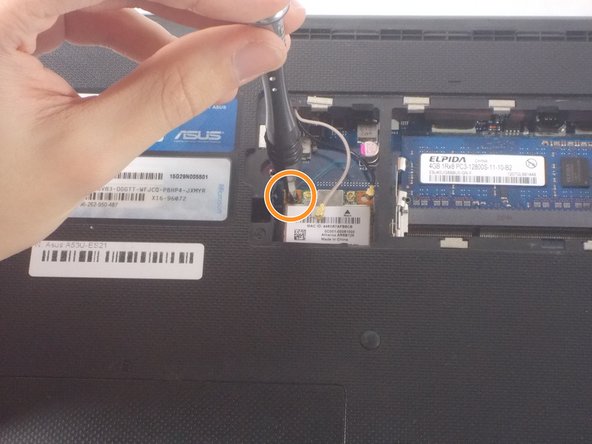
Remove the 4mm screw (highlighted in orange).
-
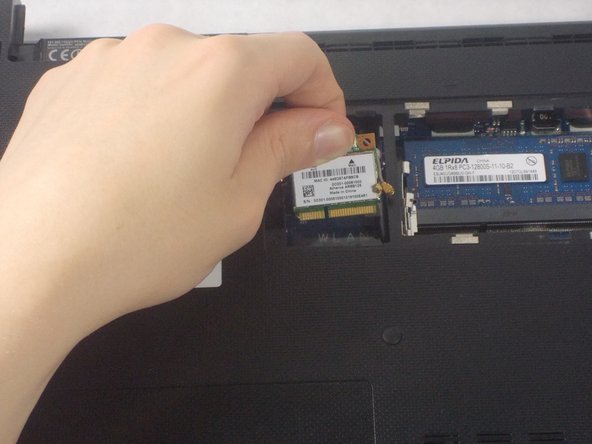
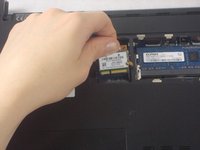
Pull the wireless card up and remove it from the device.
-
-


 Ask FixBot



To reassemble your device, follow these instructions in reverse order.

Team

UMass Dartmouth, Team S1-G3, Simcock Fall 2018 Member of UMass Dartmouth, Team S1-G3, Simcock Fall 2018
UMASSD-SIMCOCK-F18S1G3
3 Members
84 Guides authored
