Free Shipping on Domestic Orders $75+

Asus 1015E-DS03 Screen Replacement

What you need

  1. Asus 1015E-DS03 Screen Replacement, Battery: step 1, image 1 of 1
    • Hold the laptop using both hands with the battery facing upwards.

    Ask FixBot

    Add Comment

  2. Asus 1015E-DS03 Screen Replacement: step 2, image 1 of 1
    • Push the two tabs located below the battery in towards each other using your thumbs.

    Ask FixBot

    Add Comment

  3. Asus 1015E-DS03 Screen Replacement: step 3, image 1 of 1
    • Push the battery upwards and out of the laptop as shown.

    Ask FixBot

    Add Comment

  4. Asus 1015E-DS03 Screen Replacement: step 4, image 1 of 1
    • Continue to push the battery upwards until it is completely separated from the laptop as shown.

    Ask FixBot

    Add Comment

  5. Asus 1015E-DS03 Screen Replacement, Front Screen Case: step 5, image 1 of 1
    • Push up on the back of the tabs that cover the hinges connecting the screen to the base of the laptop.

    • While pushing up on the back of the tabs, insert the spudger into the opening created from pushing on the tabs until the tab detaches.

    Ask FixBot

    Add Comment

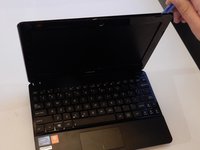
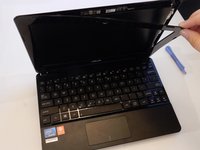
  6. Asus 1015E-DS03 Screen Replacement: step 6, image 1 of 2 Asus 1015E-DS03 Screen Replacement: step 6, image 2 of 2
    • Once the case has been separated from the laptop, pull the case off completely, using the plastic opening tool or your fingers.

    • You will hear popping noises which are to be expected.

    Ask FixBot

    Add Comment

  7. Asus 1015E-DS03 Screen Replacement: step 7, image 1 of 1
    • When the screen case has been successfully removed, the laptop should resemble the photo shown here.

    Ask FixBot

    Add Comment

  8. Asus 1015E-DS03 Screen Replacement, Screen: step 8, image 1 of 1
    • Unscrew the 3 mm screws (4) using a #0 Phillips head screwdriver.

    Ask FixBot

    Add Comment

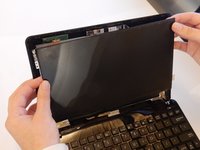
  9. Asus 1015E-DS03 Screen Replacement: step 9, image 1 of 2 Asus 1015E-DS03 Screen Replacement: step 9, image 2 of 2
    • Lift the screen away from the computer.

    • Be careful removing the screen, as the left side is still connected to the computer.

    Ask FixBot

    Add Comment

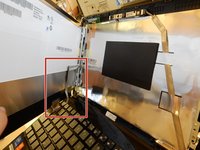
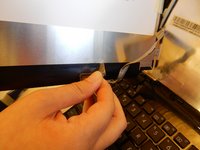
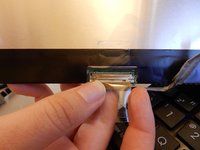
  10. Asus 1015E-DS03 Screen Replacement: step 10, image 1 of 2 Asus 1015E-DS03 Screen Replacement: step 10, image 2 of 2
    • Remove the wire that is glued to the back of the screen with your fingers.

    • Remove the tape covering the connection port.

    Ask FixBot

    Add Comment

  11. Asus 1015E-DS03 Screen Replacement: step 11, image 1 of 1
    • Separate the screen from the computer by gently pulling it out.

    Ask FixBot

    Add Comment

  12. Asus 1015E-DS03 Screen Replacement: step 12, image 1 of 1
    • Upon removal, the computer should look like this picture.

    Ask FixBot

    Add Comment

Conclusion

To reassemble your device, follow these instructions in reverse order.

Cancel: I did not complete this guide.

2 other people completed this guide.

Becca Day

Member since: 03/23/16

321 Reputation

2 Guides authored

Team

Clemson, Team 7-4, Benson Spring 2016 Member of Clemson, Team 7-4, Benson Spring 2016

CLEM-BENSON-S16S7G4

5 Members

7 Guides authored

0 Guide Comments

Add Comment

View Statistics:

Past 24 Hours: 4

Past 7 Days: 22

Past 30 Days: 51

All Time: 1,092