
Anbernic RG35XX Screen Replacement

Muhammad Mustafa Asim and 2 other contributors
Last updated on Dec 30, 2024
Views: 5.8K
View statistics:
- Past 24 Hours:
- 15
- Past 7 Days:
- 75
- Past 30 Days:
- 328
- All Time:
- 5,810
Comments: 0
No one has left comments on this guide. Will you be first?
Go to guide commentsCompleted: 0 1
No one has marked this guide "completed." Will you be the first?
1 person has marked this guide "completed." It's you — great job!
Favorites: 0 1
No one has favorited (and subscribed to) this guide. Will you be the first?
1 person has favorited (and subscribed to) this guide — and that's you!
Introduction
Go to step 1 ↓The screen in the Anbernic RG35xx is responsible for displaying games/software. If your screen isn't functioning properly, this guide demonstrates how to replace your screen.
What you need
Tools


-
-
-
Remove the SD card located on the right side of the device by pushing into the SD card slot and pulling the card out.
-
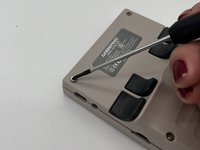
Remove the six 1.2 mm screws that secure the back case with a 1.5 Hex Bit screwdriver.
 Ask FixBot
-
-
-
Insert an opening tool into the MicroSD card slot and twist it clockwise to begin releasing the rear case.
-
Pry around the entire perimeter until the rear case fully releases.
-
Remove the rear case.
-
-
-
-
-
Use your fingernails or tweezers to gently remove the battery connector from its socket.
-
-
-
-
-
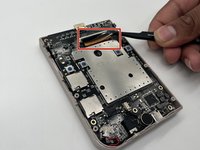
Disconnect the red audio cable from its motherboard port by carefully pulling the connector with your index finger and thumb or with fine tip tweezers.
-
-
-
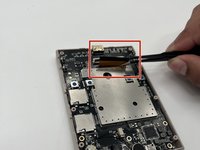
Flip up the black ZIF locking flap that secures the bronze ribbon cable.
-
Gently disconnect the bronze ribbon cable.
-
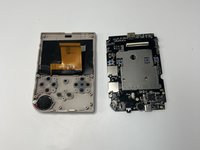
Lift the motherboard up and out the chassis.
-
-
-
-
-
-
Use a hair dryer to gently heat the rear of the screen until it's almost too hot to touch.
-
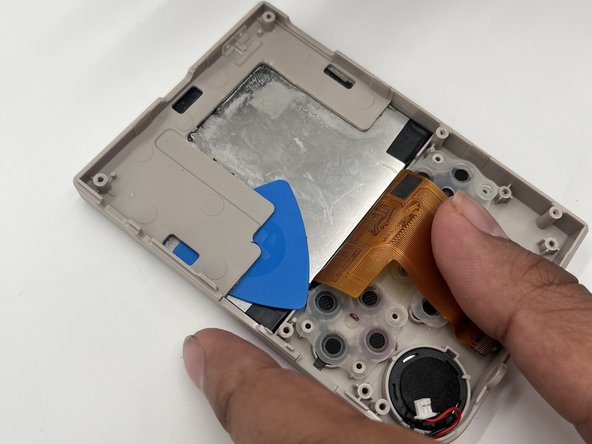
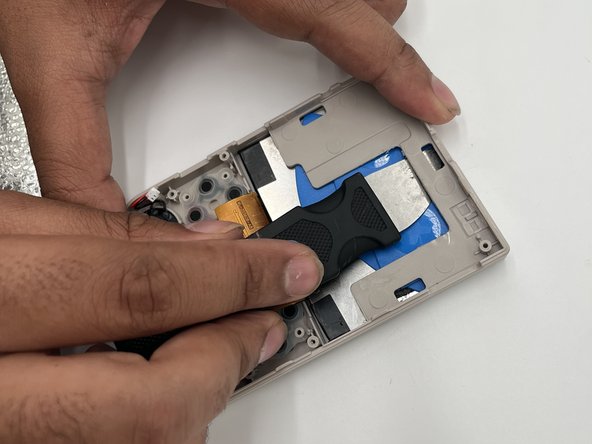
Insert a jimmy between the screen and plastic bracket. Once a slim gap is opened, insert an opening pick between the plastic bracket and rear screen.
-
Continue to insert opening picks around the entire perimeter of the screen as you pry to avoid the adhesive from reengaging.
-
Once the screen fully releases, remove it.
-






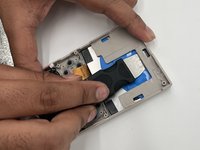
To reassemble your device, follow the above steps in reverse order.
Take your e-waste to an R2 or e-Stewards certified recycler.
Repair didn’t go as planned? Try some basic troubleshooting or ask our Answers community for help.

Team

University of North Texas, Team 6-16, Kilpatrick Fall 2024 Member of University of North Texas, Team 6-16, Kilpatrick Fall 2024
UNT-KILPATRICK-F24S6G16
3 Members
60 Guides authored
