Free Shipping on Domestic Orders $75+

Amazon Fire HD 8 Plus 12th Gen USB Port Replacement

What you need

  1. Amazon Fire HD 8 Plus 12th Gen USB Port Replacement, Rear Case: step 1, image 1 of 2 Amazon Fire HD 8 Plus 12th Gen USB Port Replacement, Rear Case: step 1, image 2 of 2
    • Unplug the charger, power down the device, and remove the SD card before beginning.

    • Insert an opening pick into the seam between the rear case and the screen assembly.

    • Slide the opening pick around the perimeter, prying periodically, until the screen assembly begins to release.

    • Insert an opening tool into the gap you created, and continue to pry periodically around the entire perimeter until the screen assembly fully releases.

    • Be patient and don't pry too hard in any specific place. Excessive force may cause damage to the device.

  2. Amazon Fire HD 8 Plus 12th Gen USB Port Replacement: step 2, image 1 of 1
    • Remove the rear case.

  3. Amazon Fire HD 8 Plus 12th Gen USB Port Replacement, Amazon Fire HD 8 Plus 12th Gen Battery Disconnection: step 3, image 1 of 1
    • Use an opening tool to lift the battery connector until it disconnects.

  4. Amazon Fire HD 8 Plus 12th Gen USB Port Replacement, Battery: step 4, image 1 of 1
    • Gently and slowly grip and pull the three white adhesive tabs that secure the battery until they fully release.

    • The adhesives are marked with a black flap with a white adhesive. You will know it has been successfully removed when you can move the battery around.

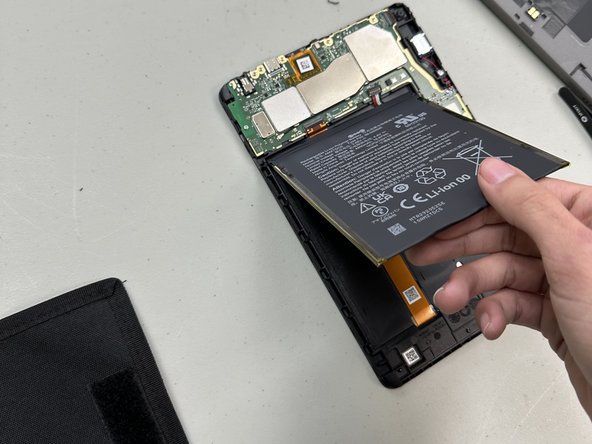
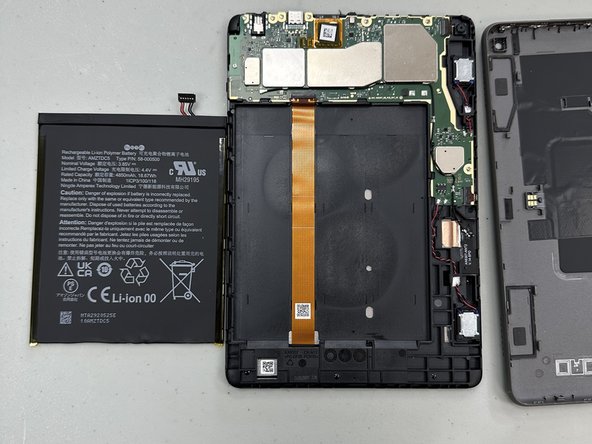
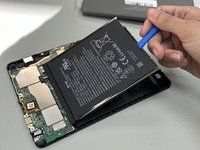
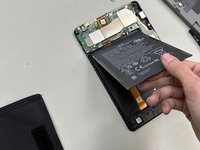
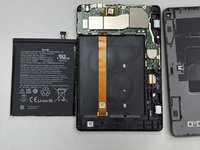
  5. Amazon Fire HD 8 Plus 12th Gen USB Port Replacement: step 5, image 1 of 3 Amazon Fire HD 8 Plus 12th Gen USB Port Replacement: step 5, image 2 of 3 Amazon Fire HD 8 Plus 12th Gen USB Port Replacement: step 5, image 3 of 3
    • Gently pry around the entire perimeter of the battery with an opening tool until the adhesive releases.

    • Remove the battery.

    • Take care not to bend or puncture the battery while prying the battery.

    • Clean under the old battery and insert a new battery with adhesive to ensure the battery stays in place.

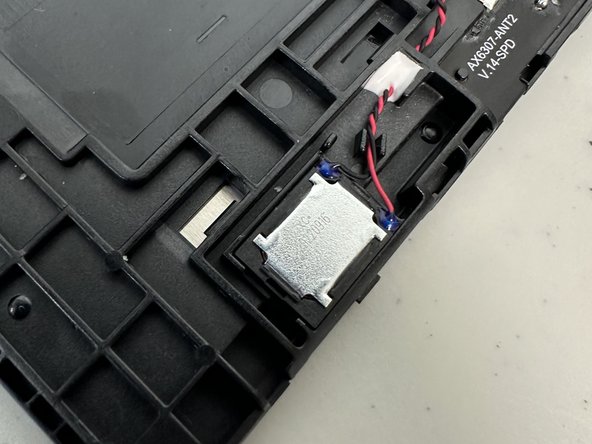
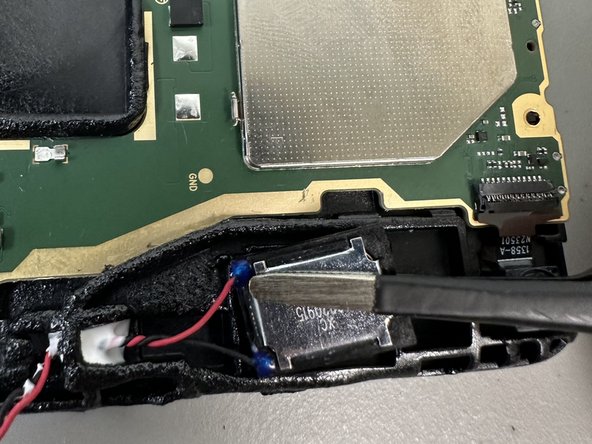
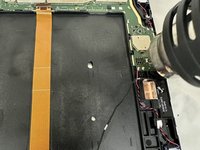
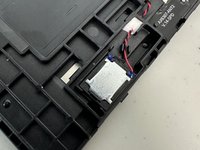
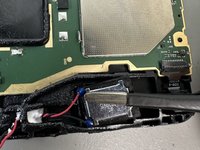
  6. Amazon Fire HD 8 Plus 12th Gen USB Port Replacement, Speakers: step 6, image 1 of 3 Amazon Fire HD 8 Plus 12th Gen USB Port Replacement, Speakers: step 6, image 2 of 3 Amazon Fire HD 8 Plus 12th Gen USB Port Replacement, Speakers: step 6, image 3 of 3
    • Desolder the speaker motherboard connections.

    • Soldering can cause burns and fires. Always solder in a well-ventilated workspace.

    • Lift the speaker up and out of the chassis.

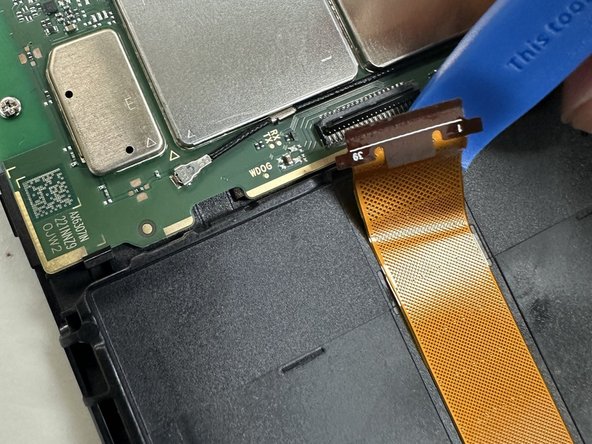
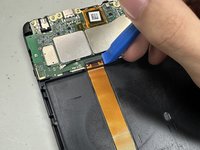
  7. Amazon Fire HD 8 Plus 12th Gen USB Port Replacement, USB Port: step 7, image 1 of 2 Amazon Fire HD 8 Plus 12th Gen USB Port Replacement, USB Port: step 7, image 2 of 2
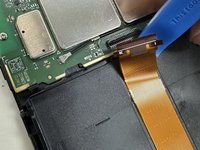
    • Lift the black ZIF locking flap.

    • Disconnect the orange ribbon cable.

  8. Amazon Fire HD 8 Plus 12th Gen USB Port Replacement: step 8, image 1 of 3 Amazon Fire HD 8 Plus 12th Gen USB Port Replacement: step 8, image 2 of 3 Amazon Fire HD 8 Plus 12th Gen USB Port Replacement: step 8, image 3 of 3
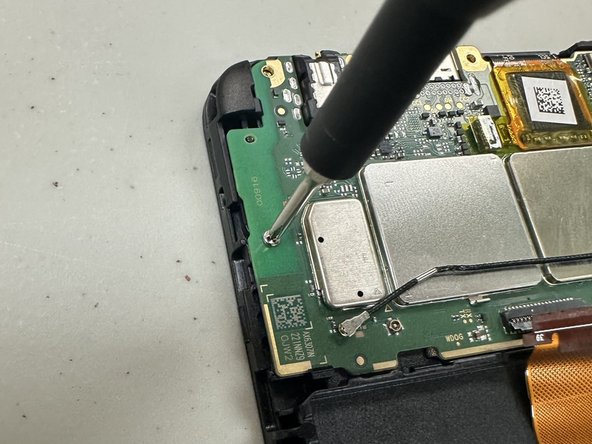
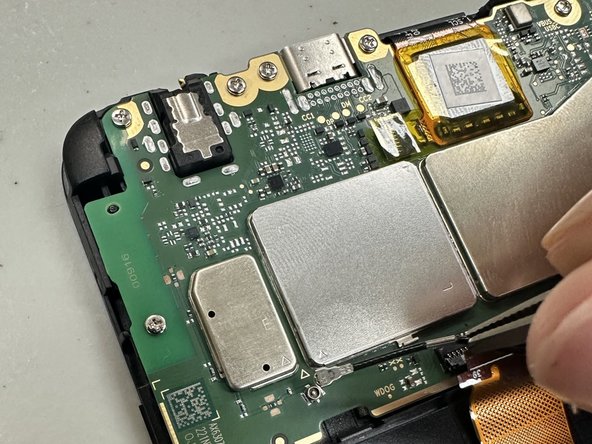
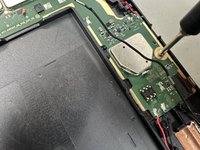
    • Remove all of the Phillips screws that secure the motherboard.

  9. Amazon Fire HD 8 Plus 12th Gen USB Port Replacement: step 9, image 1 of 1
    • Once the motherboard is fully disconnected from the device lift the motherboard out of the chassis with an opening tool.

  10. Amazon Fire HD 8 Plus 12th Gen USB Port Replacement: step 10, image 1 of 1
    • Desolder the USB port.

    • Remove the orange film.

    • Soldering is can cause fires and burns. Always solder in a well-ventilated area.

Conclusion

To reassemble your device, follow these instructions in reverse order.

0 Guide Comments

Add Comment

View Statistics:

Past 24 Hours: 0

Past 7 Days: 3

Past 30 Days: 21

All Time: 348