Introduction
If your Kindle Fire HD 8 12th generation is experiencing audio issues such as the sound quality or no sound coming out at all this may be due to water damage or poor treatment of the device. If this is the issue to replace the sound components of the device
What you need
-
-
-
Insert an opening pick into the seam between the rear case and the screen assembly.
-
Slide the opening pick around the perimeter, prying periodically, until the screen assembly begins to release.
-
Insert an opening tool into the gap you created, and continue to pry periodically around the entire perimeter until the screen assembly fully releases.
 Ask FixBot
-
-
-
-
-
-
Use an opening tool to lift the battery connector until it disconnects.
-
-
-
-
-
Use an opening tool to lift the battery connector until it disconnects.
-
-
-
-
-
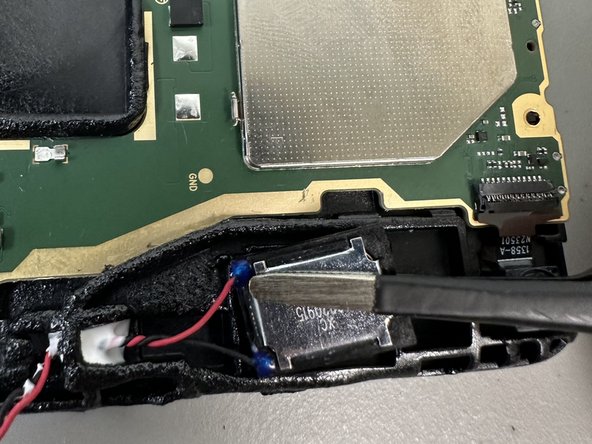
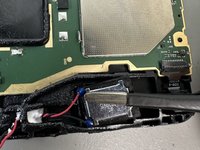
Desolder the speaker motherboard connections.
-
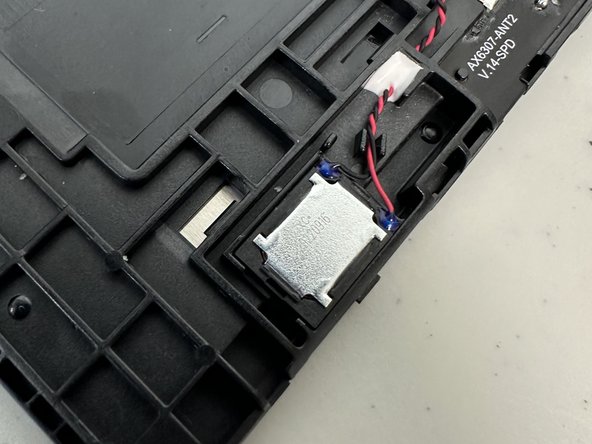
Lift the speaker up and out of the chassis.
-
-


To reassemble your device, follow these instructions in reverse order.
Cancel: I did not complete this guide.
One other person completed this guide.

Team

University of North Texas, Team 2-7, Kilpatrick Spring 2024 Member of University of North Texas, Team 2-7, Kilpatrick Spring 2024
UNT-KILPATRICK-S24S2G7
3 Members
40 Guides authored
