Introduction
In this guide, we will show you how to replace the speaker on the bottom left of the device. Before you start, make sure your device is powered off.
What you need
-
-
-
Heat the edges of the screen with a heat gun on the lowest setting by using sweeping motions from about 8-10 inches away.
 Ask FixBot
-
-
-
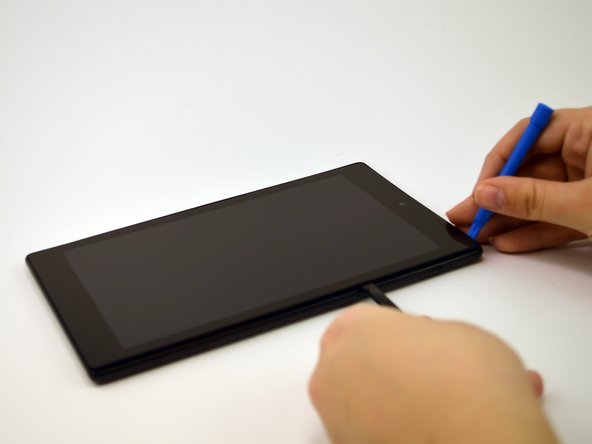
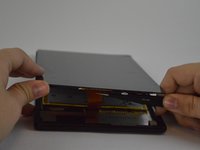
After 1-2 minutes, use a plastic opening tool to pry the screen loose. Start at the top right corner and gently pry the screen from the device.
-
-
-
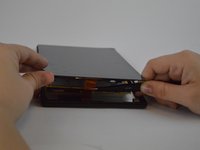
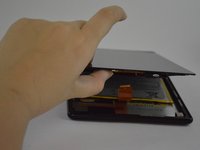
Slide a plastic opening tool and spudger along the underside of the screen using enough force to peel the screen and the adhesive strip from the other half of the device.
-
-
-
Tool used on this step:Tweezers$4.99
-
To remove the screen from the device, use tweezers to gently pull the orange cable from its connection to the screen.
-
-
-
-
Tool used on this step:Tweezers$4.99
-
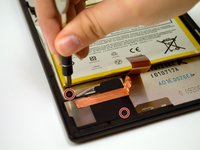
Using tweezers, carefully lift the copper strip from the right side of the speaker.
-
-
-
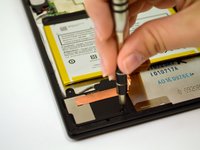
Remove the two screws located on the top left and bottom right of the speaker using a T4 screwdriver.
-
-
-
Lift the right side of the speaker and carefully unhook and remove it from the device.
-
-
-
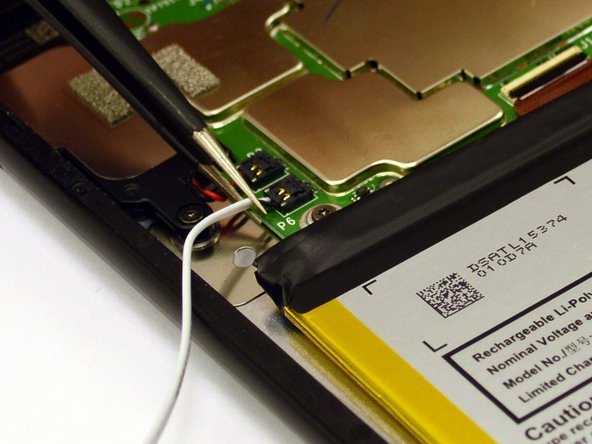
Set aside the black speaker and follow the white wire to its connection on the upper left side of the motherboard.
-
Using tweezers, gently pry the black clip upward from the board.
-
-









To reassemble your device, follow these instructions in reverse order.
Cancel: I did not complete this guide.
One other person completed this guide.

Team

USF Tampa, Team 1-3, Leahy Spring 2016 Member of USF Tampa, Team 1-3, Leahy Spring 2016
USFT-LEAHY-S16S1G3
4 Members
60 Guides authored
1 Guide Comment
I would like to ask if you happen to know the part number of the speaker and where I could acquire said device?
Thank you a very helpful walk-through guide
