
Amazon Fire HD 8 12th Gen Camera Replacement

Jaden Palmer and
Last updated on May 7, 2024
Views: 604
View statistics:
- Past 24 Hours:
- 1
- Past 7 Days:
- 13
- Past 30 Days:
- 66
- All Time:
- 604
Comments: 0
No one has left comments on this guide. Will you be first?
Go to guide commentsCompleted: 0 1
No one has marked this guide "completed." Will you be the first?
1 person has marked this guide "completed." It's you — great job!
Favorites: 0 1
No one has favorited (and subscribed to) this guide. Will you be the first?
1 person has favorited (and subscribed to) this guide — and that's you!
Needs More Images
A few more images would make this guide's procedures crystal clear.
Missing Steps
Oops! This guide is currently missing one or more important steps.
What you need
Tools


Introduction
Go to step 1 ↓If the Rear Camera of your Amazon Fire HD 8 12th Generation is taking fuzzy, unclear pictures, or won't even take pictures at all and it's just showing a black screen, then use to guide to take apart and replace your camera lenses. The cause of this could be many reasons, including overuse, physical mishandling, or even a software glitch.
Before changing the camera, you are going to have to take the case off. A prerequisite on how to do this will be in the guide down below. Also, you need to make sure you have the correct replacement camera to change out with the old one. To do this, you will need to make sure you have the correct model number of the tablet. For reference the model number is RS2P8T. Replacing the camera is a very simple process and shouldn't require much time and technical skill.
Follow the guide below to complete the camera reinstallation.
-
-
-
Put picks around the corner and move them along the edge to pry the case off.
-
Once there is separation between the case and the screen, place a pick in between the screen and on the corner of the back case.
 Ask FixBot
-
-
-
With the corners lifted, take the opening tool and pry each corner off.
-
Repeat this for the corner diagonal from the initial corner.
-
Once both corners are pried off, gently take the back case off the device.
-
-
-
-
-
-
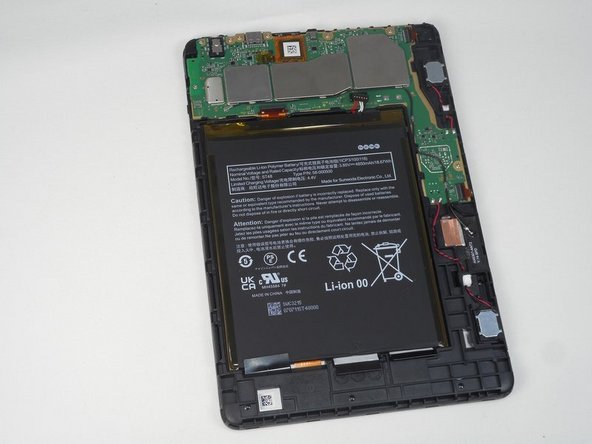
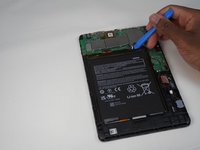
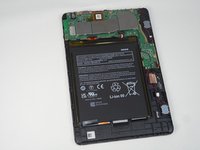
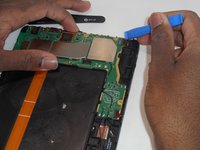
Using the iFixit opening tool, disconnect the battery from the circuit board.
-
-
-
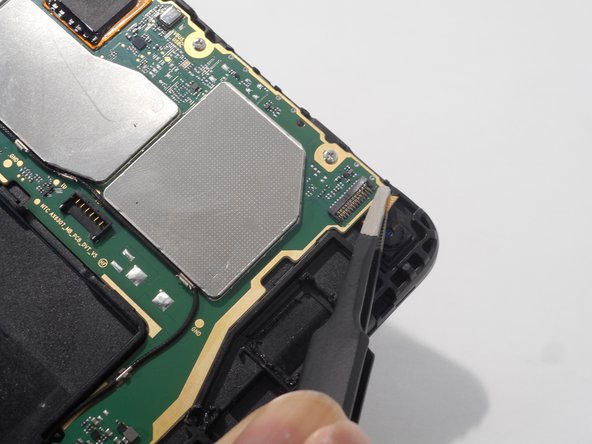
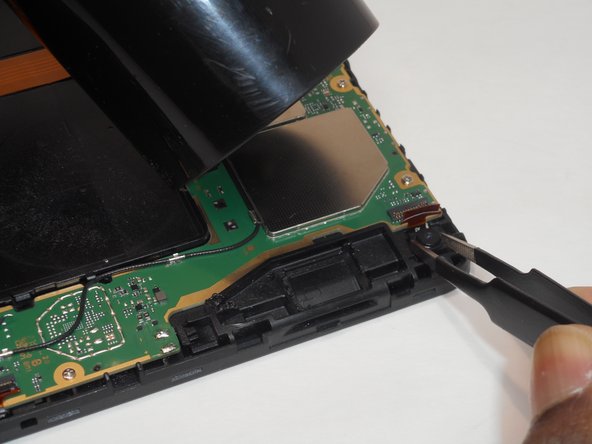
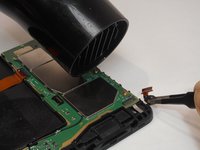
Disconnect the camera from the motherboard by unplugging the orange wiring.
-
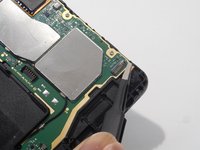
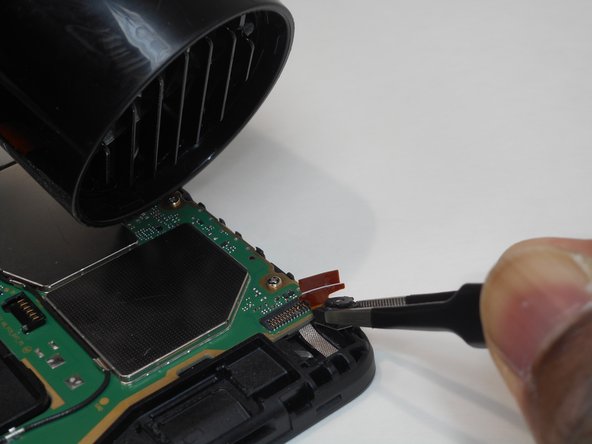
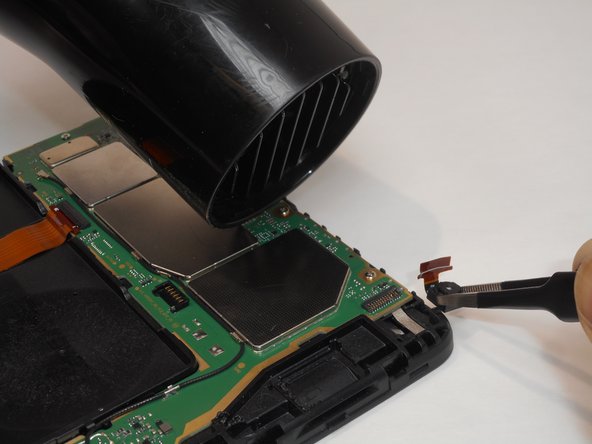
Heat the area of the back camera up loosening the glue holding it in place.
-
-
Tool used on this step:Tweezers$4.99
-
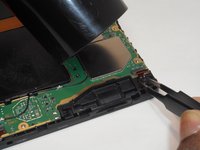
Once disconnected from the motherboard and heated up, use tweezers to remove the old camera.
-
-




To reassemble your device, follow these instructions in reverse order.

Team

University of Memphis, Team 1-1, Sneed Fall 2023 Member of University of Memphis, Team 1-1, Sneed Fall 2023
UM-SNEED-F23S1G1
4 Members
84 Guides authored
