Free Shipping on Domestic Orders $75+

Amazon Fire HD 7 (4th Generation) Speaker

What you need

  1. Amazon Fire HD 7 (4th Generation) Speaker, Motherboard: step 1, image 1 of 3 Amazon Fire HD 7 (4th Generation) Speaker, Motherboard: step 1, image 2 of 3 Amazon Fire HD 7 (4th Generation) Speaker, Motherboard: step 1, image 3 of 3
    • Insert the plastic opening tool behind the rear case to free the clips holding the case together.

    • Work your way around the device to free all the clips.

    Ask FixBot

    Add Comment

  2. Amazon Fire HD 7 (4th Generation) Speaker: step 2, image 1 of 1
    • Once all clips have been released, remove the back case to reveal the inside of the device.

    Ask FixBot

    Add Comment

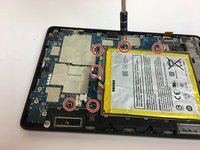
  3. Amazon Fire HD 7 (4th Generation) Speaker: step 3, image 1 of 3 Amazon Fire HD 7 (4th Generation) Speaker: step 3, image 2 of 3 Amazon Fire HD 7 (4th Generation) Speaker: step 3, image 3 of 3
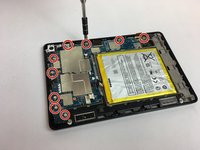
    • Remove the nine silver screws located around the motherboard with the T5 Torx screwdriver.

    Ask FixBot

    Add Comment

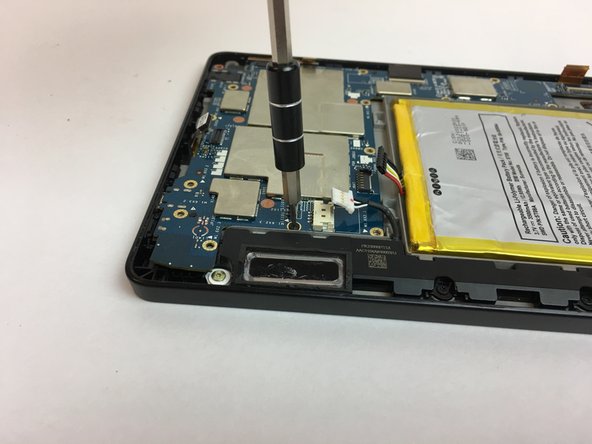
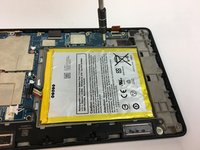
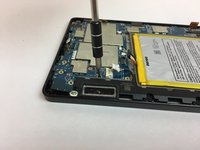
  4. Amazon Fire HD 7 (4th Generation) Speaker: step 4, image 1 of 3 Amazon Fire HD 7 (4th Generation) Speaker: step 4, image 2 of 3 Amazon Fire HD 7 (4th Generation) Speaker: step 4, image 3 of 3
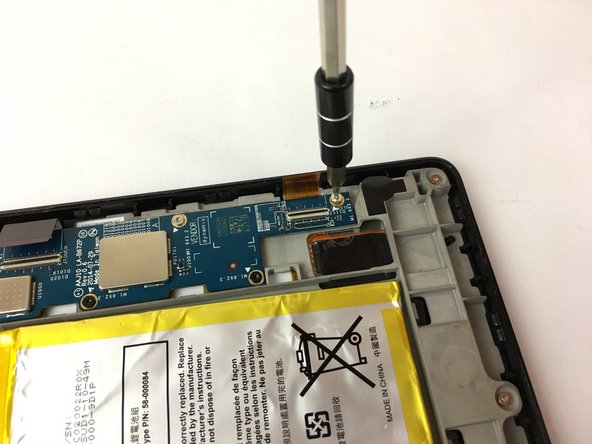
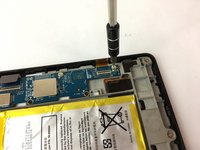
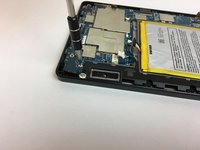
    • Remove the six black screws located around the battery and the speaker with the T5 Torx screwdriver.

    • Make your way around the battery and speaker to remove all of them.

    Ask FixBot

    Add Comment

  5. Amazon Fire HD 7 (4th Generation) Speaker: step 5, image 1 of 3 Amazon Fire HD 7 (4th Generation) Speaker: step 5, image 2 of 3 Amazon Fire HD 7 (4th Generation) Speaker: step 5, image 3 of 3
    Tool used on this step:
    Tweezers
    $4.99
    Buy
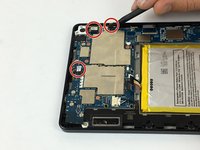
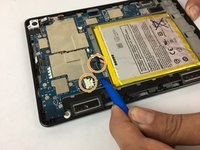
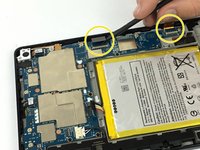
    • Carefully unplug the three wire connections by placing a plastic spudger under the connections and lifting up.

    • Disconnect the battery and speaker connections by placing the round handle spudger under the wires and lifting up and out.

    • Disconnect the display connections from the motherboard by using the plastic spudger to lift the clamp holding the ribbon cable. Then, using the tweezers, grab the ribbon wire and pull away from the motherboard.

    Ask FixBot

    Add Comment

  6. Amazon Fire HD 7 (4th Generation) Speaker: step 6, image 1 of 2 Amazon Fire HD 7 (4th Generation) Speaker: step 6, image 2 of 2
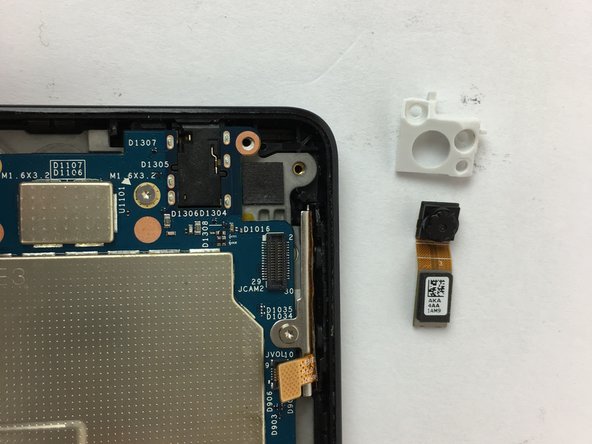
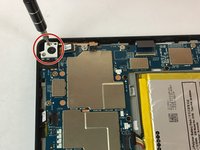
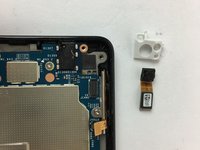
    • Remove the two screws holding the rear camera in place using the T5 Torx screwdriver.

    • Once freed from the screws, gently lift and remove the rear camera.

    • The camera lens is sensitive. Be careful when removing and handling the rear camera.

    Ask FixBot

    Add Comment

  7. Amazon Fire HD 7 (4th Generation) Speaker: step 7, image 1 of 2 Amazon Fire HD 7 (4th Generation) Speaker: step 7, image 2 of 2
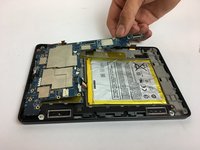
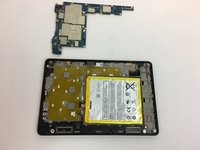
    • Now the motherboard is free to be removed.

    • Lift the motherboard up to remove it as shown in the picture.

    Ask FixBot

    Add Comment

  8. Amazon Fire HD 7 (4th Generation) Speaker, Speaker: step 8, image 1 of 1
    • Remove the single silver screw with the T5 Torx screwdriver.

    Ask FixBot

    Add Comment

  9. Amazon Fire HD 7 (4th Generation) Speaker: step 9, image 1 of 1
    • Remove the two black screws using the T5 Torx screwdriver.

    Ask FixBot

    Add Comment

  10. Amazon Fire HD 7 (4th Generation) Speaker: step 10, image 1 of 3 Amazon Fire HD 7 (4th Generation) Speaker: step 10, image 2 of 3 Amazon Fire HD 7 (4th Generation) Speaker: step 10, image 3 of 3
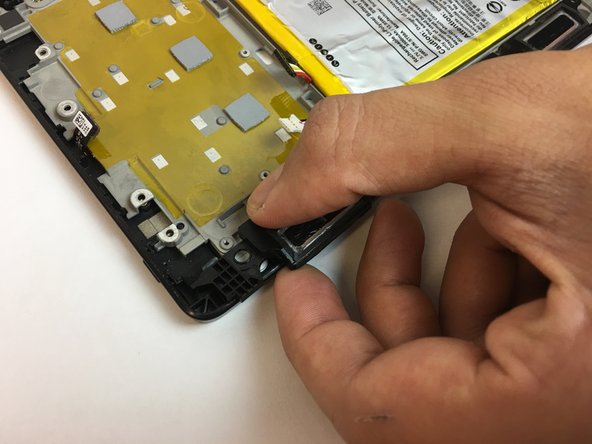
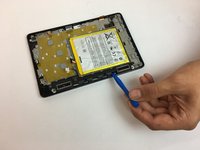
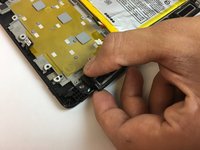
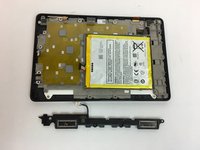
    • Gently pry the speaker from the device with the iFixit opening tool.

    • If the speaker does not immediately pop out, grab it by the top and slide it out sideways away from the device, while applying a slight upward force.

    • Remove the speaker.

    Ask FixBot

    Add Comment

Finish Line

Cancel: I did not complete this guide.

Omir Rosado

Member since: 09/30/16

752 Reputation

5 Guides authored

Team

USF Tampa, Team 4-4, Passmore Fall 2016 Member of USF Tampa, Team 4-4, Passmore Fall 2016

USFT-PASSMORE-F16S4G4

4 Members

10 Guides authored

0 Guide Comments

Add Comment

View Statistics:

Past 24 Hours: 0

Past 7 Days: 10

Past 30 Days: 47

All Time: 1,744