
Amazon Echo Show 15 Camera Replacement

Paysen Hudson and 3 other contributors
Last updated on Dec 21, 2023
Views: 515
View statistics:
- Past 24 Hours:
- 2
- Past 7 Days:
- 14
- Past 30 Days:
- 71
- All Time:
- 515
Comments: 1
1 comment on steps.
Completed: 0 1
No one has marked this guide "completed." Will you be the first?
1 person has marked this guide "completed." It's you — great job!
Favorites: 0 1
No one has favorited (and subscribed to) this guide. Will you be the first?
1 person has favorited (and subscribed to) this guide — and that's you!
Introduction
Go to step 1 ↓If the camera to your Amazon Echo Show 15 (model H6Y2A5) is visibly damaged or non-functional, use this guide to replace your camera.
The camera on the Amazon Echo Show 15 plays a crucial role in capturing and recording images or objects in day-to-day life. Issues with an unresponsive (or cloudy) lens can disrupt the user experience.
Before diving into the replacement process, ensure your device is completely powered off and disconnected from any external power sources. This guide provides a step-by-step walkthrough to address your camera replacement and restore optimal functionality to your Amazon Echo Show 15.
What you need
Tools


-
-
-
Remove the four white stickers on your device's back panel.
-
Due to the strong adhesive supporting the stickers, we recommend heating them up to make removal easier.
 Ask FixBot
-
-
-
Unscrew the four 50 mm screws with a T3 Torx screwdriver.
-
Pop the sides and remove the back panel of the device.
-
-
-
-
-
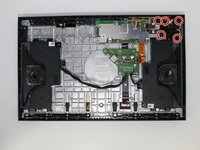
Remove the five 2 mm screws with a Torx T5 screwdriver.
-
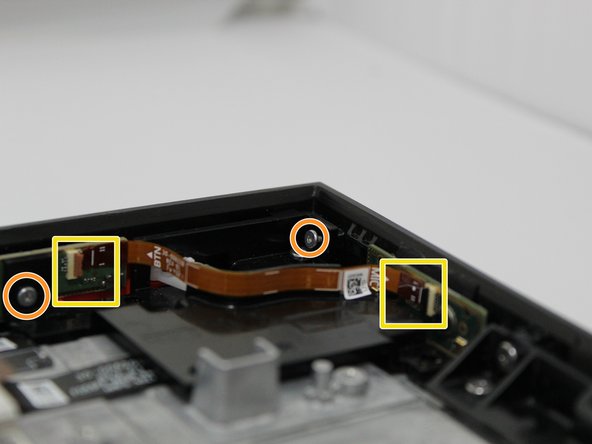
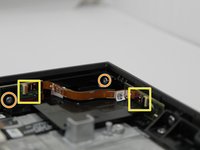
Remove the two 5 mm with a Torx T3 screwdriver.
-
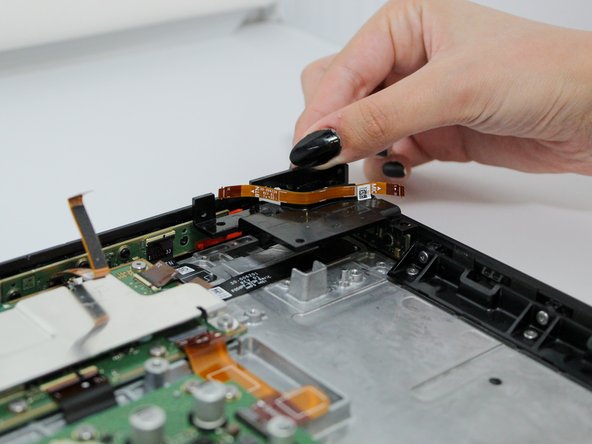
Remove both ends of the connector from the main device.
-
Remove the black panel.
-
-
-
-
-
-
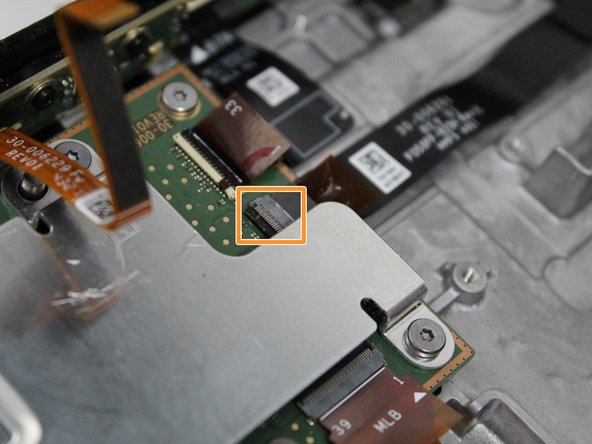
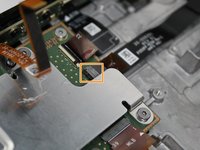
Remove the small connector from the main device.
-
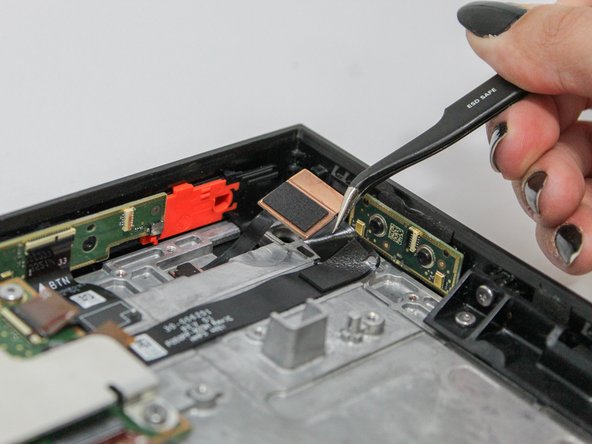
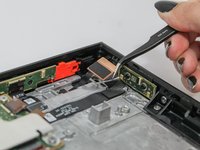
Disconnect the camera cord from the motherboard.
-
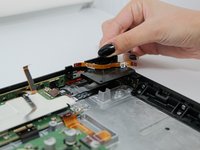
Pull the camera out of the main device.
-
-



To reassemble your device, follow these instructions in reverse order.

Team

Utah Tech University, Team 1-4, McMurrin Fall 2023 Member of Utah Tech University, Team 1-4, McMurrin Fall 2023
UTAHTECH-MCMURRIN-F23S1G4
3 Members
84 Guides authored
