Free Shipping on Domestic Orders $75+

Aluratek ADMPF310F Remote Sensor Replacement

What you need

    1. Aluratek ADMPF310F Remote Sensor Replacement, Screen: step 1, image 1 of 3 Aluratek ADMPF310F Remote Sensor Replacement, Screen: step 1, image 2 of 3 Aluratek ADMPF310F Remote Sensor Replacement, Screen: step 1, image 3 of 3
      • Using the plastic opening tool, pry off the clips all around the frame. You will hear a popping sound for every clip

      • Be sure not to pry to hard because you could crack or break the plastic facing of the device.

      Ask FixBot

      Add Comment

    2. Aluratek ADMPF310F Remote Sensor Replacement: step 2, image 1 of 1
      • Lift screen out of place so you can access the plugs that connect it.

      • Be careful not to pull the screen to far away when placing to the side, many fragile wires are connected.

      Ask FixBot

      Add Comment

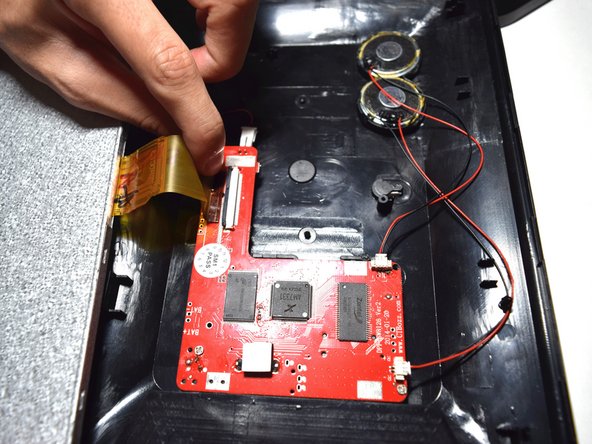
    3. Aluratek ADMPF310F Remote Sensor Replacement: step 3, image 1 of 2 Aluratek ADMPF310F Remote Sensor Replacement: step 3, image 2 of 2
      • Using the plastic spudger tool lift the plastic zif(zero instertion force) connector clip up.

      • Pull the ribbon cable away from the motherboard.

      • Be careful as this clip is very frail.

      Ask FixBot

      Add Comment

    4. Aluratek ADMPF310F Remote Sensor Replacement: step 4, image 1 of 1
      • Disconnect the red and black cable connecting the screen to the motherboard by just pulling it out.

      Ask FixBot

      Add Comment

    1. Aluratek ADMPF310F Remote Sensor Replacement, Remote Sensor: step 5, image 1 of 1
      • Pull out the remote sensor from its holder with your hands.

      • Unsolder the remote sensor from the motherboard.

      Ask FixBot

      Add Comment

    2. Aluratek ADMPF310F Remote Sensor Replacement: step 6, image 1 of 1
      • Resolder the the remote sensor back to the motherboard.

      • For more on how to solder check the link here.

      Ask FixBot

      Add Comment

Conclusion

To reassemble your device, follow these instructions in reverse order.

Cancel: I did not complete this guide.

Pascal Alexis

Member since: 11/05/15

427 Reputation

3 Guides authored

Team

UMass Dartmouth, Team 5-1, Martin Fall 2016 Member of UMass Dartmouth, Team 5-1, Martin Fall 2016

UMASSD-MARTIN-F16S5G1

3 Members

58 Guides authored

0 Guide Comments

Add Comment

View Statistics:

Past 24 Hours: 1

Past 7 Days: 5

Past 30 Days: 18

All Time: 477