Introduction
If you are having various issues with your device, this guide will show you how to remove and replace the motherboard.
What you need
-
-
Use blue plastic opening tool to remove the external speaker face by placing it in the slight opening at the bottom.
-
Use a lever motion, push the tool down, lifting the speaker face.
-
Use fingers to grip and remove speaker face.
-
Repeat on reverse side to remove the second speaker face.
-
-
-
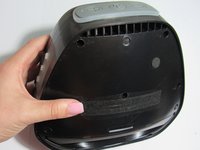
Orient speaker so volume buttons are facing away from you, and Bluetooth and power buttons are on the left-hand side.
-
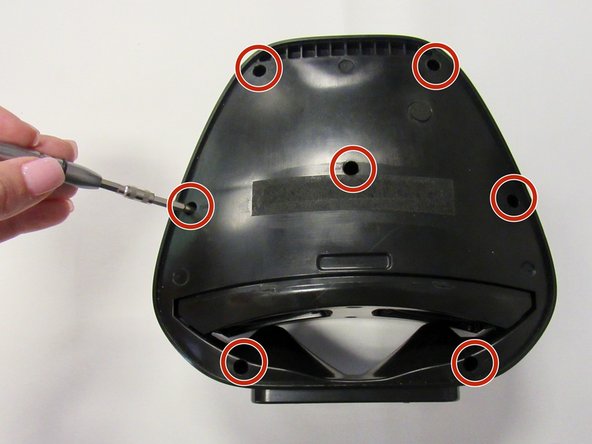
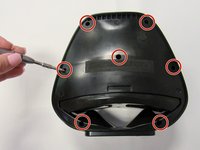
Remove the seven 14mm screws using the Phillips #1 screwdriver.
-
-
-
-
Reorient speaker so Bluetooth and power buttons are now on the right-hand side.
-
Separate the two panels along the crease.
-
Blue plastic opening tool may be needed to separate panels.
-
Remove the panel with no buttons to expose internal area of the device.
-
-
-
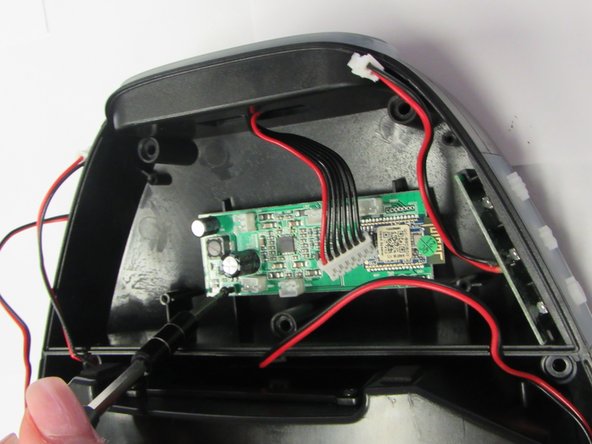
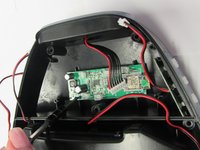
Remove the five wiring attachments (for the volume board, bluetooth board, speakers, and microUSB) from their connection to the motherboard by pulling slightly.
-
-
-
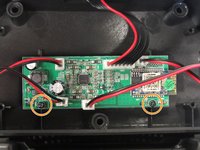
Remove the two 9mm screws holding the motherboard in place using the Torx T5 screwdriver.
-

 Ask FixBot





To reassemble your device, follow these instructions in reverse order.
Cancel: I did not complete this guide.
One other person completed this guide.

Team

University of Alabama, Team S1-G3, Bedsole Fall 2018 Member of University of Alabama, Team S1-G3, Bedsole Fall 2018
UA-BEDSOLE-F18S1G3
3 Members
6 Guides authored
