
Alienware X51 RAM Replacement

Kathleen and 3 other contributors
Last updated on Jun 19, 2024
Views: 682
View statistics:
- Past 24 Hours:
- 0
- Past 7 Days:
- 9
- Past 30 Days:
- 75
- All Time:
- 682
Comments: 0
No one has left comments on this guide. Will you be first?
Go to guide commentsCompleted: 0 1
No one has marked this guide "completed." Will you be the first?
1 person has marked this guide "completed." It's you — great job!
Favorites: 0 1
No one has favorited (and subscribed to) this guide. Will you be the first?
1 person has favorited (and subscribed to) this guide — and that's you!
Introduction
Go to step 1 ↓The Alienware X51 R1, R2, and R3 shut down randomly when a computer's RAM starts to fail. This can be problematic with wear but is easy to fix with basic tooling. Before beginning the repair, a user must have a Phillips-head screwdriver and two eight-gigabyte RAM memory cards for a total of sixteen gigabytes.
NOTE: use an anti-static wrist strap when working to prevent circuitry damage.
What you need
Tools

-
-
-
Place the PC so the name "Alienware" is on top and facing you.
-
Slide the front panel towards you and lift up.
 Ask FixBot
-
-
-
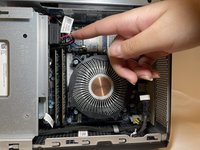
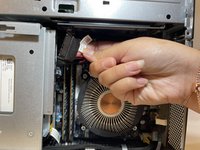
Fully disconnect the panel by unplugging the lighting cord going into the PC's internal system.
-
Remove the front panel from the rest of the device.
-
-
-
-
-
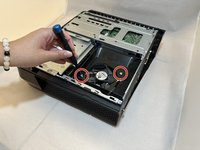
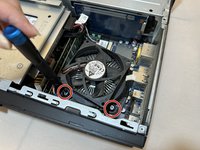
Remove the two 2.0 mm screws holding the fan protector in place using a Phillips #1 screwdriver.
-
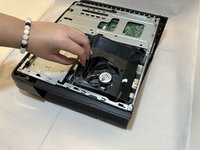
Remove the protector holding the fan in.
-
-
-
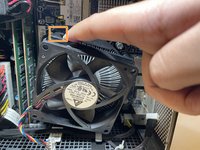
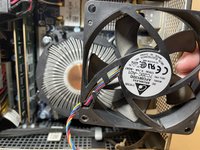
Use a Phillips #1 screwdriver to loosen the four spring screws around the fan until you hear a click.
-
Gently pull back the clips and remove the fan by pulling it out.
-
-
-
-
-
-
Remove the one 1.0 mm screw using a Phillips #1 screwdriver.
-
Remove the disc drive from the PC.
-
-
-
-
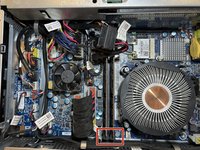
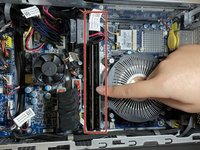
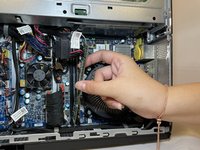
Pull apart the clips that hold the RAM sticks in place.
-
Remove the RAM sticks.
-
-








To reassemble your device, follow these instructions in reverse order.

Team

Eastern Washington University, Team 1-2, Carnegie Fall 2023 Member of Eastern Washington University, Team 1-2, Carnegie Fall 2023
EWU-CARNEGIE-F23S1G2
4 Members
60 Guides authored
