Free Shipping on Domestic Orders $75+

Alienware Pro Wireless Gaming Mouse Motherboard Replacement

Views: 317

View statistics:

Past 24 Hours:
2
Past 7 Days:
14
Past 30 Days:
62
All Time:
317
Comments: 0

No one has left comments on this guide. Will you be first?

Go to guide comments
Completed: 0

No one has marked this guide "completed." Will you be the first?

Favorites: 0

No one has favorited (and subscribed to) this guide. Will you be the first?

Time Required: 45 minutes - 1 hour
Difficulty: Moderate
Featured Student Guide

This guide has been the hard work of our awesome students and is found to be exceptionally cool by the iFixit staff.

Alienware Pro Wireless Gaming Mouse Motherboard Replacement

Introduction

Go to step 1 ↓

This guide will help you to replace the motherboard for the Alienware Pro Wireless Gaming Mouse (model name PRO-MS and PRO-M-D).

The motherboard is the central computing component that allows all of the physical inputs on the mouse to be translated into the computer. This guide will show you how to remove all the parts necessary to access the motherboard and how to remove the motherboard itself.

Please note that the motherboard is prone to damage, so be careful when replacing it. Hold the new motherboard by the edges and avoid touching the board surface.

Before you begin the repair, power off the mouse and disconnect it from any devices or the charger.

What you need

Tools

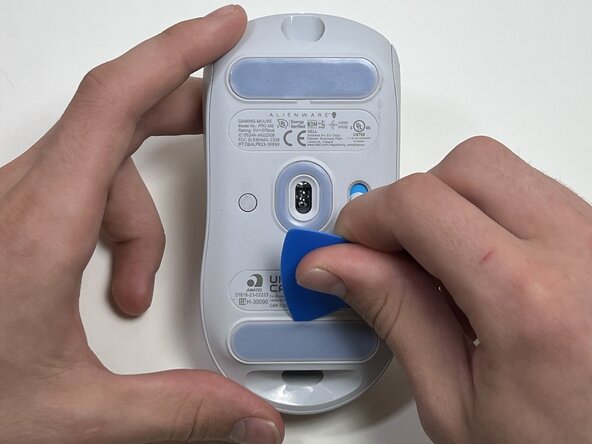
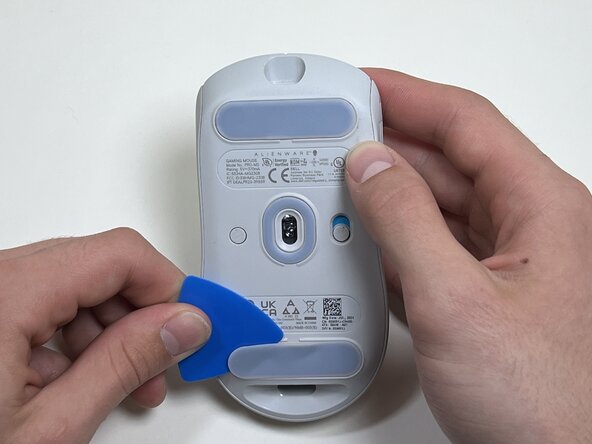
    1. Alienware Pro Wireless Gaming Mouse Motherboard Replacement, Feet: step 1, image 1 of 3 Alienware Pro Wireless Gaming Mouse Motherboard Replacement, Feet: step 1, image 2 of 3 Alienware Pro Wireless Gaming Mouse Motherboard Replacement, Feet: step 1, image 3 of 3
      • Flip the mouse over so the bottom is facing up..

      • Use an opening pick to gently peel the mouse foot off the bottom case.

      • The mouse feet warp easily so if you're not replacing them, be careful and don't rip them off. You will need them when you reassemble the mouse.

      Ask FixBot

      Add Comment

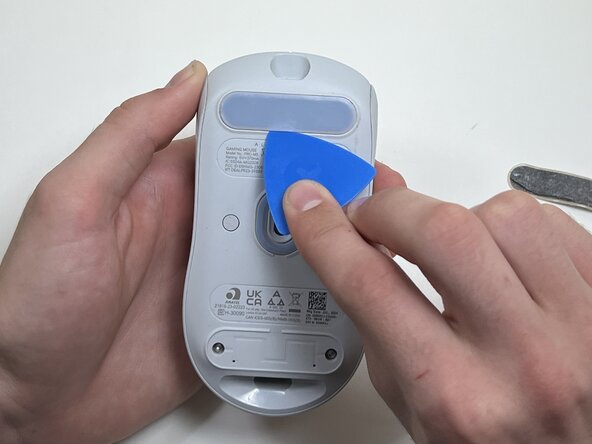
    2. Alienware Pro Wireless Gaming Mouse Motherboard Replacement: step 2, image 1 of 2 Alienware Pro Wireless Gaming Mouse Motherboard Replacement: step 2, image 2 of 2
      • Peel and remove the other mouse foot.

      Ask FixBot

      Add Comment

    1. Alienware Pro Wireless Gaming Mouse Motherboard Replacement, Battery: step 3, image 1 of 1
      • Use a TR6 Torx security screwdriver to remove the four 6 mm screws under the foot pads.

      Ask FixBot

      Add Comment

    2. Alienware Pro Wireless Gaming Mouse Motherboard Replacement: step 4, image 1 of 3 Alienware Pro Wireless Gaming Mouse Motherboard Replacement: step 4, image 2 of 3 Alienware Pro Wireless Gaming Mouse Motherboard Replacement: step 4, image 3 of 3
      • Use your hands or a spudger to separate the bottom and top of the mouse.

      • Insert the end of the spudger in the seam between the top and bottom case, and slide it around the perimeter to release the clips holding it together.

      • You may hear a cracking sound when the clips are released.

      Ask FixBot

      Add Comment

    3. Alienware Pro Wireless Gaming Mouse Motherboard Replacement: step 5, image 1 of 2 Alienware Pro Wireless Gaming Mouse Motherboard Replacement: step 5, image 2 of 2
      • Use the pointed end of a spudger to push on alternating sides of the battery connector to "walk" it out of its socket.

      • Avoid pulling on the wires. If necessary, pull as close to the connector as possible to prevent damage to your mouse.

      Ask FixBot

      Add Comment

    4. Alienware Pro Wireless Gaming Mouse Motherboard Replacement: step 6, image 1 of 2 Alienware Pro Wireless Gaming Mouse Motherboard Replacement: step 6, image 2 of 2
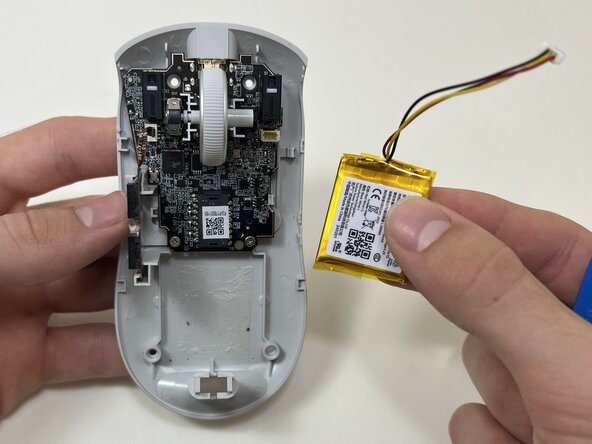
      • The battery is glued to the case.

      • Use an opening tool or spudger to loosen the adhesive under the battery.

      • Remove the battery.

      Ask FixBot

      Add Comment

    1. Alienware Pro Wireless Gaming Mouse Motherboard Replacement, Side Button: step 7, image 1 of 2 Alienware Pro Wireless Gaming Mouse Motherboard Replacement, Side Button: step 7, image 2 of 2
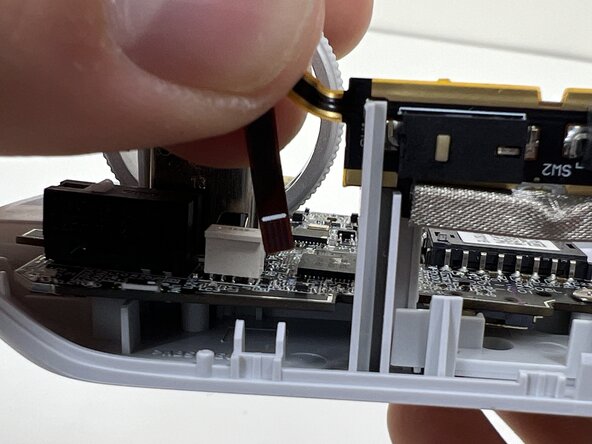
      • Pinch the upper part of the ribbon cable.

      • Pull the ribbon cable gently to detach it from the socket on the motherboard.

      • Make sure the ribbon line is facing the correct direction when reassembling the controller.

      Ask FixBot

      Add Comment

    2. Alienware Pro Wireless Gaming Mouse Motherboard Replacement: step 8, image 1 of 2 Alienware Pro Wireless Gaming Mouse Motherboard Replacement: step 8, image 2 of 2
      • Lift the side button panel from the plastic frame.

      Ask FixBot

      Add Comment

    1. Alienware Pro Wireless Gaming Mouse Motherboard Replacement, Scroll Wheel: step 9, image 1 of 3 Alienware Pro Wireless Gaming Mouse Motherboard Replacement, Scroll Wheel: step 9, image 2 of 3 Alienware Pro Wireless Gaming Mouse Motherboard Replacement, Scroll Wheel: step 9, image 3 of 3
      • Hold the scroll wheel encoder steady and gently pull the scroll wheel to the right to remove it.

      • Only light force is needed—be gentle to avoid damaging nearby parts.

      Ask FixBot

      Add Comment

    1. Alienware Pro Wireless Gaming Mouse Motherboard Replacement, Motherboard: step 10, image 1 of 1
      • Use a Phillips #00 screwdriver to remove the two 5 mm screws at the bottom of the motherboard.

      Ask FixBot

      Add Comment

    2. Alienware Pro Wireless Gaming Mouse Motherboard Replacement: step 11, image 1 of 1
      • Gently pull the side clip away from the motherboard to release it from the plastic frame.

      • Use a spudger to release the board from the clips if that is easier.

      Ask FixBot

      Add Comment

    3. Alienware Pro Wireless Gaming Mouse Motherboard Replacement: step 12, image 1 of 2 Alienware Pro Wireless Gaming Mouse Motherboard Replacement: step 12, image 2 of 2
      • Bend the front nose of the mouse body to release the motherboard.

      • Remove the motherboard from the bottom case.

      Ask FixBot

      Add Comment

Conclusion

To reassemble your device, follow these instructions in reverse order. Take your e-waste to an R2 or e-Stewards certified recycler.

Cancel: I did not complete this guide.

Matt Seay

Member since: 09/29/25

407 Reputation

3 Guides authored

0 Guide Comments

Add Comment

View Statistics:

Past 24 Hours: 2

Past 7 Days: 14

Past 30 Days: 62

All Time: 317