
Alienware M17x RAM Replacement

Mosier Locke and
Last updated on Dec 31, 2018
Views: 1.1K
View statistics:
- Past 24 Hours:
- 2
- Past 7 Days:
- 9
- Past 30 Days:
- 65
- All Time:
- 1,080
Comments: 1
1 guide comment.
Go to guide commentsCompleted: 1 2
1 person has marked this guide "completed." Will you be next?
2 people have marked this guide "completed." Including you — great job!
Favorites: 0 1
No one has favorited (and subscribed to) this guide. Will you be the first?
1 person has favorited (and subscribed to) this guide — and that's you!
What you need
Tools


Introduction
Go to step 1 ↓If your RAM can't keep up with the demands of today's mundane and daily tasks, use this guide to remove and replace your RAM cards.
-
-
-
Remove the two 3.5 mm Phillips #0 screws holding the cover in place.
-
Slide cover forward then carefully lift up.
-
-
-
-
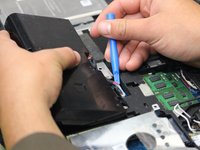
Carefully use the Plastic Opening Tool to unplug the battery.
-
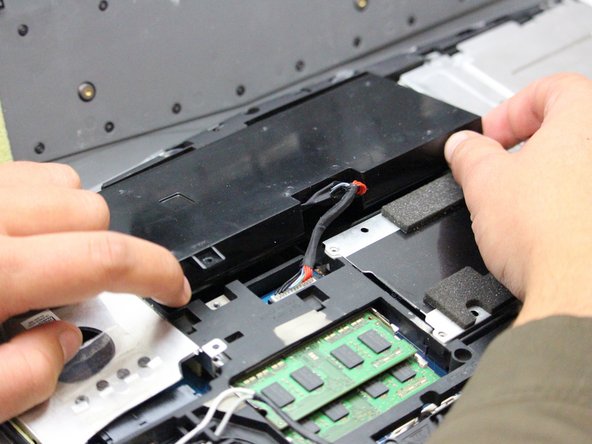
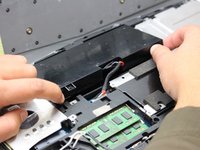
Lift the battery up and out to remove.
-
-
-
-
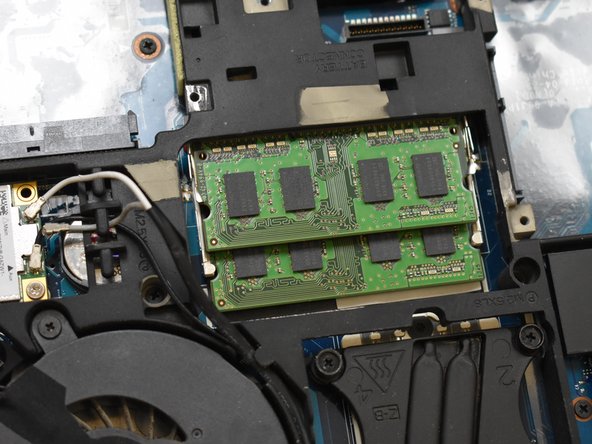
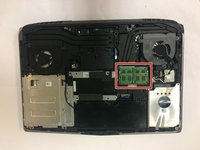
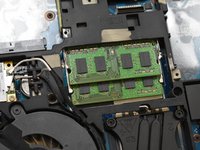
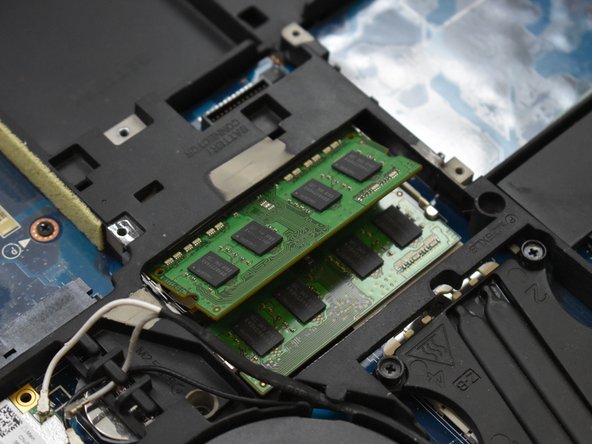
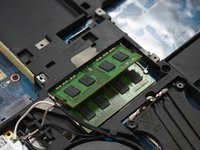
With the laptop flipped over, cover removed, and battery removed; continue by locating your RAM cards.
-
-
-
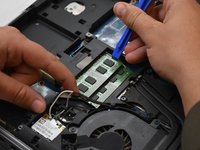
Remove the top RAM card by pressing the tabs to the sides using the Plastic Opening Tool.
-
Once the top card has popped up, carefully remove it by holding the sides and sliding it out.
-
-


 Ask FixBot





To reassemble your device, follow these instructions in reverse order.
Cancel: I did not complete this guide.
One other person completed this guide.

Team

Oregon Institute of Technology, Team S1-G2, Lancaster Fall 2018 Member of Oregon Institute of Technology, Team S1-G2, Lancaster Fall 2018
OIT-LANCASTER-F18S1G2
3 Members
60 Guides authored
1 Guide Comment
The only problem is that this laptop has 4 slots of ram there are 2 more under the keyboard that must also be accessed to update. If anyone wants to know how I know it’s because I have this laptop and I have seen where the next lot of ram is located
