Free Shipping on Domestic Orders $75+

Alienware AW510H Headphone Driver Replacement

What you need

  1. Alienware AW510H Headphone Driver Replacement, Earpad Cushions: step 1, image 1 of 1
    • Hold the earcup with one hand and firmly grip the ear pad with the other.

    Ask FixBot

    Add Comment

  2. Alienware AW510H Headphone Driver Replacement: step 2, image 1 of 3 Alienware AW510H Headphone Driver Replacement: step 2, image 2 of 3 Alienware AW510H Headphone Driver Replacement: step 2, image 3 of 3
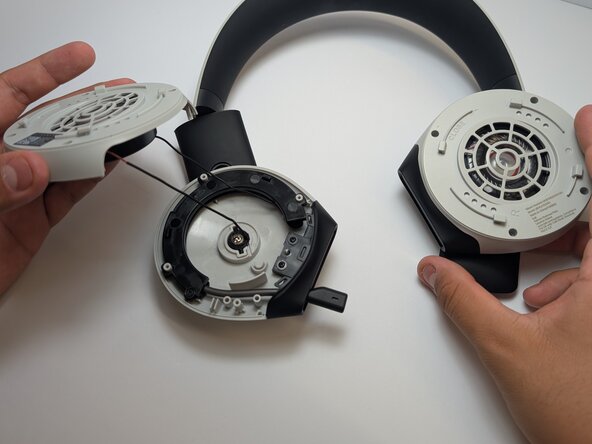
    • Rotate the earcup counter-clockwise before pulling it away from the headset.

    Ask FixBot

    Add Comment

  3. Alienware AW510H Headphone Driver Replacement, Microphone Assembly: step 3, image 1 of 2 Alienware AW510H Headphone Driver Replacement, Microphone Assembly: step 3, image 2 of 2
    • Remove the four 8.5mm screws found on the base of the left ear cup housing using a Phillips #0 screwdriver.

    Ask FixBot

    Add Comment

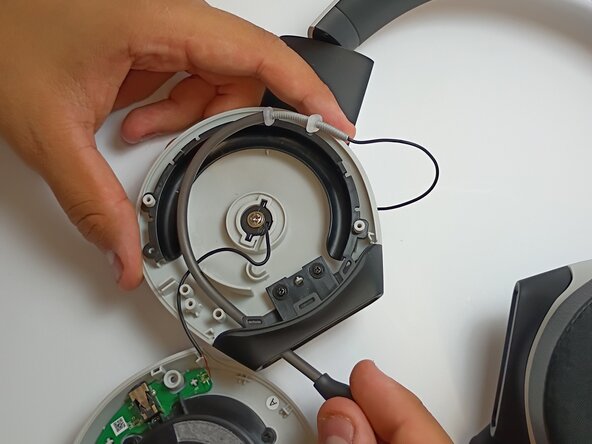
  4. Alienware AW510H Headphone Driver Replacement: step 4, image 1 of 1
    • Gently lift the plastic shell, being cautious of the wire that is still attached.

    Ask FixBot

    Add Comment

  5. Alienware AW510H Headphone Driver Replacement: step 5, image 1 of 1
    • Remove the 5mm screw from the microphone cover using a Phillips #1 screwdriver.

    • Follow the microphone boom connection to the driver and motherboard.

    • The retractable and bendable microphone is located on the left side.

    Ask FixBot

    Add Comment

  6. Alienware AW510H Headphone Driver Replacement: step 6, image 1 of 1
    • If there is a protective plastic or glue coating on top of the solder, scrape it off using a metal spudger before desoldering.

    Ask FixBot

    Add Comment

  7. Alienware AW510H Headphone Driver Replacement: step 7, image 1 of 1
    • Use a soldering iron to disconnect the wire connecting the microphone to the motherboard.

    Ask FixBot

    Add Comment

  8. Alienware AW510H Headphone Driver Replacement: step 8, image 1 of 3 Alienware AW510H Headphone Driver Replacement: step 8, image 2 of 3 Alienware AW510H Headphone Driver Replacement: step 8, image 3 of 3
    • Pull the old microphone assembly out of the housing.

    • If the mechanism is stuck inside, gently push it out from inside the housing, perhaps with the help of tweezers or small needle nose pliers.

    Ask FixBot

    Add Comment

  9. Alienware AW510H Headphone Driver Replacement, Headphone Driver: step 9, image 1 of 2 Alienware AW510H Headphone Driver Replacement, Headphone Driver: step 9, image 2 of 2
    • Remove the three 6mm screws from the plastic cover using a Phillips #1 screwdriver.

    • Remove the single 10mm screw from the plastic shell using a Phillips #1 screwdriver.

    Ask FixBot

    Add Comment

  10. Alienware AW510H Headphone Driver Replacement: step 10, image 1 of 2 Alienware AW510H Headphone Driver Replacement: step 10, image 2 of 2
    • Remove the plastic cover.

    Ask FixBot

    Add Comment

  11. Alienware AW510H Headphone Driver Replacement: step 11, image 1 of 3 Alienware AW510H Headphone Driver Replacement: step 11, image 2 of 3 Alienware AW510H Headphone Driver Replacement: step 11, image 3 of 3
    • Gently pry the driver from the plastic casing using a Jimmy.

    Ask FixBot

    Add Comment

  12. Alienware AW510H Headphone Driver Replacement: step 12, image 1 of 3 Alienware AW510H Headphone Driver Replacement: step 12, image 2 of 3 Alienware AW510H Headphone Driver Replacement: step 12, image 3 of 3
    • Use a soldering iron to disconnect the wire connecting the driver to the motherboard.

    Ask FixBot

    Add Comment

Conclusion

To reassemble your device, follow these instructions in reverse order.

Cancel: I did not complete this guide.

One other person completed this guide.

Elias Mireles

Member since: 02/25/26

259 Reputation

1 Guide authored

0 Guide Comments

Add Comment

View Statistics:

Past 24 Hours: 1

Past 7 Days: 1

Past 30 Days: 18

All Time: 97