Free Shipping on Domestic Orders $75+

Alienware 17 R4 Wi-Fi Card Replacement

What you need

  1. Alienware 17 R4 Wi-Fi Card Replacement, Base Cover: step 1, image 1 of 1
    • Use a PH1 screwdriver bit to remove the six M2.5x13 screws (2.4 mm) on the back of the laptop.

    • Use a PH1 screwdriver bit to loosen the one M2x3 screw (1.9 mm).

    • The M2x3 screw (1.9 mm) does not come out completely.

    Ask FixBot

    Add Comment

  2. Alienware 17 R4 Wi-Fi Card Replacement: step 2, image 1 of 2 Alienware 17 R4 Wi-Fi Card Replacement: step 2, image 2 of 2
    • Pull the base cover up to remove it.

    • If you are having trouble, insert a plastic opening tool into the divots along the laptop's edges to loosen.

    • Removing the cover may require some force.

    Ask FixBot

    Add Comment

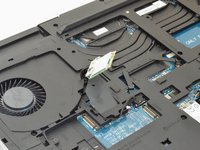
  3. Alienware 17 R4 Wi-Fi Card Replacement, Wi-Fi card: step 3, image 1 of 1
    • Locate the WI-FI card.

    Ask FixBot

    Add Comment

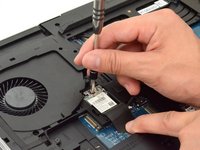
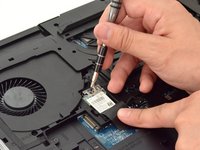
  4. Alienware 17 R4 Wi-Fi Card Replacement: step 4, image 1 of 2 Alienware 17 R4 Wi-Fi Card Replacement: step 4, image 2 of 2
    • Peel back plastic cover of wi-fi card.

    • Use a PH1 screwdriver bit and remove the one M2x3 screw (1.9 mm)

    Ask FixBot

    Add Comment

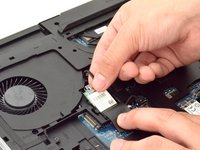
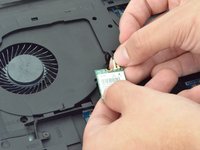
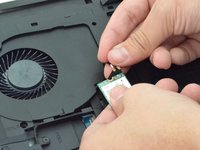
  5. Alienware 17 R4 Wi-Fi Card Replacement: step 5, image 1 of 3 Alienware 17 R4 Wi-Fi Card Replacement: step 5, image 2 of 3 Alienware 17 R4 Wi-Fi Card Replacement: step 5, image 3 of 3
    • Gently undo the clips attached to the wi-fi card.

    • If the clip is not gently removed it is possible that the entire base will be torn off the wi-fi card. You will need to purchase a new wi-fi card if this occurs.

    Ask FixBot

    Add Comment

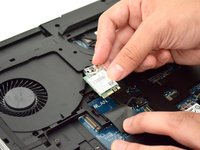
  6. Alienware 17 R4 Wi-Fi Card Replacement: step 6, image 1 of 2 Alienware 17 R4 Wi-Fi Card Replacement: step 6, image 2 of 2
    • Locate the cables that connect the wi-fi card.

    • Gently pull upwards to remove cables and slide the wi-fi card out from its slot.

    Ask FixBot

    Add Comment

Conclusion

To reassemble your device, follow these instructions in reverse order.

Cancel: I did not complete this guide.

One other person completed this guide.

Hector Mendez III

Member since: 09/11/17

1,352 Reputation

8 Guides authored

Team

CSU Fullerton, Team S2-G4, Bruce Fall 2017 Member of CSU Fullerton, Team S2-G4, Bruce Fall 2017

CSUF-BRUCE-F17S2G4

4 Members

11 Guides authored

1 Guide Comment

What is the logic for removing the HHD prior to removing the WIFI card?

Roderick Vanderzalm - Reply Share

Add Comment

View Statistics:

Past 24 Hours: 0

Past 7 Days: 9

Past 30 Days: 54

All Time: 5,861