Free Shipping on Domestic Orders $75+

AirPods Max Bluetooth Board Replacement

What you need

  1. AirPods Max Bluetooth Board Replacement, Prepare your headset for disassembly: step 1, image 1 of 2 AirPods Max Bluetooth Board Replacement, Prepare your headset for disassembly: step 1, image 2 of 2
    • Before starting your repair:

    • Unplug and remove all cables and accessories.

    • To help stabilize the ear cups and prevent scratching them, consider placing your AirPods Max on a soft, clean cloth.

  2. AirPods Max Bluetooth Board Replacement, Remove the left earpad: step 2, image 1 of 2 AirPods Max Bluetooth Board Replacement, Remove the left earpad: step 2, image 2 of 2
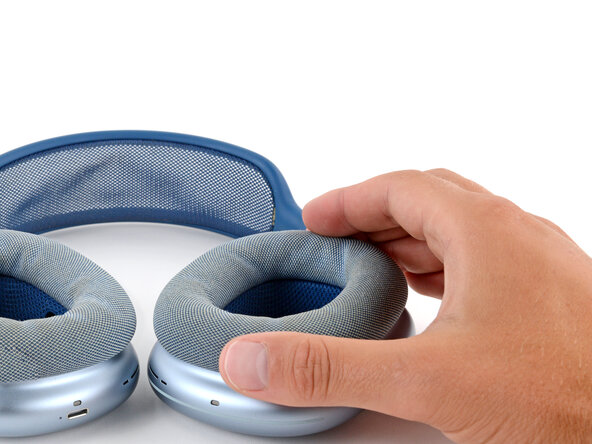
    • The earpads are secured with magnets.

    • Lift the left earpad (labeled L) straight up and remove it.

  3. AirPods Max Bluetooth Board Replacement, Remove the left ear cup: step 3, image 1 of 3 AirPods Max Bluetooth Board Replacement, Remove the left ear cup: step 3, image 2 of 3 AirPods Max Bluetooth Board Replacement, Remove the left ear cup: step 3, image 3 of 3
    • Removing the ear cup isn’t required, but can make the repair easier. You can leave the cup attached and remove it later if needed.

    • Insert a SIM eject tool, bit, or a small, straightened paperclip into the hole on the top edge of the right ear cup (labeled L).

    • Push down with your tool and pull the headband connector straight out of its socket.

    • The headband connector should slide out easily. If you're having trouble, reposition the tool and try again—you may need to angle the bit slightly.

  4. AirPods Max Bluetooth Board Replacement, Set the left ear cup down: step 4, image 1 of 1
    • Set the left ear cup down on a soft, clean cloth to prevent scratches and help stabilize the cup during your repair.

  5. AirPods Max Bluetooth Board Replacement, Turn the housing screws to the open position: step 5, image 1 of 2 AirPods Max Bluetooth Board Replacement, Turn the housing screws to the open position: step 5, image 2 of 2
    • Turn these screws slowly and gently, stopping when you feel resistance—about 1/4 turn. If turned too far, the locking mechanism will break.

    • Use a P5 pentalobe screwdriver to turn (not remove) the four speaker housing screws to the unlocked position:

    • Turn the top left and bottom right screws counterclockwise.

    • Turn the top right and bottom left screws clockwise.

  6. AirPods Max Bluetooth Board Replacement, Soften the speaker housing adhesive: step 6, image 1 of 3 AirPods Max Bluetooth Board Replacement, Soften the speaker housing adhesive: step 6, image 2 of 3 AirPods Max Bluetooth Board Replacement, Soften the speaker housing adhesive: step 6, image 3 of 3
    Tool used on this step:
    iOpener
    $14.95
    Buy
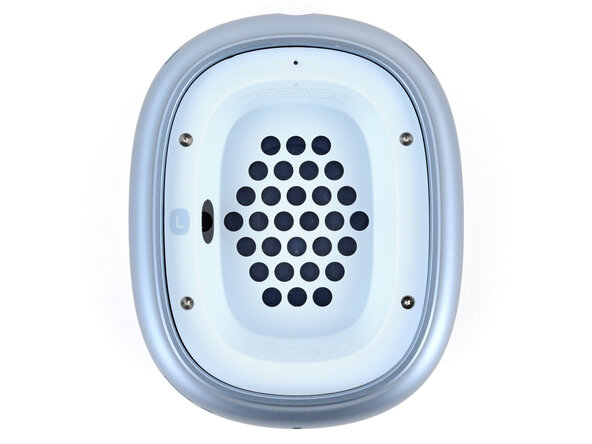
    • The perimeter of the speaker housing is secured to the cup with adhesive. This step shows a few methods to soften the adhesive so you can pry up the housing. If one isn't working, try a different method.

    • Option 1: Apply a few drops of high-concentration isopropyl alcohol (>90%) in the gap around the perimeter of the speaker housing. Wait one minute to allow the alcohol to soften the adhesive.

    • Option 2: Heat the speaker housing with an iOpener or hair dryer. Focus the heat around the perimeter, applying small amounts for short periods of time.

    • Don't heat the center of the speaker housing, or you'll damage the fragile mesh under the speaker cutouts and possibly the speaker.

    • For a detailed look at best practices for using a hair dryer, check out this guide.

  7. AirPods Max Bluetooth Board Replacement, Pry up the speaker housing: step 7, image 1 of 3 AirPods Max Bluetooth Board Replacement, Pry up the speaker housing: step 7, image 2 of 3 AirPods Max Bluetooth Board Replacement, Pry up the speaker housing: step 7, image 3 of 3
    Tool used on this step:
    iSesamo Opening Tool
    $9.99
    Buy
    • The gap between the speaker housing and ear cup is extremely small. You'll need a thin tool such as a metal opening pick, iSesamo, or iFlex to pry up the housing.

    • Don't grip the iFlex or similar metal tools by the edges—they're sharp and may cut you. Consider wearing gloves to protect yourself.

    • Insert the flat side of your opening tool into the gap between the right side of the speaker housing and the lip of the ear cup (opposite the L marking).

    • Pry up the speaker housing until you can grip it with your fingers, applying constant pressure to allow the adhesive to separate.

    • If the housing isn't coming up, repeat the previous step and try again. Don't try and force the housing out or you may damage it.

  8. AirPods Max Bluetooth Board Replacement: step 8, image 1 of 3 AirPods Max Bluetooth Board Replacement: step 8, image 2 of 3 AirPods Max Bluetooth Board Replacement: step 8, image 3 of 3
    • Don't try to fully remove the speaker housing yet—a delicate ribbon cable still connects it to the ear cup.

    • Lift the speaker housing out of the ear cup to fully separate the remaining adhesive.

    • Flip the housing over the side of the cup and prop it up so you can access the cable.

  9. AirPods Max Bluetooth Board Replacement, Remove the speaker housing cable cover: step 9, image 1 of 2 AirPods Max Bluetooth Board Replacement, Remove the speaker housing cable cover: step 9, image 2 of 2
    Tool used on this step:
    FixMat
    $36.95
    Buy
    • Don’t let any screws snap onto the speaker driver diaphragm or they'll damage it. The screws will be drawn towards the center by the speaker's magnet.

    • Remove the four screws securing the cable cover:

    • One 7.5 mm‑long Torx Plus 3IP screw

    • Three 1.7 mm‑long Torx Plus 1IP screws

    • Throughout this repair, keep track of each screw and make sure it goes back exactly where it came from.

  10. AirPods Max Bluetooth Board Replacement: step 10, image 1 of 3 AirPods Max Bluetooth Board Replacement: step 10, image 2 of 3 AirPods Max Bluetooth Board Replacement: step 10, image 3 of 3
    • Use tweezers to slightly lift the cover and slide it towards the center of the ear cup to remove it.

  11. AirPods Max Bluetooth Board Replacement, Disconnect the speaker housing: step 11, image 1 of 2 AirPods Max Bluetooth Board Replacement, Disconnect the speaker housing: step 11, image 2 of 2
    • Use a spudger to pry up and disconnect the speaker housing press connector.

  12. AirPods Max Bluetooth Board Replacement, Remove the speaker housing: step 12, image 1 of 1
    • Remove the speaker housing.

  13. AirPods Max Bluetooth Board Replacement, Remove the speaker driver screws: step 13, image 1 of 3 AirPods Max Bluetooth Board Replacement, Remove the speaker driver screws: step 13, image 2 of 3 AirPods Max Bluetooth Board Replacement, Remove the speaker driver screws: step 13, image 3 of 3
    • Grip the screws with tweezers while loosening and removing them. Don’t let the screws snap onto the diaphragm.

    • Use a Torx Plus 3IP screwdriver to remove three speaker driver screws:

    • Two 6.0 mm‑long screws

    • One 6.0 mm‑long screw that's slightly thicker than the other two

    • Remove the 5.1 mm‑long standoff screw using one of the two methods below:

    • Apply constant downward force to avoid damaging the screw.

    • Option 1: Stick a small flathead screwdriver into one of the four notches on top of the screw and use it to slowly turn the screw.

    • Option 2: Use a Torq-Set 6 screwdriver to remove the screw, applying constant downward force to avoid damaging the screw.

  14. AirPods Max Bluetooth Board Replacement, Remove the speaker driver: step 14, image 1 of 3 AirPods Max Bluetooth Board Replacement, Remove the speaker driver: step 14, image 2 of 3 AirPods Max Bluetooth Board Replacement, Remove the speaker driver: step 14, image 3 of 3
    • Lift the right edge of the speaker and remove it, being careful not to touch the diaphragm.

    • Set the speaker aside in a place where it won't attract small metal objects.

  15. AirPods Max Bluetooth Board Replacement, Remove the connector cover: step 15, image 1 of 2 AirPods Max Bluetooth Board Replacement, Remove the connector cover: step 15, image 2 of 2
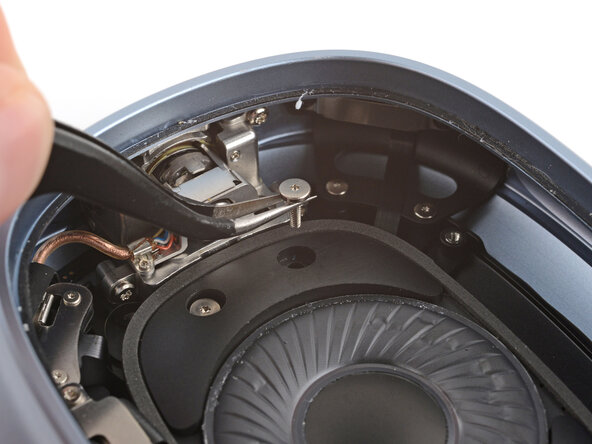
    • Remove the two Bluetooth board connector cover screws:

    • One 7.5 mm‑long Torx Plus 3IP screw

    • One 1.7 mm‑long Torx Plus 1IP screw

  16. AirPods Max Bluetooth Board Replacement: step 16, image 1 of 3 AirPods Max Bluetooth Board Replacement: step 16, image 2 of 3 AirPods Max Bluetooth Board Replacement: step 16, image 3 of 3
    • Use tweezers to slightly lift the cover and slide it towards the center of the ear cup to remove it.

  17. AirPods Max Bluetooth Board Replacement, Disconnect the Bluetooth board: step 17, image 1 of 2 AirPods Max Bluetooth Board Replacement, Disconnect the Bluetooth board: step 17, image 2 of 2
    • Use a spudger to pry up and disconnect the press connector from under the cover you just removed.

  18. AirPods Max Bluetooth Board Replacement: step 18, image 1 of 2 AirPods Max Bluetooth Board Replacement: step 18, image 2 of 2
    • Use a spudger to pry up and disconnect the press connector on the other end of the board.

  19. AirPods Max Bluetooth Board Replacement: step 19, image 1 of 2 AirPods Max Bluetooth Board Replacement: step 19, image 2 of 2
    • Slide one arm of your angled tweezers under the metal neck of the coaxial connector (next to the one from the previous step) and lift straight up to disconnect it.

  20. AirPods Max Bluetooth Board Replacement: step 20, image 1 of 2 AirPods Max Bluetooth Board Replacement: step 20, image 2 of 2
    • Use the point of a spudger to gently pull the copper hinge cable (in plastic tubing) out of its clip.

  21. AirPods Max Bluetooth Board Replacement, Remove the Bluetooth board screw: step 21, image 1 of 2 AirPods Max Bluetooth Board Replacement, Remove the Bluetooth board screw: step 21, image 2 of 2
    • Use a Torx Plus 1IP screwdriver to remove the 3.0 mm‑long screw securing the Bluetooth board.

  22. AirPods Max Bluetooth Board Replacement, Reposition the Bluetooth board: step 22, image 1 of 3 AirPods Max Bluetooth Board Replacement, Reposition the Bluetooth board: step 22, image 2 of 3 AirPods Max Bluetooth Board Replacement, Reposition the Bluetooth board: step 22, image 3 of 3
    • Don't try to fully remove the board yet, as a cable still connects it.

    • Stick the point of a spudger into the baord's screw hole near the hinge and pull the board towards the center of the ear cup.

    • Use your fingers to flip the board over the side so you can access the remaining connector.

  23. AirPods Max Bluetooth Board Replacement, Disconnect the Bluetooth board: step 23, image 1 of 3 AirPods Max Bluetooth Board Replacement, Disconnect the Bluetooth board: step 23, image 2 of 3 AirPods Max Bluetooth Board Replacement, Disconnect the Bluetooth board: step 23, image 3 of 3
    • Disconnecting the power board cable is tricky and may take a few tries. Don't try to disconnect it by pulling on the cable, or you may cause damage.

    • Use the point of a spudger to press on alternating sides of the sliding connector tabs to "walk" it out of the socket.

  24. AirPods Max Bluetooth Board Replacement, Remove the Bluetooth board: step 24, image 1 of 1
    • Remove the Bluetooth board.

  25. AirPods Max Bluetooth Board Replacement, Disassembly complete: step 25, image 1 of 1
    • Congratulations on completing disassembly! The remaining steps will show how to reassemble your AirPods Max.

  26. AirPods Max Bluetooth Board Replacement, Connect the Bluetooth board: step 26, image 1 of 2 AirPods Max Bluetooth Board Replacement, Connect the Bluetooth board: step 26, image 2 of 2
    • Use the point of a spudger to push on alternating sides of the copper cable's connector until it slides fully into the socket on the underside of the power board.

    • Don't grip the cable and push it into the socket—you'll likely damage the cable.

    • The connector should slide in fairly easily when oriented correctly. If it doesn't, flip the connector over and try again.

  27. AirPods Max Bluetooth Board Replacement, Slide the Bluetooth board into place: step 27, image 1 of 3 AirPods Max Bluetooth Board Replacement, Slide the Bluetooth board into place: step 27, image 2 of 3 AirPods Max Bluetooth Board Replacement, Slide the Bluetooth board into place: step 27, image 3 of 3
    • Slide the Bluetooth board into its recess, making sure none of the cables that connect to it get trapped underneath.

    • You may need to use a spudger to hold cables out of the way while inserting the board.

  28. AirPods Max Bluetooth Board Replacement, Install the Bluetooth board screw: step 28, image 1 of 3 AirPods Max Bluetooth Board Replacement, Install the Bluetooth board screw: step 28, image 2 of 3 AirPods Max Bluetooth Board Replacement, Install the Bluetooth board screw: step 28, image 3 of 3
    • Use a Torx Plus 1IP screwdriver to install the 3.0 mm‑long screw securing the Bluetooth board.

    • Make sure you're installing the screw in the correct spot as shown in the photo.

  29. AirPods Max Bluetooth Board Replacement: step 29, image 1 of 2 AirPods Max Bluetooth Board Replacement: step 29, image 2 of 2
    • Use a spudger to gently push the copper hinge cable into its clip.

    • If you're having trouble, don't force the cable into the clip. Reposition it slightly and try again.

  30. AirPods Max Bluetooth Board Replacement, Reconnect the Bluetooth board: step 30, image 1 of 1
    • Use your finger to press down and connect the press connector on the board (nearest the hinge).

  31. AirPods Max Bluetooth Board Replacement: step 31, image 1 of 1
    • Use tweezers to hold the coaxial connector in place over its socket and gently press down with a spudger—the connector should "snap" into place.

    • Make sure the cable routes through the inside edge of the screw post.

    • If you're having trouble, reposition the connector and try again. Don't try to force the connector into place or you may permanently damage it.

  32. AirPods Max Bluetooth Board Replacement: step 32, image 1 of 1
    • Use a spudger or your finger to press down and reconnect the press connector next to the one you just connected.

  33. AirPods Max Bluetooth Board Replacement: step 33, image 1 of 3 AirPods Max Bluetooth Board Replacement: step 33, image 2 of 3 AirPods Max Bluetooth Board Replacement: step 33, image 3 of 3
    • Slide the tab on the connector cover into its slot and lay the cover down.

  34. AirPods Max Bluetooth Board Replacement: step 34, image 1 of 2 AirPods Max Bluetooth Board Replacement: step 34, image 2 of 2
    • Install the two Bluetooth board connector cover screws:

    • One 7.5 mm‑long Torx Plus 3IP screw

    • One 1.7 mm‑long Torx Plus 1IP screw

  35. AirPods Max Bluetooth Board Replacement, Lay the speaker driver in place: step 35, image 1 of 3 AirPods Max Bluetooth Board Replacement, Lay the speaker driver in place: step 35, image 2 of 3 AirPods Max Bluetooth Board Replacement, Lay the speaker driver in place: step 35, image 3 of 3
    • Gently lay the speaker driver into place, making sure the side with gold connector pins lines up with the contacts in the shell.

  36. AirPods Max Bluetooth Board Replacement, Install the speaker driver screws: step 36, image 1 of 3 AirPods Max Bluetooth Board Replacement, Install the speaker driver screws: step 36, image 2 of 3 AirPods Max Bluetooth Board Replacement, Install the speaker driver screws: step 36, image 3 of 3
    • Grip the screws with tweezers while installing them so they don't snap onto the speaker.

    • Use a Torx Plus 3IP screwdriver to install three speaker driver screws:

    • One 6.0 mm‑long screw that's slightly thicker than the other two

    • Two 6.0 mm‑long screws

    • Install the 5.1 mm‑long standoff screw using a small flathead or Torq-Set 6 screwdriver.

    • Apply constant downward force to avoid damaging the screw.

  37. AirPods Max Bluetooth Board Replacement, Replace the speaker housing adhesive: step 37, image 1 of 3 AirPods Max Bluetooth Board Replacement, Replace the speaker housing adhesive: step 37, image 2 of 3 AirPods Max Bluetooth Board Replacement, Replace the speaker housing adhesive: step 37, image 3 of 3
    • Before installing the speaker housing, check the condition of its adhesive—it will be on the underside of the housing, on the metal lip of the ear cup, or on both.

    • Use tweezers and scissors to remove any sections of bunched-up or overlapping adhesive that would prevent the housing from sitting perfectly flat.

    • Try to remove as little adhesive as possible. If all the adhesive looks fine, you can skip this step.

    • Apply thin, double-sided adhesive where you removed the original, using short sections to help match the curve of the lip.

    • Don't remove the top adhesive liners yet—the adhesive should not be exposed.

    • Make sure not to double up on any sections (i.e. don't apply adhesive on the ear cup if it's already on the corresponding spot on the housing).

  38. AirPods Max Bluetooth Board Replacement, Reconnect the speaker housing: step 38, image 1 of 2 AirPods Max Bluetooth Board Replacement, Reconnect the speaker housing: step 38, image 2 of 2
    • Hold the speaker housing up and use your finger to press down and reconnect its press connector.

  39. AirPods Max Bluetooth Board Replacement, Install the connector cover: step 39, image 1 of 3 AirPods Max Bluetooth Board Replacement, Install the connector cover: step 39, image 2 of 3 AirPods Max Bluetooth Board Replacement, Install the connector cover: step 39, image 3 of 3
    • Slide the tab on the connector cover into its slot and lay the cover down.

    • Make sure the cover isn't covering the cable. Otherwise, it will get damaged when installing the screws.

  40. AirPods Max Bluetooth Board Replacement: step 40, image 1 of 2 AirPods Max Bluetooth Board Replacement: step 40, image 2 of 2
    • Install the four screws securing the cable cover:

    • One 7.5 mm‑long Torx Plus 3IP screw

    • Three 1.7 mm‑long Torx Plus 1IP screws

  41. AirPods Max Bluetooth Board Replacement, Install the speaker housing: step 41, image 1 of 3 AirPods Max Bluetooth Board Replacement, Install the speaker housing: step 41, image 2 of 3 AirPods Max Bluetooth Board Replacement, Install the speaker housing: step 41, image 3 of 3
    • If you installed replacement adhesive, remove any liners to expose the adhesive.

    • Flip the speaker housing into the cup and press it into place around the perimeter.

    • Don't press on the center of the housing or you may damage the grille and/or speaker underneath.

  42. AirPods Max Bluetooth Board Replacement, Turn the housing screws to the closed position: step 42, image 1 of 2 AirPods Max Bluetooth Board Replacement, Turn the housing screws to the closed position: step 42, image 2 of 2
    • Turn these screws slowly and gently, stopping when you feel resistance—about 1/4 turn. If turned too far, the locking mechanism will break.

    • Use a P5 pentalobe screwdriver to turn the four speaker housing screws to the locked position:

    • Turn the top left and bottom right screws clockwise.

    • Turn the top right and bottom left screws counterclockwise.

  43. AirPods Max Bluetooth Board Replacement, Install the left ear cup: step 43, image 1 of 3 AirPods Max Bluetooth Board Replacement, Install the left ear cup: step 43, image 2 of 3 AirPods Max Bluetooth Board Replacement, Install the left ear cup: step 43, image 3 of 3
    • The headband and ear cup should be oriented in the "closed" position (how they would be when stored in a case) when installing them.

    • Hold the ear cup steady with one hand, and use your free hand to firmly push the headband connector into its slot, twisting it slightly—it should click into place.

    • The connector should slide in easily. If it's not, make sure you're installing the ear cup on the correct side.

  44. AirPods Max Bluetooth Board Replacement, Install the left ear pad: step 44, image 1 of 2 AirPods Max Bluetooth Board Replacement, Install the left ear pad: step 44, image 2 of 2
    • Place the earpad into its cup—it should "snap" into place.

Conclusion

Congratulations on completing your repair!

Take your e-waste to an R2 or e-Stewards certified recycler.

Repair didn’t go as planned? Try some basic troubleshooting, or ask our Answers community for help.

Spencer Day

Member since: 09/14/22

184,434 Reputation

1,166 Guides authored

0 Guide Comments

Add Comment

View Statistics:

Past 24 Hours: 12

Past 7 Days: 62

Past 30 Days: 277

All Time: 459