Free Shipping on Domestic Orders $75+

Afterglow Wireless PS3 Controller Button Replacement

Views: 2.9K

View statistics:

Past 24 Hours:
4
Past 7 Days:
22
Past 30 Days:
108
All Time:
2,946
Comments: 1

1 comment on steps.

Completed: 5

5 people have marked this guide "completed." Will you be next?

Favorites: 0

No one has favorited (and subscribed to) this guide. Will you be the first?

Time Required: 20 minutes
Difficulty: Easy
Afterglow Wireless PS3 Controller Button Replacement

Introduction

Go to step 1 ↓

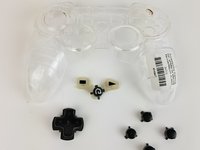
This guide will show the process of removing the back plate, vibration motors, and motherboard to access the buttons on the front of the controller.

What you need

Tools

    1. Afterglow Wireless PS3 Controller Button Replacement, Back Cover: step 1, image 1 of 2 Afterglow Wireless PS3 Controller Button Replacement, Back Cover: step 1, image 2 of 2
      • Lay the controller face down on a flat surface and remove the seven 9mm Phillips #0 screws on the back of the controller.

      • Lift up and remove the controller back plate.

      Ask FixBot

      Add Comment

    1. Afterglow Wireless PS3 Controller Button Replacement, Button: step 2, image 1 of 2 Afterglow Wireless PS3 Controller Button Replacement, Button: step 2, image 2 of 2
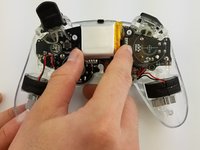
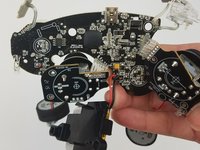
      • Carefully remove the battery by lifting it straight up from its place.

      • Keep in mind that the red and black battery wires are attached to the motherboard. Handle these with care.

      Ask FixBot

      Add Comment

    2. Afterglow Wireless PS3 Controller Button Replacement: step 3, image 1 of 1
      • Unscrew the four 9mm Phillips #0 screws that are attached to both joy stick control mini-motherboards. There are two screws for each mini-motherboard.

      Ask FixBot

      Add Comment

    3. Afterglow Wireless PS3 Controller Button Replacement: step 4, image 1 of 2 Afterglow Wireless PS3 Controller Button Replacement: step 4, image 2 of 2
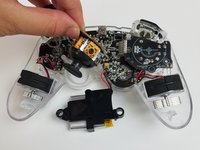
      • Jiggle both joy stick control mini-motherboards out of their holding place.

      • Set aside the mini-motherboards so you can access the main motherboard.

      Ask FixBot

      Add Comment

    4. Afterglow Wireless PS3 Controller Button Replacement: step 5, image 1 of 2 Afterglow Wireless PS3 Controller Button Replacement: step 5, image 2 of 2
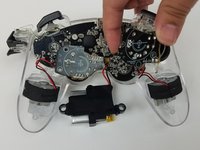
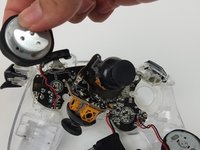
      • Pull both vibration motors straight up from their holding place.

      Ask FixBot

      Add Comment

    5. Afterglow Wireless PS3 Controller Button Replacement: step 6, image 1 of 2 Afterglow Wireless PS3 Controller Button Replacement: step 6, image 2 of 2
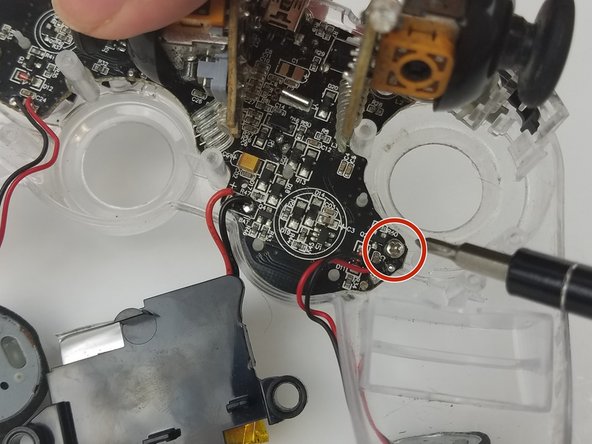
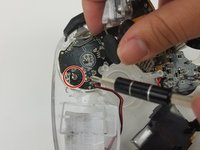
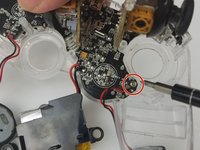
      • Unscrew the two 9mm Phillips #0 screws holding the motherboard to the controller front plate.

      Ask FixBot

      Add Comment

    6. Afterglow Wireless PS3 Controller Button Replacement: step 7, image 1 of 2 Afterglow Wireless PS3 Controller Button Replacement: step 7, image 2 of 2
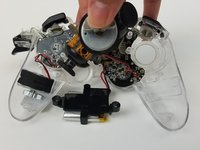
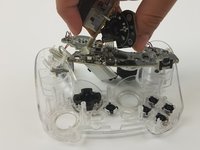
      • Detach the main motherboard fom the front pate by carefully pulling it off.

      • Be careful of the trigger buttons when pulling out the motherboard. The buttons have mini-motherboards secured in place on the front plate. Carefully pull these out.

      Ask FixBot

      Add Comment

    7. Afterglow Wireless PS3 Controller Button Replacement: step 8, image 1 of 3 Afterglow Wireless PS3 Controller Button Replacement: step 8, image 2 of 3 Afterglow Wireless PS3 Controller Button Replacement: step 8, image 3 of 3
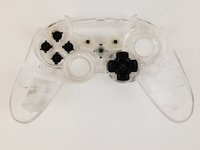
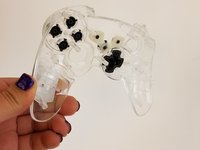
      • Pick up the controller front plate and carefully turn it over so that the buttons left in it will fall out.

      • You may want to flip it while holding it over a container so the buttons do not go bouncing away from your work space.

      Ask FixBot

      Add Comment

Conclusion

To reassemble your device, follow these instructions in reverse order.

Cancel: I did not complete this guide.

5 other people completed this guide.

Aj Coello

Member since: 02/17/17

1,164 Reputation

6 Guides authored

Team

USF Tampa, Team S19-G5, Hoffman Spring 2017 Member of USF Tampa, Team S19-G5, Hoffman Spring 2017

USFT-HOFFMAN-S17S19G5

4 Members

96 Guides authored

0 Guide Comments

Add Comment

View Statistics:

Past 24 Hours: 4

Past 7 Days: 22

Past 30 Days: 108

All Time: 2,946