Free Shipping on Domestic Orders $75+

Acer Travelmate 220 Disc Drive Replacement

What you need

    1. Acer Travelmate 220 Disc Drive Replacement, Disc Drive: step 1, image 1 of 1
      • Flip your computer over so the bottom case is facing you.

      Ask FixBot

      Add Comment

    2. Acer Travelmate 220 Disc Drive Replacement: step 2, image 1 of 1
      • Locate the sliding unlock button near the AC power input.

      Ask FixBot

      Add Comment

    3. Acer Travelmate 220 Disc Drive Replacement: step 3, image 1 of 1
      • Slide the button in the direction of unlock and hold.

      Ask FixBot

      Add Comment

    4. Acer Travelmate 220 Disc Drive Replacement: step 4, image 1 of 1
      • Gently pull the disk drive out.

      Ask FixBot

      Add Comment

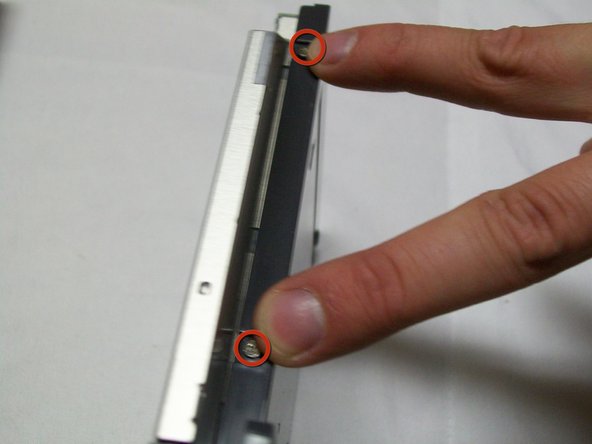
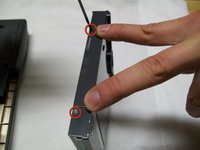
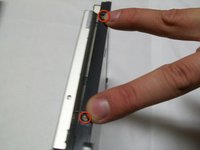
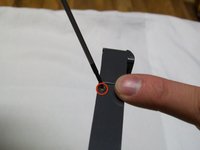
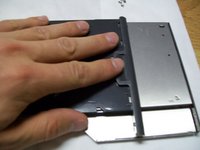
    5. Acer Travelmate 220 Disc Drive Replacement: step 5, image 1 of 3 Acer Travelmate 220 Disc Drive Replacement: step 5, image 2 of 3 Acer Travelmate 220 Disc Drive Replacement: step 5, image 3 of 3
      • Remove the four screws from the sides of the black plastic using a Phillips #00 screwdriver.

      Ask FixBot

      Add Comment

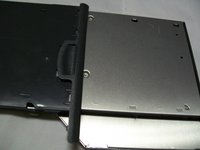
    6. Acer Travelmate 220 Disc Drive Replacement: step 6, image 1 of 2 Acer Travelmate 220 Disc Drive Replacement: step 6, image 2 of 2
      • Remove the black plastic that covers the metal.

      Ask FixBot

      Add Comment

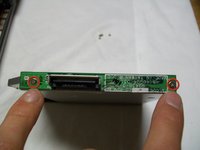
    7. Acer Travelmate 220 Disc Drive Replacement: step 7, image 1 of 1
      • Locate the green chip on the back of the drive.

      Ask FixBot

      Add Comment

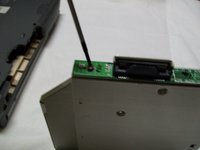
    8. Acer Travelmate 220 Disc Drive Replacement: step 8, image 1 of 2 Acer Travelmate 220 Disc Drive Replacement: step 8, image 2 of 2
      • Remove the two screws securing the green chip.

      Ask FixBot

      Add Comment

    9. Acer Travelmate 220 Disc Drive Replacement: step 9, image 1 of 1
      • Firmly pull off the green chip.

      Ask FixBot

      Add Comment

    10. Acer Travelmate 220 Disc Drive Replacement: step 10, image 1 of 1
      • Insert the green chip in the new disk drive.

      Ask FixBot

      Add Comment

Conclusion

To reassemble your device, follow these instructions in reverse order.

Cancel: I did not complete this guide.

One other person completed this guide.

Justin

Member since: 10/04/11

62 Reputation

1 Guide authored

Team

UW Stout, Team 5-5, Zhou Fall 2011 Member of UW Stout, Team 5-5, Zhou Fall 2011

UWSTOUT-ZHOU-F11S5G5

3 Members

24 Guides authored

0 Guide Comments

Add Comment

View Statistics:

Past 24 Hours: 1

Past 7 Days: 5

Past 30 Days: 31

All Time: 5,308