Introduction
In this guide, you will learn how to replace the RAM for the Acer Nitro AN515-57 laptop in as little as ten minutes with only seven steps. The RAM is a significant part of your laptop that is meant to keep data easily accessible for your processor in order to complete swift processing tasks. Before starting the RAM replacement make sure to keep your laptop on a piece of cloth as the abrasive floor can cause scratches on your laptops back. Also be mindful of static as it can easily damage your laptop. So please keep yourself grounded. YouTube or reddit can be used to find out how to ground yourself.
What you need
-
-
-
Shut-down your laptop and unplug the battery connection.
-
Remove any other device attached to the laptop.
 Ask FixBot
-
-
-
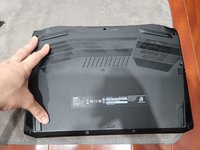
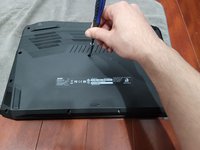
Remove eleven screws from the bottom case of the laptop using a Phillips #00 screwdriver.
-
-
-
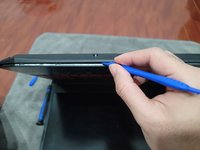
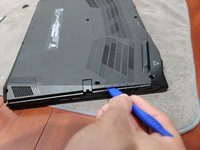
Slide an iFixit opening tool into the front lip of the laptop and slowly move your way around the chassis.
-
-
-
-
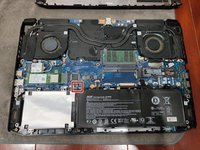
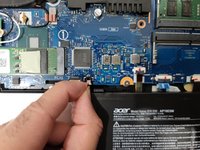
Disconnect the battery by either using the iFixit opening tool or your fingers.
-
-
-
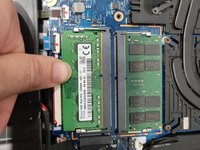
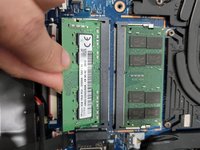
Use your fingers to pull the silver latches on either side of the RAM away from each other.
-
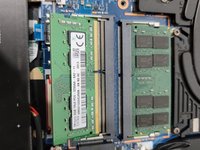
Remove the RAM from the laptop.
-
-
-
Place the back panel on to your laptop and gently press on it until it snaps in place.
-
Screw the back panel back in.
-
-








Cancel: I did not complete this guide.
5 other people completed this guide.

Team

York University, Team S-18, Woodhouse Winter 2022 Member of York University, Team S-18, Woodhouse Winter 2022
YORK-WOODHOUSE-W22SSG18
1 Member
12 Guides authored
