Free Shipping on Domestic Orders $75+

Acer Extensa 4420 Hard Drive Dissasembly

What you need

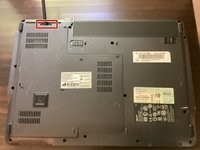
  1. Acer Extensa 4420 Hard Drive Dissasembly, Battery: step 1, image 1 of 2 Acer Extensa 4420 Hard Drive Dissasembly, Battery: step 1, image 2 of 2
    • First, make sure that the battery lock is turned off.

    • The battery lock makes it so the battery doesn't accidentally fall out of your computer while it is running.

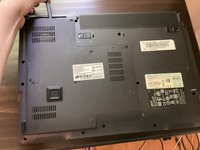
  2. Acer Extensa 4420 Hard Drive Dissasembly: step 2, image 1 of 3 Acer Extensa 4420 Hard Drive Dissasembly: step 2, image 2 of 3 Acer Extensa 4420 Hard Drive Dissasembly: step 2, image 3 of 3
    • Then, slide the other battery lock while pulling the battery out.

  3. Acer Extensa 4420 Hard Drive Dissasembly, Back Panel: step 3, image 1 of 1
    Tool used on this step:
    Phillips #00 Screwdriver
    $5.49
    Buy
    • Unscrew all five screws on the back panel with a Phillips #00 screwdriver

    • The screws will stay in the back panel, so when you remove it, you don't have to worry about organizing the screws.

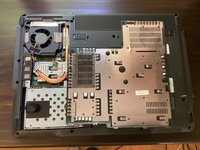
  4. Acer Extensa 4420 Hard Drive Dissasembly: step 4, image 1 of 3 Acer Extensa 4420 Hard Drive Dissasembly: step 4, image 2 of 3 Acer Extensa 4420 Hard Drive Dissasembly: step 4, image 3 of 3
    Tool used on this step:
    Spudger
    $3.99
    Buy
    • Take a spudger and start to pry open the back panel. Finish prying it open with your hands.

    • Be extra careful and try not to break any clips in this process.

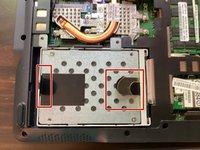
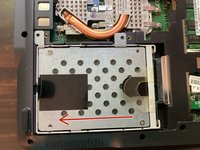
  5. Acer Extensa 4420 Hard Drive Dissasembly, Hard Drive: step 5, image 1 of 1
    • Start by removing these 2 screws.

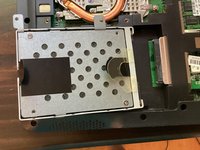
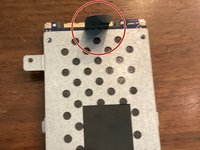
  6. Acer Extensa 4420 Hard Drive Dissasembly: step 6, image 1 of 3 Acer Extensa 4420 Hard Drive Dissasembly: step 6, image 2 of 3 Acer Extensa 4420 Hard Drive Dissasembly: step 6, image 3 of 3
    • Then, pull one of the pull tabs left.

    • This shouldn't take too much force.

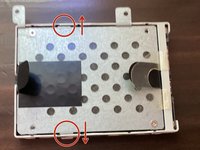
  7. Acer Extensa 4420 Hard Drive Dissasembly, Panel: step 7, image 1 of 1
    Tool used on this step:
    Phillips #00 Screwdriver
    $5.49
    Buy
    • With the hard drive out of the computer, we can start disassembling it.

    • Unscrew these 2 screws with a phillips screwdriver

    • The hard drive is a fragile part. Be careful when handling it.

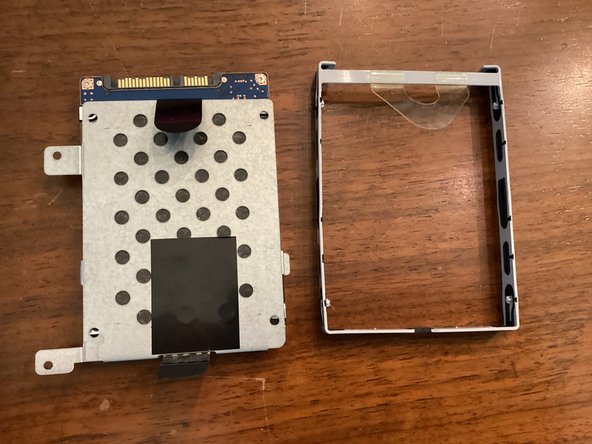
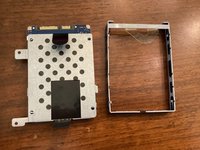
  8. Acer Extensa 4420 Hard Drive Dissasembly, Plastic Case: step 8, image 1 of 2 Acer Extensa 4420 Hard Drive Dissasembly, Plastic Case: step 8, image 2 of 2
    • Then, separate the plastic case from the hard drive in the places indicated.

    • After, the whole plastic case should come off.

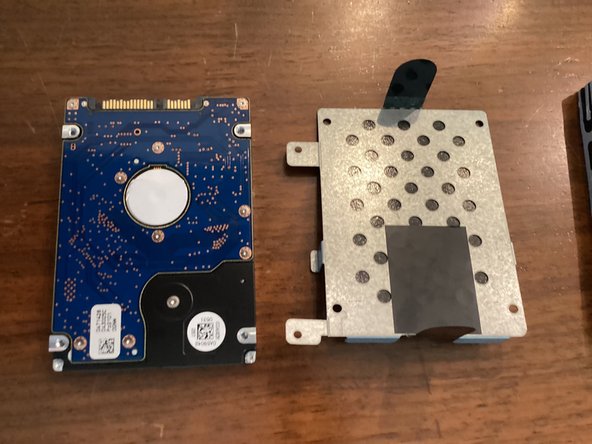
  9. Acer Extensa 4420 Hard Drive Dissasembly, Metal Plate: step 9, image 1 of 2 Acer Extensa 4420 Hard Drive Dissasembly, Metal Plate: step 9, image 2 of 2
    • Take the metal plate off with the pull tab indicated.

    • Be super careful after taking the metal plate off. Under the plate are exposed internals, which can be damaged easily.

Conclusion

To reassemble your device, follow these instructions in reverse order.

TheMasterG

Member since: 07/19/24

1,406 Reputation

12 Guides authored

0 Guide Comments

Add Comment

View Statistics:

Past 24 Hours: 0

Past 7 Days: 0

Past 30 Days: 7

All Time: 126